A summary card is a small recap on your dashboard that tracks one question of your survey. Instead of scanning the whole report table to know how the menu choices are going, you pin "Menu choice" as a card and the running totals are always there when you open the project.
Any member of the project can read the cards; adding, editing, and removing them is reserved for Admins.
Add a summary card
- Open your project's Dashboard.
- In the row of cards at the top, click the dashed Add summary card tile.
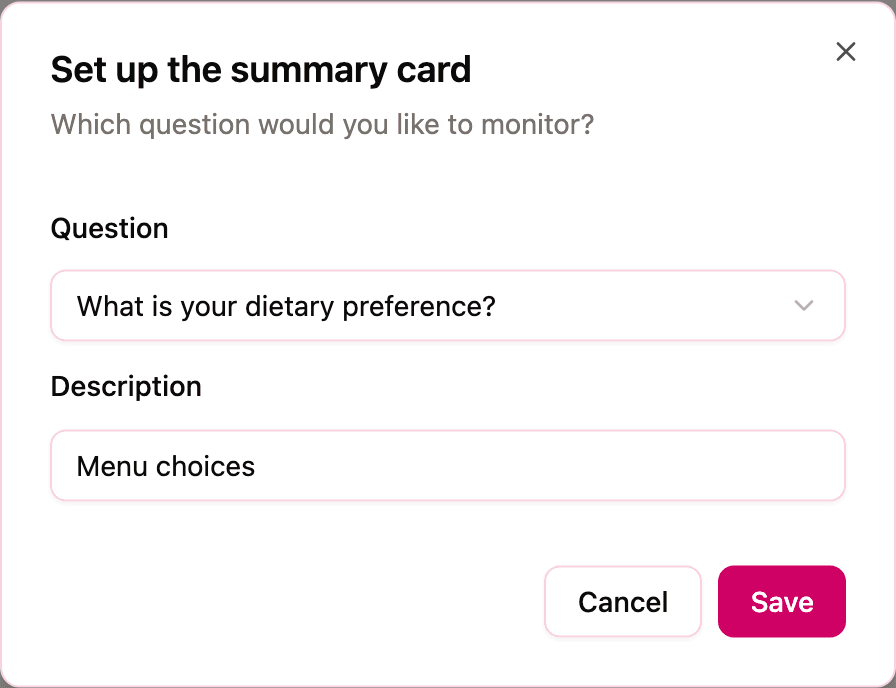
- In the Set up the summary card dialog, pick the Question you want to monitor. The list shows every question of your survey, grouped by section.
- Give the card a Description of 3 to 50 characters. This becomes the card's title, so make it say what you'll want to read at a glance: "Menu choices", "Bus seats needed".
- Click Save. The card appears in the top row of the dashboard.
There's no limit to how many cards you can add. If a question stops being interesting, open the card's menu and choose Configure card to point it at a different question, or Remove card to delete it. Removing a card never touches the guests' answers; it only removes the recap, and you can recreate it identically at any time.
Reading the card
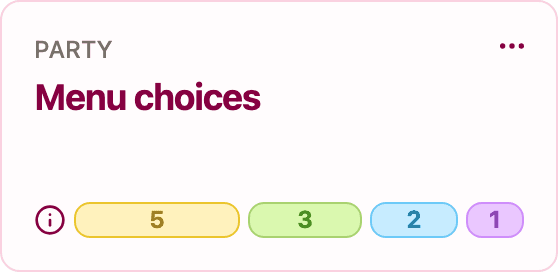
The card shows the question's three most popular answers as a colored bar, each segment sized by how many guests gave that answer, with the count on the segment. Hover a segment to see which answer it represents. When there are more than four distinct answers, the remaining ones are collected into a grey "Others" segment. Until the first guest replies, the card simply says "No responses yet".
The details view
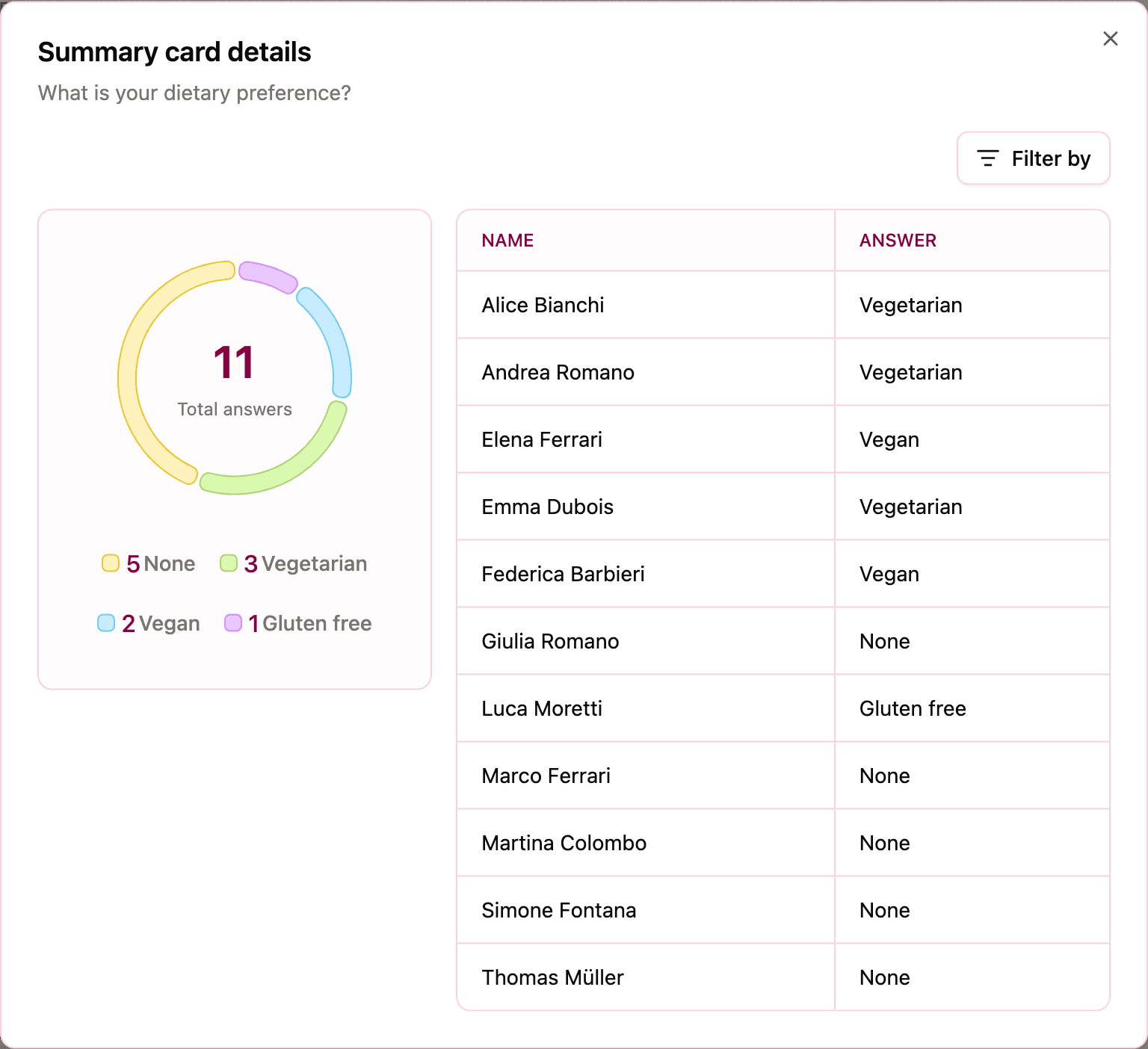
Click anywhere on a card to open Summary card details, which gives you the full picture of that question:
-
A donut chart with one slice per answer and the total number of answers in the center.
-
A table of guests and their answers, one row per guest who replied. Use Filter by to narrow the table to a specific answer, or to guests who have answered or not answered; note the filter applies to the table, while the chart keeps showing the complete totals.
The details view is where a card earns its keep in the final weeks: the chart tells the caterer the proportions, the filtered table tells you exactly who picked the vegetarian menu.
Tip: summary cards work best on choice questions (single choice, multiple choice, Yes/No), where answers fall into a handful of values worth counting. A card on a free-text question will just show a fragment per guest.