Guest lists have a habit of growing. A cousin remembers a new partner, the couple adds a table of colleagues, and suddenly the number you agreed at the start is not enough. This article explains how the guest limit works in Invytly, how to tell when you're getting close, and exactly what to do when you need more places.
What the guest limit is
Every project has a guest limit: the number of guests you agreed when you created the project, in the Number of guests field of the "Create a new project" form. Invytly plans are priced per guest, so this number is what your project was paid for. You can find a refresher on that form in Creating your first project.
You can always see how much of the limit you've used in two places:
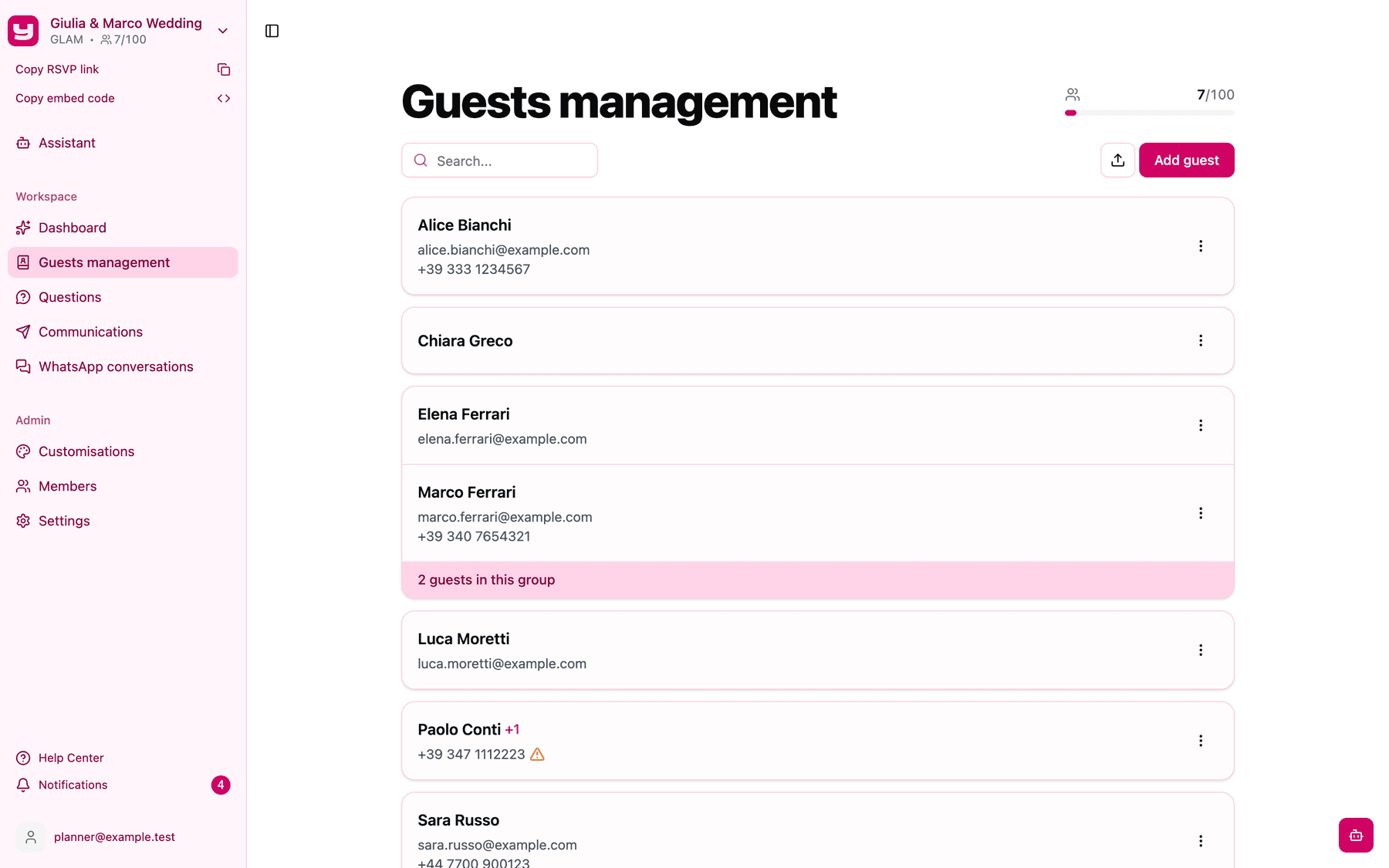
- The project switcher at the top of the sidebar shows your plan and a counter such as
7/100next to the guests icon: 7 guests used out of 100. - Guests management shows the same counter in the top right corner of the page, with a progress bar underneath that fills up as you add guests.
What counts towards the limit
The counter includes every guest in your list, no matter how they got there:
- guests you add one by one with Add guest;
- guests you import from a CSV file;
- every member of a household or group, counted individually (a family of four uses four places);
- plus-ones that guests add themselves on the RSVP page with + Add plus one. These don't go through you, so keep an eye on the counter while the RSVPs are coming in.
How Invytly warns you
You won't hit the limit by surprise. As the list fills up, Invytly warns you in a few places.
When only a few places are left
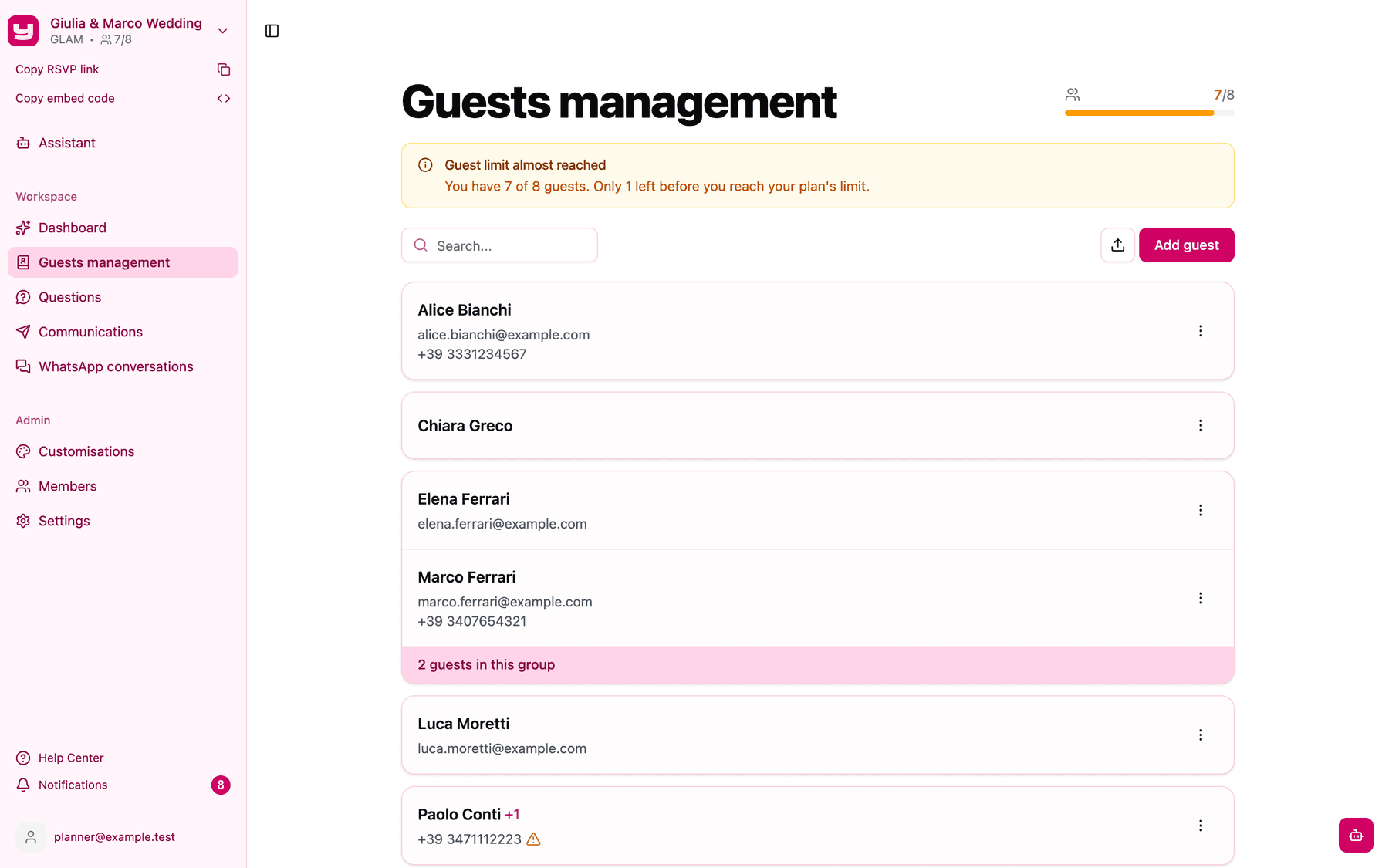
When you're down to the last few places (roughly the last 10% of your limit, and never more than 10), the progress bar on Guests management turns amber and an amber banner appears: Guest limit almost reached, telling you how many guests you have and how many places remain.
When the list is full
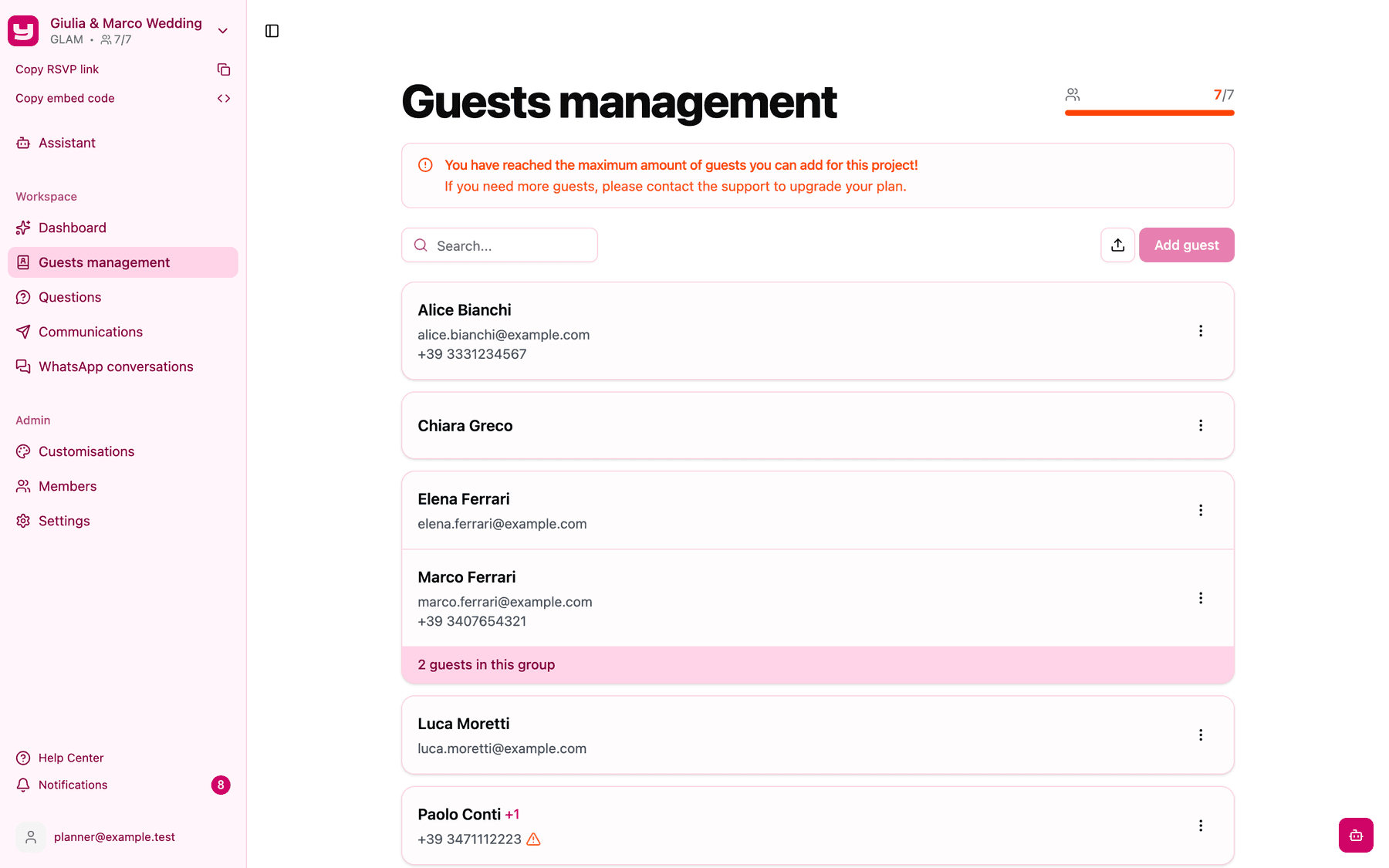
Once every place is taken, the bar turns red and the banner changes to: You have reached the maximum amount of guests you can add for this project!, followed by an invitation to contact support.
On the dashboard
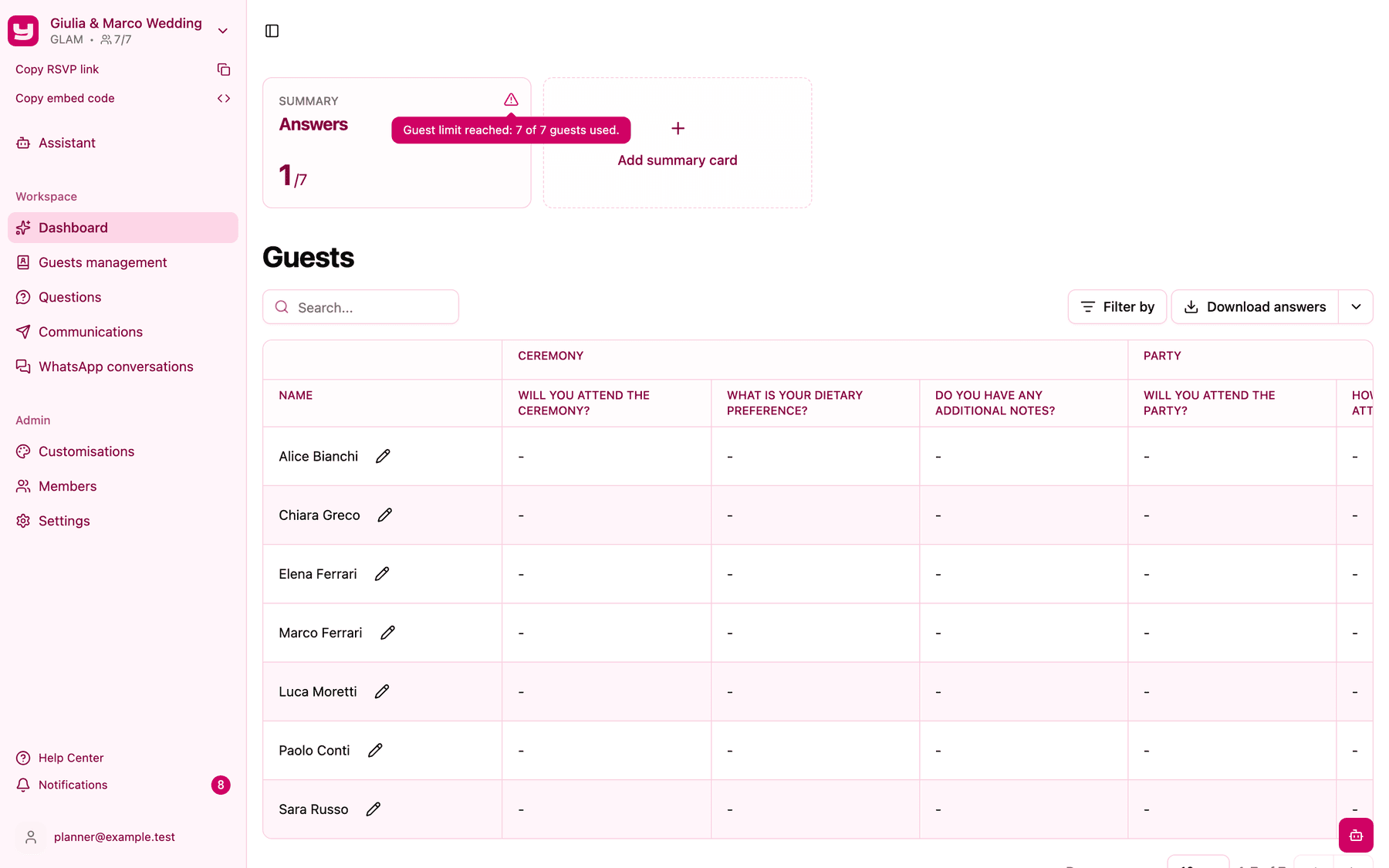
The Answers card on the Dashboard also shows a small warning icon when you're close to the limit or have reached it. Hover over it to read the details, for example "Guest limit reached: 7 of 7 guests used."
What stops working at the limit
When the list is full, Invytly protects the limit in three ways:
- Adding guests by hand. The Add guest button on Guests management is disabled.
- Importing a CSV file. If your file contains more guests than the places you have left, the import is blocked entirely and you'll see the message Guest limit reached, telling you how many guests are in the file and how many you can still import. Nothing is imported, not even the first part of the file, so you won't end up with half a list.
- Plus-ones on the RSVP page. Guests can no longer add a plus-one. They don't see an error message; the plus-one simply isn't added. If a guest tells you their plus-one "didn't save", a full guest list is the most likely reason.
Everything else keeps working normally: guests can still sign in, answer and edit their answers, and you can still edit or remove existing guests.
Tip: if a CSV import is blocked, you don't have to wait for a higher limit to import the rest. You can split the file, import as many rows as you have places for, and import the rest once your limit has been raised. See How to save a file as CSV for help preparing the file.
How to get more guests
The guest limit can only be raised by Invytly: there's no button in the app to change it yourself. Follow these steps.
1. Check the counter
Open Guests management and look at the counter in the top right corner. Note how many guests you have now and roughly how many more you expect to add, including plus-ones that are still likely to arrive.
2. Tidy up the list
Before asking for more places, make sure every place is really needed. Look for:
- duplicates, for example the same person imported twice or added once by hand and once from a file;
- guests who won't be invited after all, such as names that were on an early draft of the list.
Removing them frees up places straight away, and sometimes that's all you need.
3. Contact Invytly support
If you still need more places, write to Invytly support at support@invytly.com (or to your Invytly contact person) with:
- the name of your project;
- the new total number of guests you need (the full number, not just the extra places).
Invytly will reply confirming the additional amount to pay, calculated at the same per-guest price as your current plan. Once the payment is confirmed, Invytly raises the limit on your project within 24 hours of payment confirmation.
Tip: if you're also thinking about moving to a plan with email or WhatsApp communications, mention it in the same email so both changes are handled together. See Upgrading your plan.
4. Carry on adding guests
When the new limit is active, the counter in the sidebar and on Guests management updates automatically, the banner disappears (or turns amber if you're still close to the new limit) and Add guest, CSV imports and plus-ones work again. You don't need to do anything on your side.
Good to know
- Only Invytly can change the limit. Neither you nor other members of the project can raise it from the app.
- There's no need to lower the limit. If your final list ends up shorter than planned, you don't have to ask for the limit to be reduced.
- Only project Admins see Guests management, so the banners and the counter on that page are visible to Admins. Every member sees the counter in the project switcher.