An event is rarely a one-person job. With Invytly you can invite other people into your project: a colleague who plans with you, the photographer who needs the guest numbers, and of course the couple, who will love watching the answers come in. Each person gets a role that decides what they can see and do.
The Members page
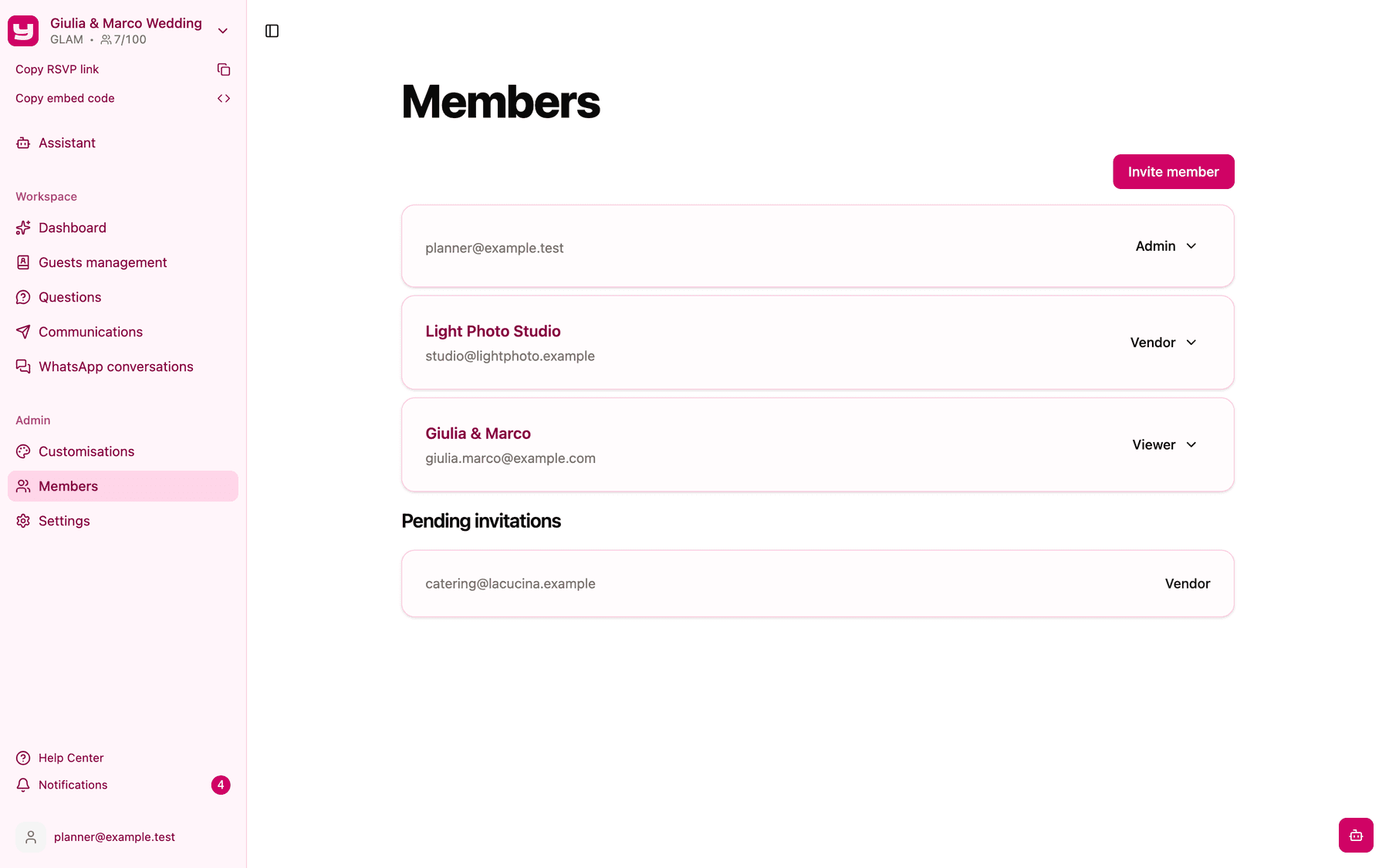
Everything happens on the Members page, which you'll find in the sidebar in the Admin group. Like the rest of that group, it's available to Admins only.
The page lists everyone who is already part of the project, with their name, email and role, and below them the Pending invitations: people you've invited who haven't joined yet.
The three roles
Admin has full control of the project: guests, questions, communications, customisations, settings and members. Give it to yourself and to anyone who plans the event with you, such as a co-planner or an assistant. A project can have more than one Admin.
Vendor can see the dashboard and the guests' answers, download the answers, and also download the documents guests uploaded in the RSVP (for example ID documents requested for a security list). It's the right role for a caterer, a security company or a photographer.
Viewer can see the dashboard and the answers and download them, but nothing more. It's read-only, and it's the ideal role for the couple.
| What they can do | Admin | Vendor | Viewer |
|---|---|---|---|
| View the dashboard and guests' answers | Yes | Yes | Yes |
| Download the answers (Excel or CSV) | Yes | Yes | Yes |
| Download documents uploaded by guests | Yes | Yes | No |
| Manage guests | Yes | No | No |
| Manage questions | Yes | No | No |
| Send communications | Yes | No | No |
| WhatsApp conversations | Yes | No | No |
| Customisations, settings and members | Yes | No | No |
| Delete the project | Yes | No | No |
Vendors and Viewers only see the Dashboard in their sidebar; the other pages simply don't appear for them. For what the dashboard shows, see A tour of the dashboard.
Invite someone
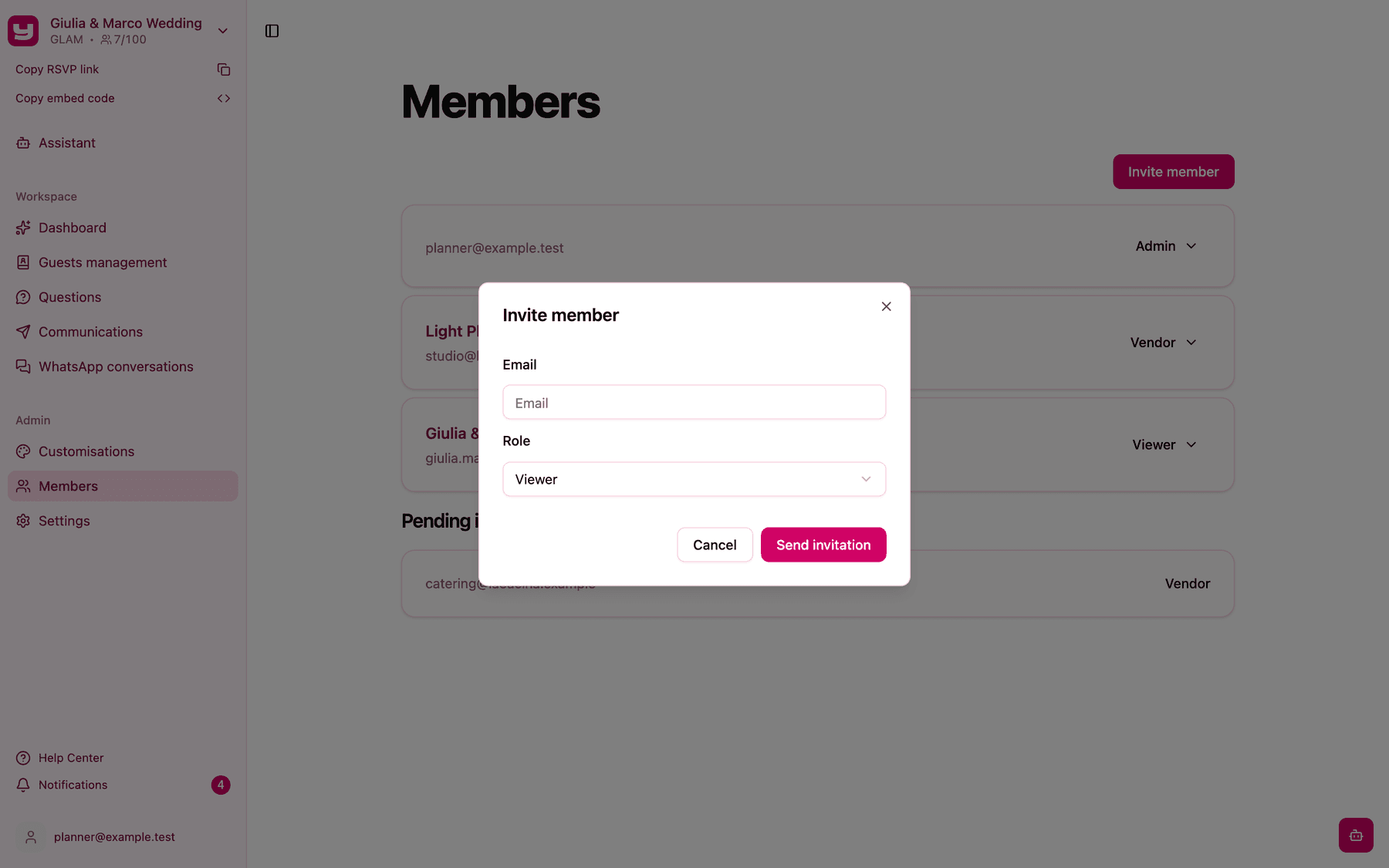
- Open the Members page and click Invite member.
- Enter the person's Email.
- Choose their Role: Viewer (the default), Vendor or Admin.
- Click Send invitation.
A confirmation message tells you the member was successfully invited, and their address appears under Pending invitations with the role you chose. If you've already invited that address, Invytly lets you know instead of sending a second invitation.
Members can only be invited by email: there is no link you can share to let people join on their own.
What the person you invite sees
The invited person receives an email from Invytly with your name, the project name and a link to join.
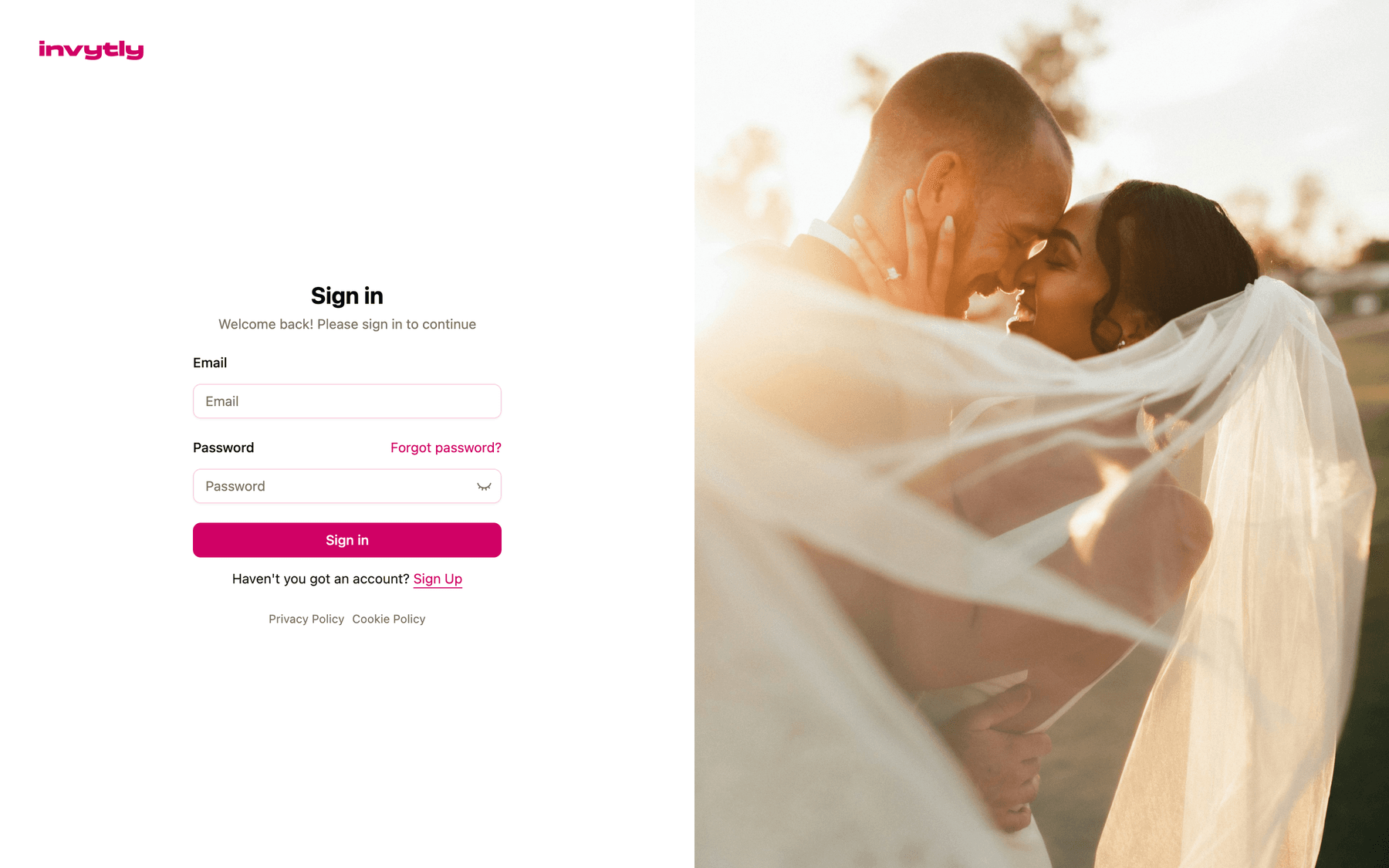
To join, they need an Invytly account. When they open the link, Invytly asks them to sign in with their email and password; if they don't have an account yet, they can click Sign Up on the same page, create one with their email and a password, and they'll still be taken to your project afterwards.
After signing in, they see a short "Preparing your access to the project" message and then land on the project's Dashboard. From that moment they appear in your members list, and the invitation disappears from Pending invitations.
Sharing the project with the couple
The couple doesn't need a special role: invite them as Viewer. You can use one shared email for both, or invite each of them separately.
As Viewers they'll see the dashboard with the number of replies, your summary cards and every guest's answers, and they can download the answers to Excel or CSV. They won't see the guest list management, the questions, communications or settings, and they can't change anything, so there's no risk of an accidental edit.
It helps to send them a short note before the invitation arrives, for example:
"Hi Giulia and Marco! You'll shortly receive an email from Invytly inviting you to your wedding project. Open the link, sign in or create an account with the same email, and you'll be able to follow your guests' answers live. Please don't forward the link to anyone else."
Changing a role or removing a member
On each member's row, click the role (for example Vendor) to open the menu:
- Change role to... lets you pick Admin, Vendor or Viewer.
- Delete removes the person from the project.
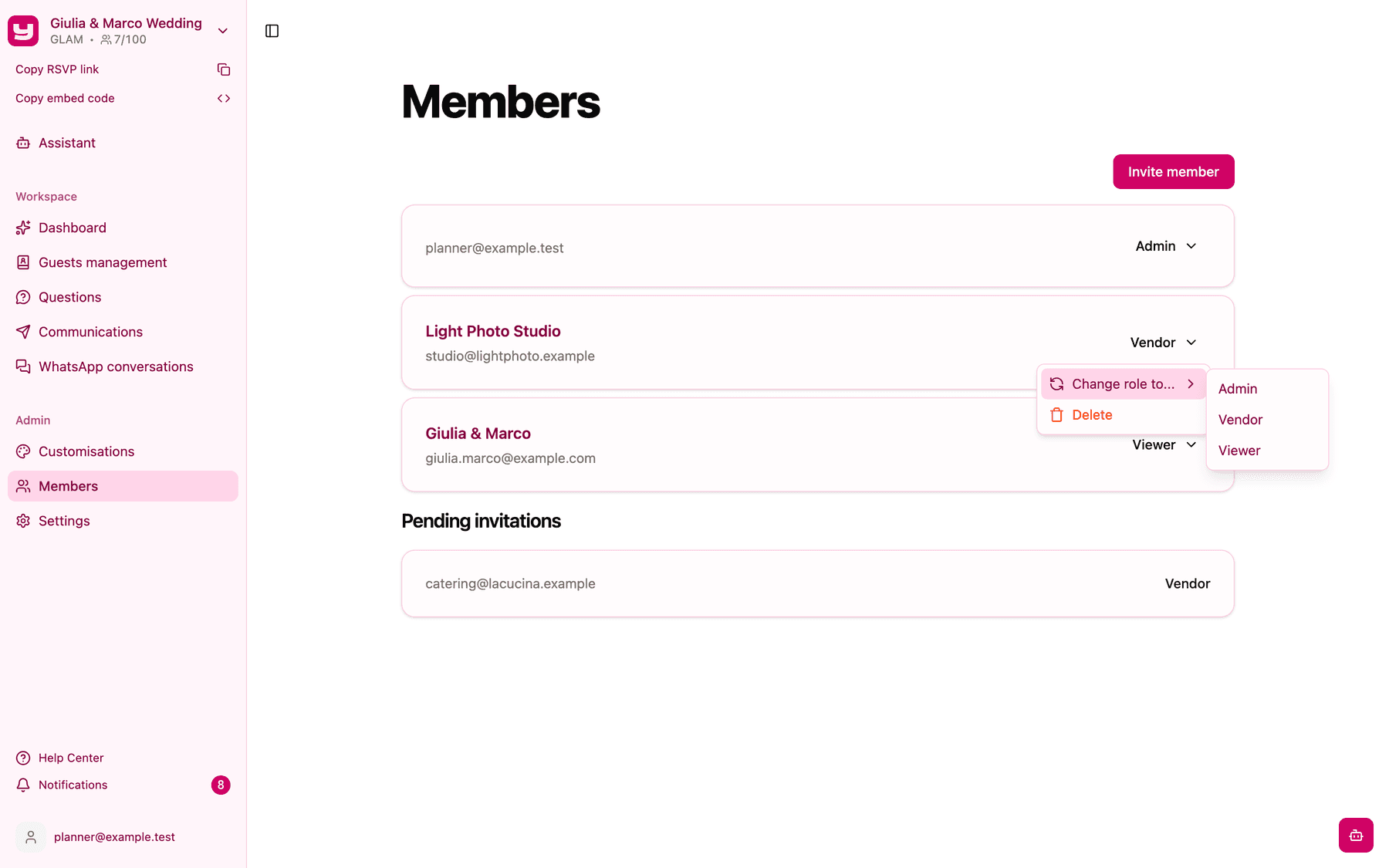
Both actions take effect immediately, with no confirmation step, so check you're on the right row before clicking.
Good to know
- Ask people not to forward the invitation. The join link isn't tied to the email address you entered: whoever opens it while signed in joins the project with that role.
- Pending invitations can't be cancelled or resent at the moment. If you typed the wrong email, simply invite the correct address. If someone joins by mistake, remove them with Delete.
- Always keep at least one Admin. Invytly doesn't stop you from demoting or removing yourself, so be careful not to do it if you're the last Admin, or nobody will be able to manage the project.
- There is no ownership transfer. To hand the project over to someone else, invite them (or change their role) as Admin first, and only then change or remove your own role.