Your RSVP form is built out of sections: groups of questions that your guests answer one after the other. Sections do two jobs at once: they give the survey its structure, and they decide which guests see which questions.
There are two kinds:
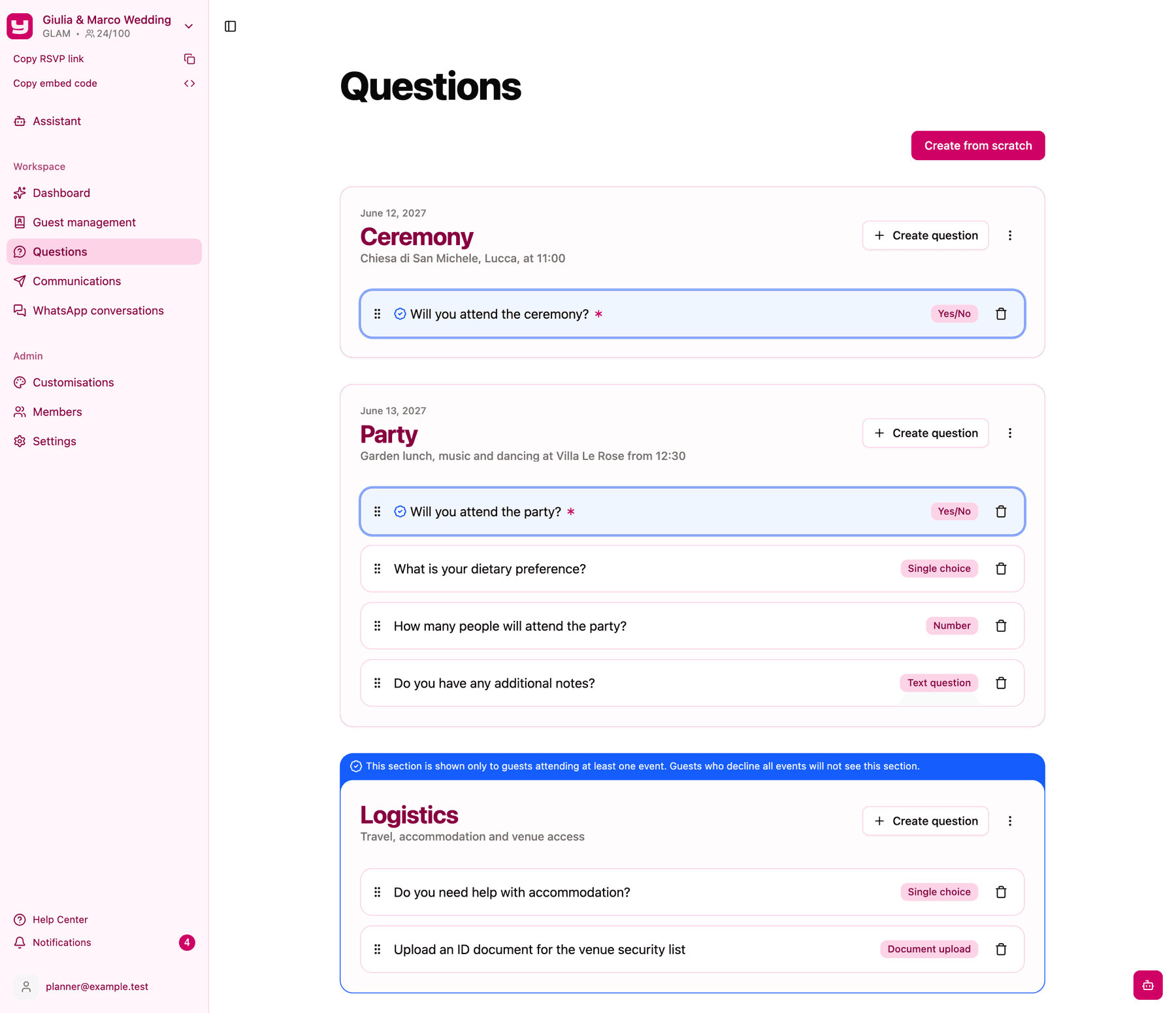
- Event sections represent a moment of your occasion (the ceremony, the welcome dinner, the day-after brunch). They have a date, and they're where the "will you attend?" question lives.
- General sections hold questions that aren't tied to a single moment: dietary needs, song requests, contact details.
How sections are ordered
Guests see event sections first, sorted by date, followed by general sections in the order you created them. There's no manual reordering of sections, so the way to control the flow is to give each event section the right date.
Create a section
You need at least one guest in the project before you can create sections. Then, on the Questions page:
- Click Create from scratch.
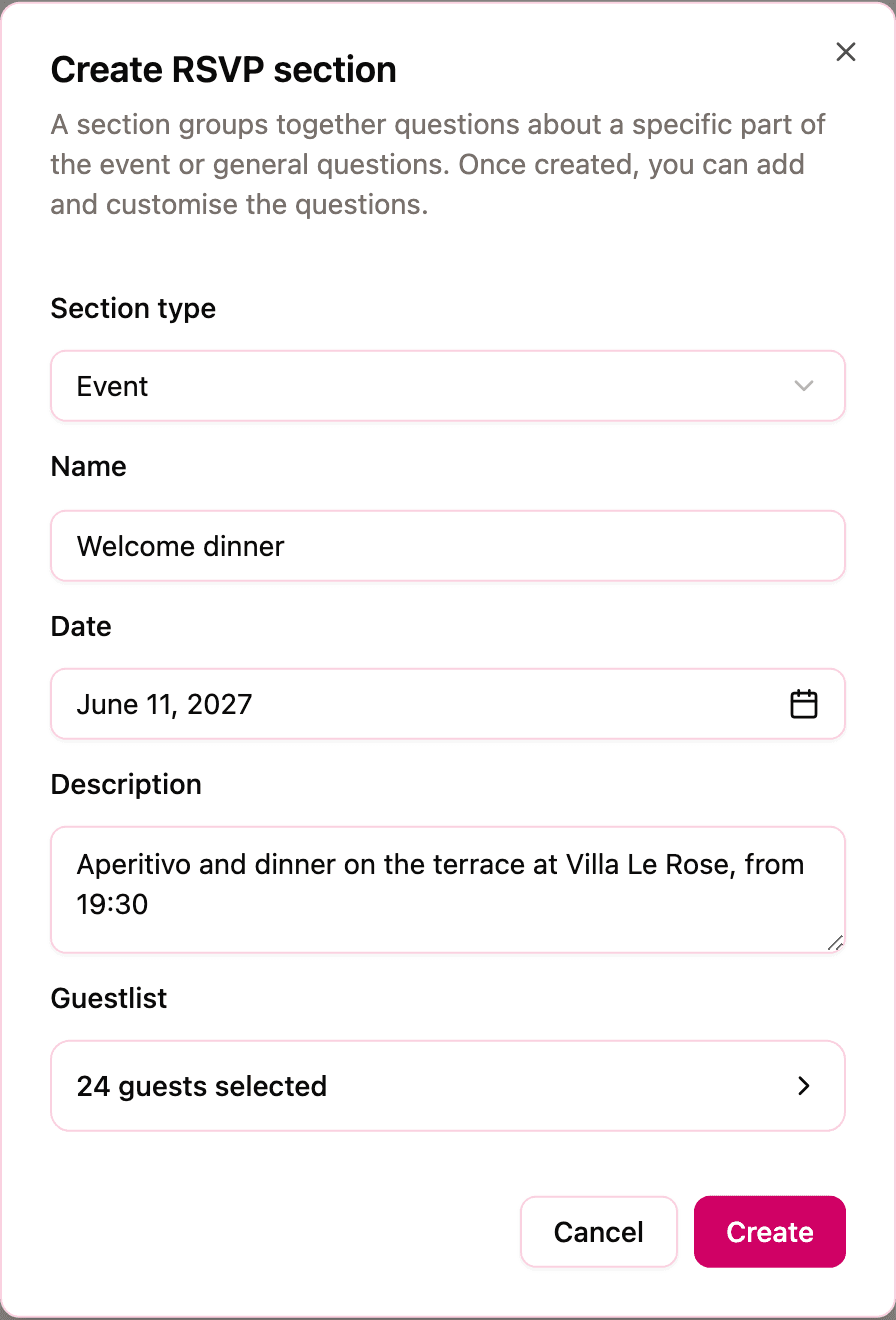
- Choose the Section type: Event or General.
- Give it a Name (3 to 50 characters) and, for event sections, a Date.
- Optionally add a Description, up to 300 characters.
- Pick the audience in Guestlist. By default every current guest is selected; open the selector to search, filter by tags, and untick the guests this section doesn't concern. A section needs at least one guest.
- Click Create, then add questions to the new section (see Creating questions and question types).
Only Admins can create, edit, or delete sections. To change a section later, open the menu on its card and choose Edit; the same form reopens. Deleting a section from that menu also deletes all its questions and their answers, and it can't be undone.
Guests added later are not enrolled automatically. When you add a guest one by one, the add-guest dialog asks right away which sections to assign them to. When you import guests from a CSV file, though, no assignment happens: after the import, open each relevant section and add the new guests to its Guestlist.
The attendance question and what guests actually see
When the first question of an event section is a mandatory Yes/No question, it becomes that event's attendance gate, and Invytly highlights it with a badge:
- A guest who answers "No" skips the rest of that section.
- A guest who declines every event they were invited to also skips the general sections; there's no point asking a menu preference to someone who isn't coming at all. The general sections' cards show a banner reminding you of this.
Two practical consequences:
- Start every event section with a mandatory Yes/No question like "Will you participate?". If the first question is anything else, Invytly shows a warning on the section.
- Put a question in a general section only if it makes sense for anyone who attends at least one event. If it only matters for one moment, it belongs in that event's section.
Starting from a template
If your Questions page is still empty, the fastest route is Choose a template. Invytly creates the sections and questions for you, in your project's language, assigned to all current guests, and you can edit every word afterwards:
- One-day event: a single RSVP section with attendance, menu choice, dietary restrictions, and transport questions.
- Multi-day event: one section per day (you name and date each day in the wizard), plus a general section for the shared questions.
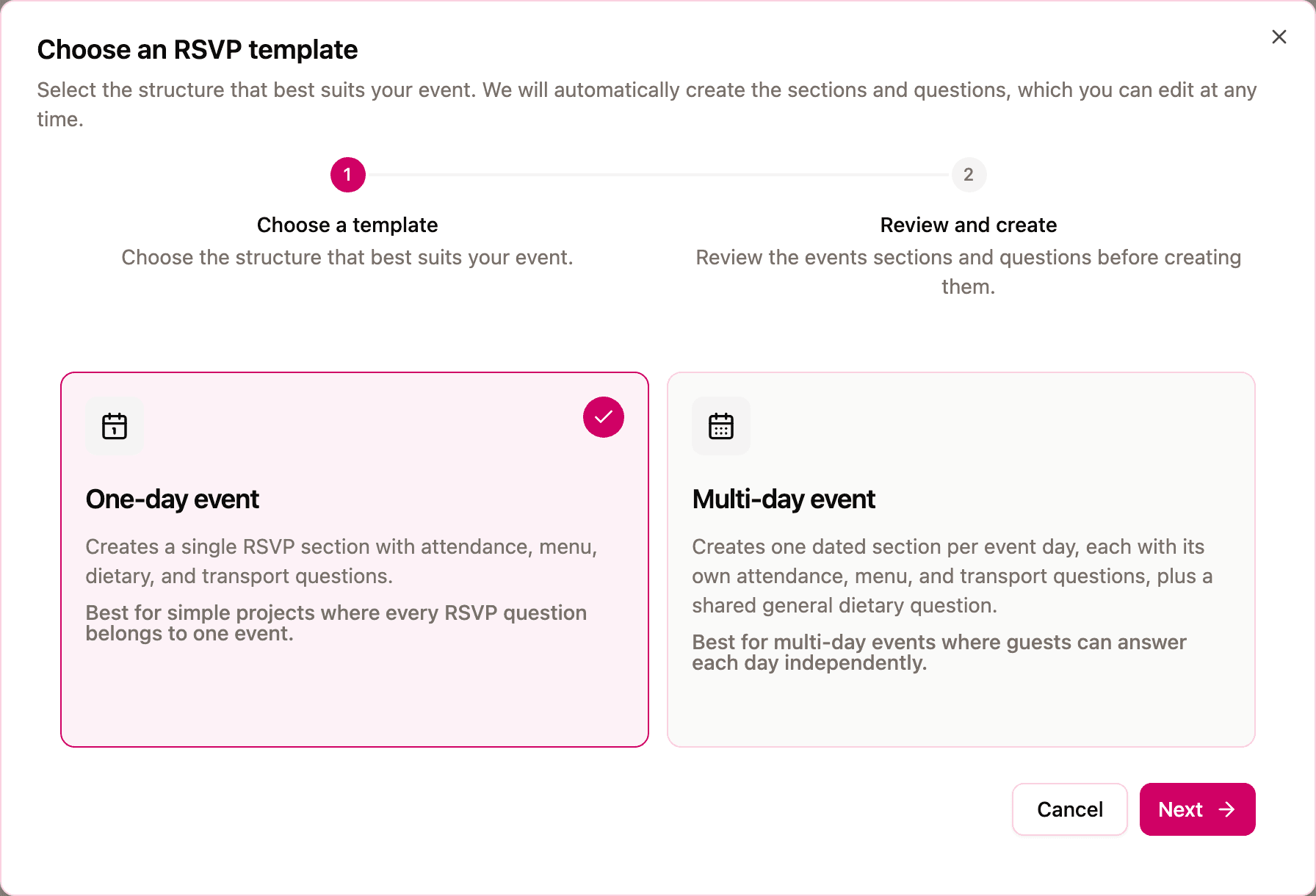
The last step of the wizard shows a recap of everything that's about to be created; click Confirm and your survey skeleton is ready. The template option is only offered while the project has no sections yet, so if you want to use it, do it first.