Questions are how you collect what you need to know from your guests: whether they're coming, what they'll eat, how they'll get there. Every question lives inside a section of your RSVP form, so if your Questions page is still empty, start with Organizing questions into sections and come back here.
Prerequisite: your project needs at least one guest before you can build the RSVP. If you haven't added any yet, the Questions page will point you to the guests section first.
Add a question
- Open the Questions page of your project. You'll see one card per section.
- In the section where the question belongs, click Create question. The question is created inside that section, so pick the right card before you start.
- Fill in the dialog:
- Question text: what you want to ask, at least 3 characters.
- Question type: how guests will answer (all types below). The default is Yes/No.
- Options: for choice questions, type each option and press Add. Choice questions need at least two options.
- "Other" option: for single and multiple choice, turn this on to let guests write their own answer when none of your options fit.
- Mandatory: on by default. Turn it off if guests should be able to skip the question.
- Click Create. The question appears at the bottom of the section, and a confirmation message tells you it was added.
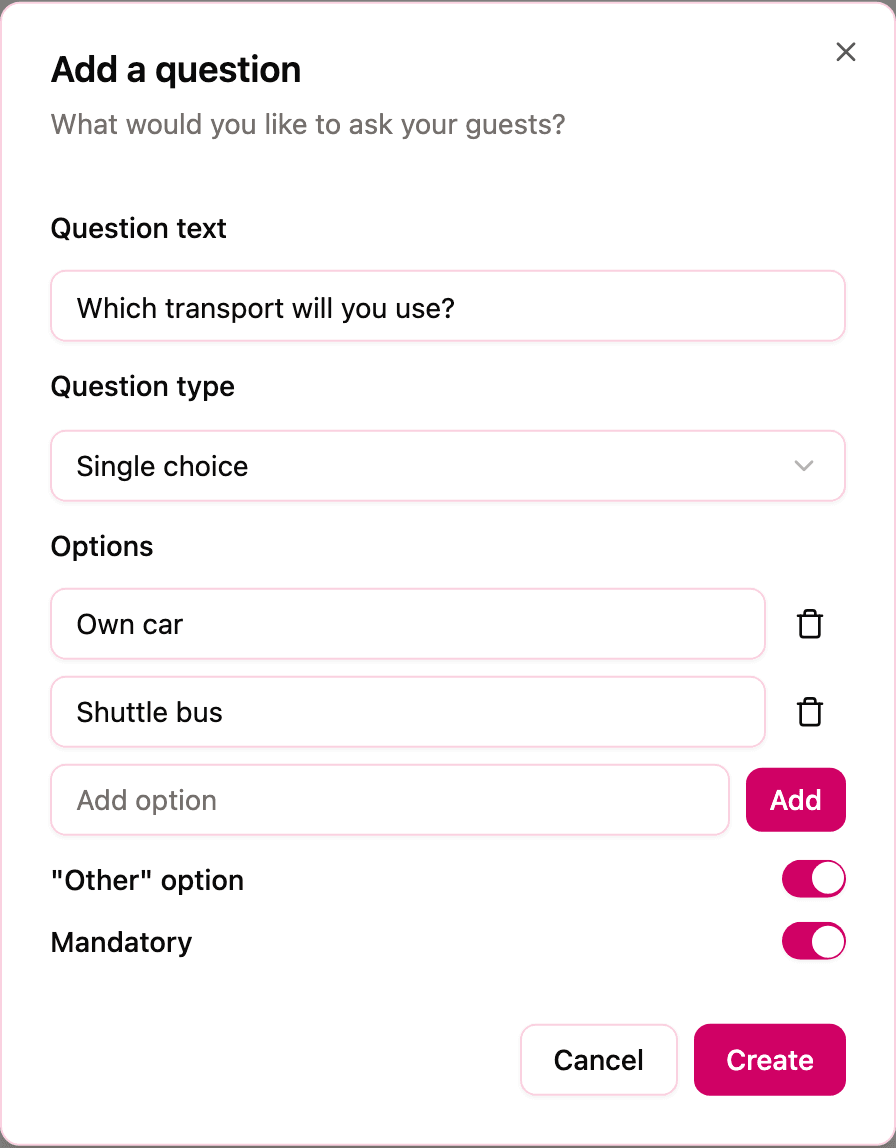
Only Admins can create, edit, or delete questions; collaborators see the survey in read-only mode.
Question types
| Type | What guests do |
|---|---|
| Yes/No | Pick between two answers. You can customize the labels of both, and this is the type that powers the attendance question (more below). |
| Text question | Write a free answer, ideal for allergies, song requests, notes. |
| Single choice | Pick exactly one of your options. |
| Multiple choice | Pick as many options as they like. |
| Number | Enter a number. |
| Enter an email address. If you already have the guest's email, it's prefilled for them. | |
| Phone number | Enter a phone number, prefilled with the guest's WhatsApp number when you have it. |
| Document upload | Upload a file, for example an ID document for a security list. |
A few tips for choosing:
- Prefer choice questions over free text whenever the answers are predictable: "Menu choice" as a single choice with an "Other" option gives you countable data instead of a pile of essays.
- Use Number rather than text for anything you'll want to add up.
- Keep mandatory on for the answers you truly can't do without, and relax it for the nice-to-haves; a shorter mandatory path means more completed surveys.
The attendance question
In an event section, the first question acts as the attendance gate when it is a mandatory Yes/No question, like "Will you participate?". Invytly highlights it with a badge in the question list. If a guest answers "No", the rest of that section is skipped: no menu choice for someone who isn't coming.
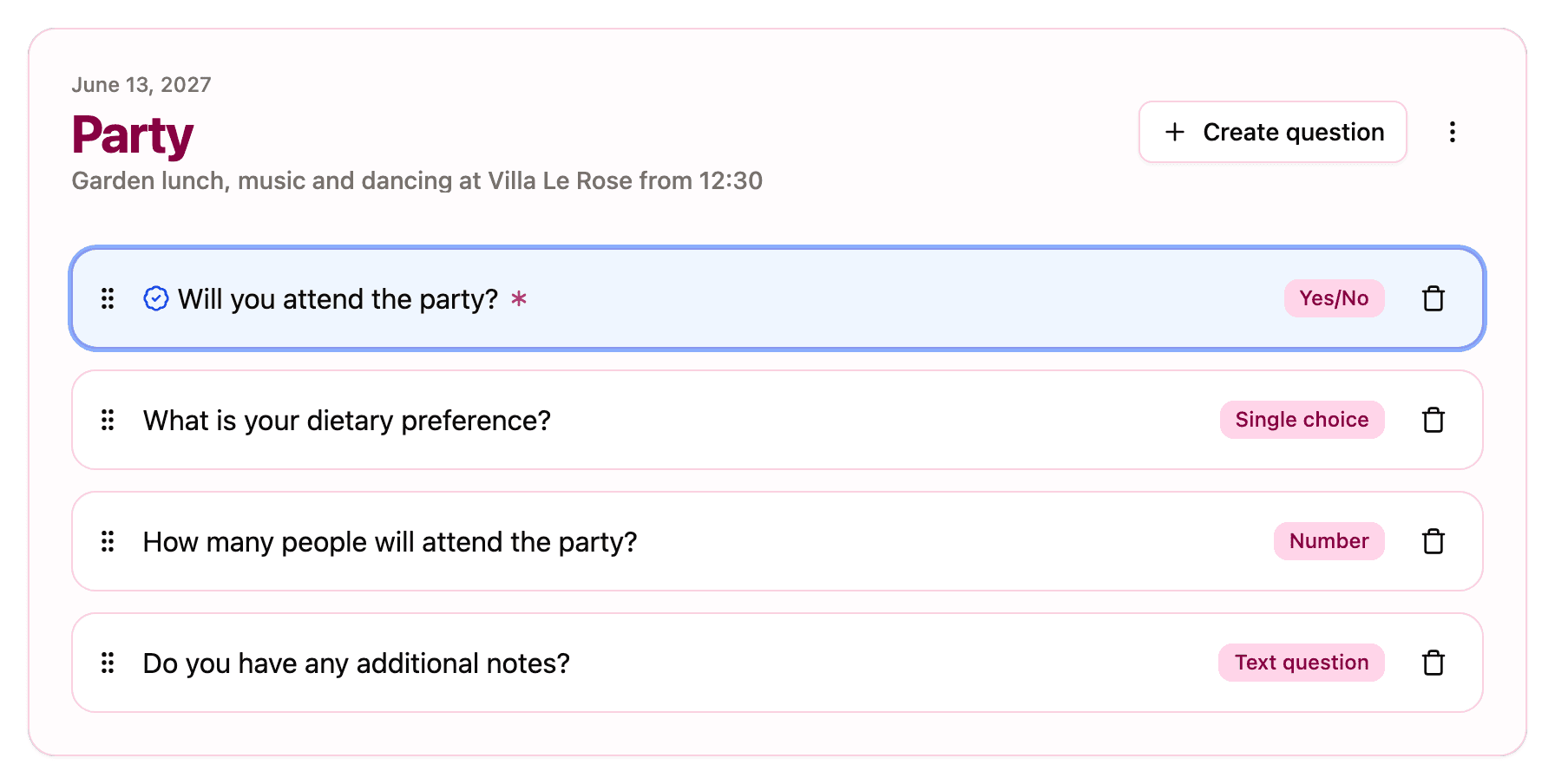
This is why order matters. You can reorder questions at any time by dragging them by the grip handle, but keep the attendance question first in event sections. If the first question of an event section isn't a mandatory Yes/No, Invytly shows a warning so you notice. The full mechanics are explained in Organizing questions into sections.
Adding questions after guests have replied
You can add questions at any time. If some guests in that section have already completed the survey, Invytly warns you before saving with a Guests have already answered dialog. If you continue, the guests who will see the new question are marked as not answered again, so you'll need to ask them to complete the survey (or fill in the answer on their behalf); everything they already answered is kept and prefilled. See Editing questions for the complete picture of what's safe to change and when.