Your RSVP page always exists at its own link, app.invytly.com/rsvp/<slug>, from the moment you create the project. What changes from one wedding to the next is how guests get there: through a website Invytly builds for the couple, through a website the couple already has, or simply through the link on its own.
This article walks through the three scenarios so you can pick the one that fits. Whichever you choose, you manage the guest list, the questions and the answers in Invytly exactly the same way.
Scenario 1: Invytly builds the website for you
Besides the RSVP, Invytly can design and build the couple's wedding website. The service works like this:
- A quote tailored to the project, since every website is different.
- Design concepts to choose from, followed by rounds of revisions until the couple is happy.
- A custom domain, agreed at the start of the project.
In this scenario the RSVP integration is included and handled by Invytly's team. You don't need to copy links or code anywhere: just keep the guest list and the questions up to date in Invytly.
To find out more and request a website, see the wedding website service page on the Invytly website.
Scenario 2: You already have a website
If the couple has a website (built by them, by a friend or by a web agency), you have three ways to bring the RSVP into it. The first two work with any website; the third is for developers who want to design the form from scratch.
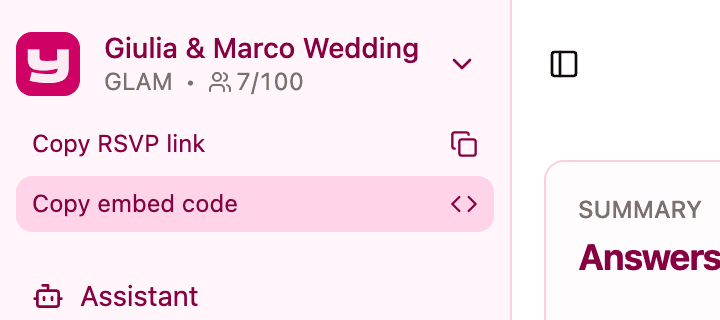
Both Copy RSVP link and Copy embed code are at the top of the sidebar, just below the project name, and every member of the project can use them.
Option 1: link to the RSVP page
The simplest option. The website has a button, and the button opens the RSVP page.
- In the sidebar, click Copy RSVP link. A "Copied link" message confirms it's on your clipboard.
- Send the link to whoever manages the website and ask them to use it on a button such as "Confirm attendance".
The same link works on printed invitations too: turn it into a QR code so guests can scan it with their phone.
Option 2: embed the form in a page
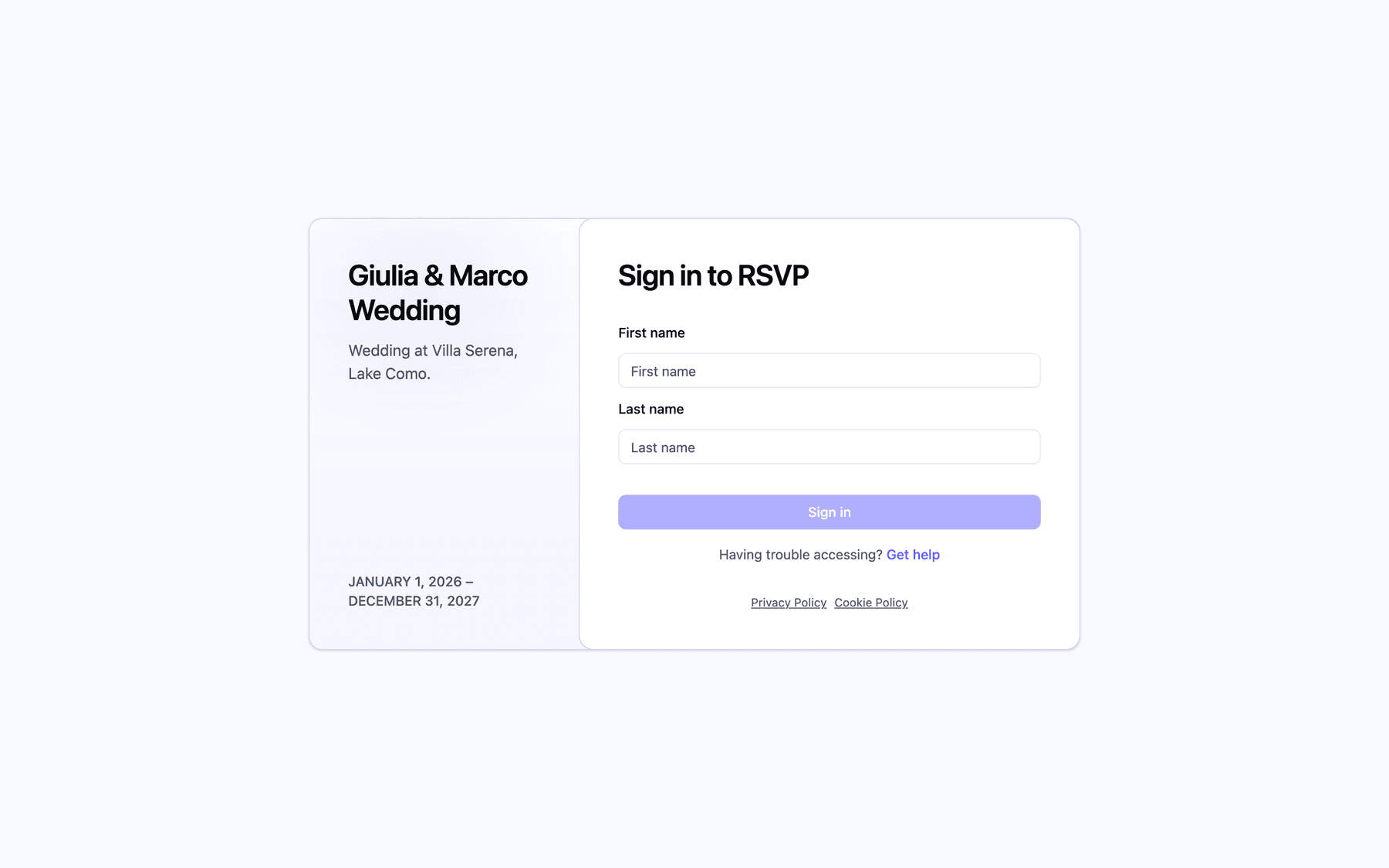
If you'd rather guests never leave the website, embed the RSVP form directly in one of its pages.
- In the sidebar, click Copy embed code. An "Embed code copied" message confirms it.
- Send the code to whoever manages the website.
The code looks like this, with your project's slug at the end of the address:
<iframe src="https://app.invytly.com/rsvp/your-slug" style="border:0;width:100%;height:100vh">Your browser doesn't support iFrames.</iframe>
It goes into the page where the form should appear. By default the form takes the full width of its space and the full height of the screen (100vh); the website's developer can adjust the height to suit the page layout.
The embedded form is your RSVP page, so it keeps the colours and fonts you set in Customisations (see Customising your RSVP page). Any change you save there shows up on the website too, with nothing to update on the website's side.
Option 3: a fully custom form, for agencies and developers
Some agencies want the RSVP to look and feel like the rest of the website down to the last detail. For them, Invytly has a public RSVP API: the website builds its own form in its own design, while Invytly keeps doing the work behind it.
A custom form can reproduce the whole guest experience: sign-in by name, choosing who to answer for in the household, plus-ones, the questions section by section, the completion screen, the recap email and document uploads. Answers land in your Invytly dashboard like any other.
This integration is set up by Invytly on request: Invytly prepares the connection for the website (including which web addresses are allowed to use it) and provides the documentation to the developer. To get started, write to Invytly at hello@invytly.com (or to your Invytly contact person).
Scenario 3: You only want the RSVP page
Not every wedding needs a website. The hosted RSVP page works perfectly on its own:
- Make it yours. Set the colours and fonts on the Customisations page, as explained in Customising your RSVP page.
- Share the link. Copy it with Copy RSVP link and send it however suits your guests. On the Trendy and Glam plans you can send it from Invytly: the button of an Invite communication always opens your RSVP page, so you don't even need to paste the link. See Sending communications by email and, on Glam, Sending communications on WhatsApp.
- Print it. Add a QR code of the link to paper invitations for guests who prefer to reply from their phone.
Which scenario is right for you?
| Scenario | Who does the work | What you customise | When to choose it |
|---|---|---|---|
| Invytly builds the website | Invytly's team | The whole website, agreed with the designers | The couple wants a website and would rather not build it |
| Link from your website | Whoever manages the website adds a button | Colours and fonts of the RSVP page | Quickest way to connect an existing website |
| Embed in your website | Whoever manages the website pastes the code | Colours and fonts of the RSVP page | You want guests to RSVP without leaving the website |
| Custom form via the API | A developer or web agency, with Invytly's setup | Everything about the form's design | An agency wants a fully bespoke RSVP experience |
| RSVP page only | You | Colours and fonts of the RSVP page | No website, or you want to keep things simple |
Good to know: in every scenario, the guest list, the questions, the answers and the dashboard stay in Invytly. Changing how guests reach the RSVP never changes how you manage it.