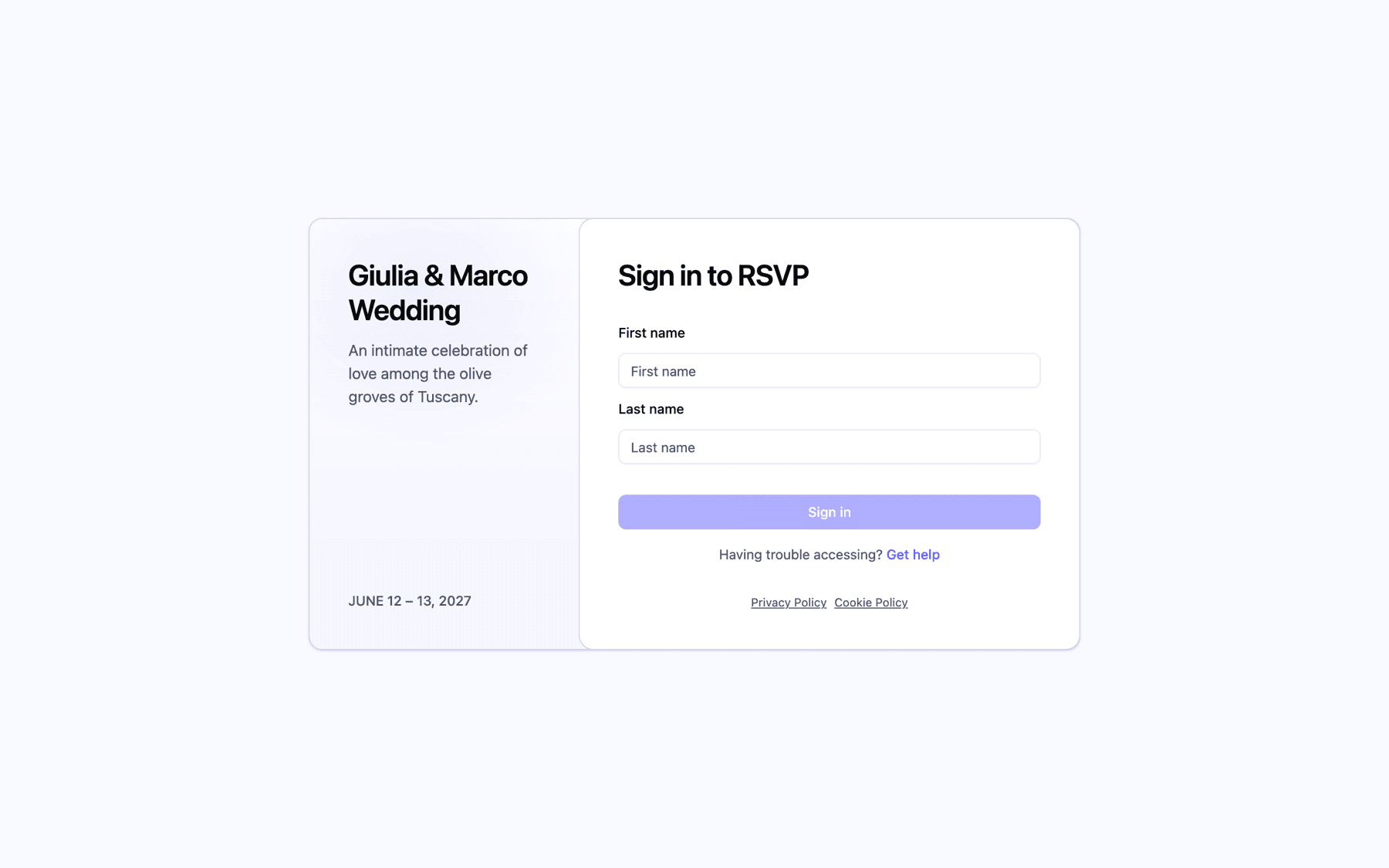
Your RSVP page is ready as soon as the project exists. All that's left is getting guests there. This article shows where to copy the link, what it looks like, and the quickest ways to share it.
What your RSVP link looks like
Every project has one RSVP address, made of app.invytly.com/rsvp/ followed by your project's slug:
https://app.invytly.com/rsvp/giulia-marco
The slug is chosen when you create the project. You can see it in Settings > Project details, but it's greyed out: it can't be changed from the app. The good news is that your link never changes, so it's safe to print it on invitations or put it on a website months in advance. If you really need a different address, contact Invytly support at support@invytly.com (see The Settings page explained).
There's a single link for everyone: guests don't get personal links. They open the same page and sign in with their first and last name, as explained in What your guests see on the RSVP page.
Copy the link
-
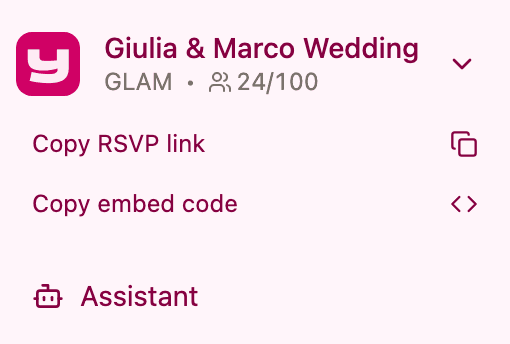
Open your project. At the top of the sidebar, just below the project name, you'll find Copy RSVP link and Copy embed code.
-
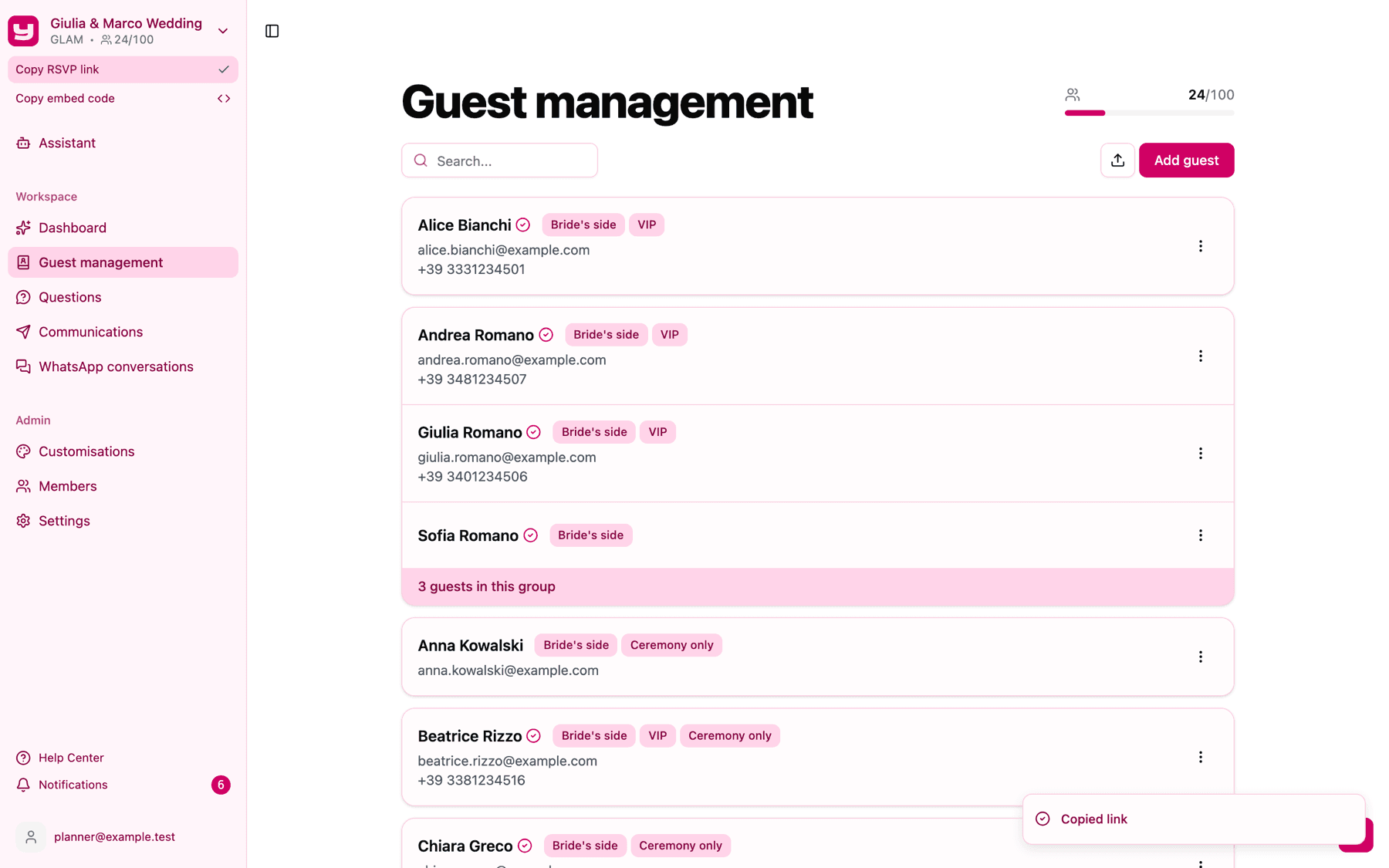
Click Copy RSVP link. A "Copied link" message confirms it's on your clipboard, and the copy icon briefly turns into a green check.
-
Paste it wherever you need it: a message, an email, a document for the couple.
Both buttons are available to every member of the project, whatever their role. If you've collapsed the sidebar to icons only, expand it to see them. If copying fails, you'll see "Failed to copy RSVP link. Please try again."
Tip: before sending the link to everyone, open it in a private browser window and sign in as one of your guests. It's the surest way to check that the page, the questions and the look are exactly as you expect.
Copy the embed code
If the couple has a website and you want the RSVP form to appear inside one of its pages, use the embed code instead.
- In the sidebar, click Copy embed code. An "Embed code copied" message confirms it.
- Send the code to whoever manages the website.
The code looks like this, with your slug at the end of the address:
<iframe src="https://app.invytly.com/rsvp/giulia-marco" style="border:0;width:100%;height:100vh">Your browser doesn't support iFrames.</iframe>
It goes into the page where the form should appear, usually through the "HTML" or "Embed" block that most website builders offer. By default the form takes the full width of its space and the full height of the screen; the website's developer can adjust the height. The embedded form keeps the colours and fonts you set in Customisations.
For a full comparison of linking, embedding and the other website options, see Connecting the RSVP to your wedding website.
Ways to share the link
- From Invytly, with a communication. On the Trendy and Glam plans, an Invite communication always includes a button that opens your RSVP page, by email and on WhatsApp: you don't need to paste the link at all. A Save the date communication only has a button if you fill in its Link field, so paste your RSVP link there if you want guests to reply straight away. A Plain text email has no button, so add the link to the message text if you need it. See Sending communications by email and Sending communications on WhatsApp.
- On printed invitations. Turn the link into a QR code so guests can scan it with their phone. Because the slug never changes, the QR code will keep working.
- In your own messages. Paste the link into a WhatsApp group, an email or a text message, together with a line on how to sign in.
- On the couple's website. Use the link on a button, or the embed code to show the form inside a page.
Whichever channel you choose, add a short note telling guests to sign in with the first and last name written on their invitation. The checklist at the end of What your guests see on the RSVP page has everything worth mentioning.