When a guest receives one of your communications by email, the first thing they see in their inbox is the sender. The Email sender name lets you decide what that says: "Giulia & Marco" is far more likely to be opened than an unfamiliar name.
Where to find it
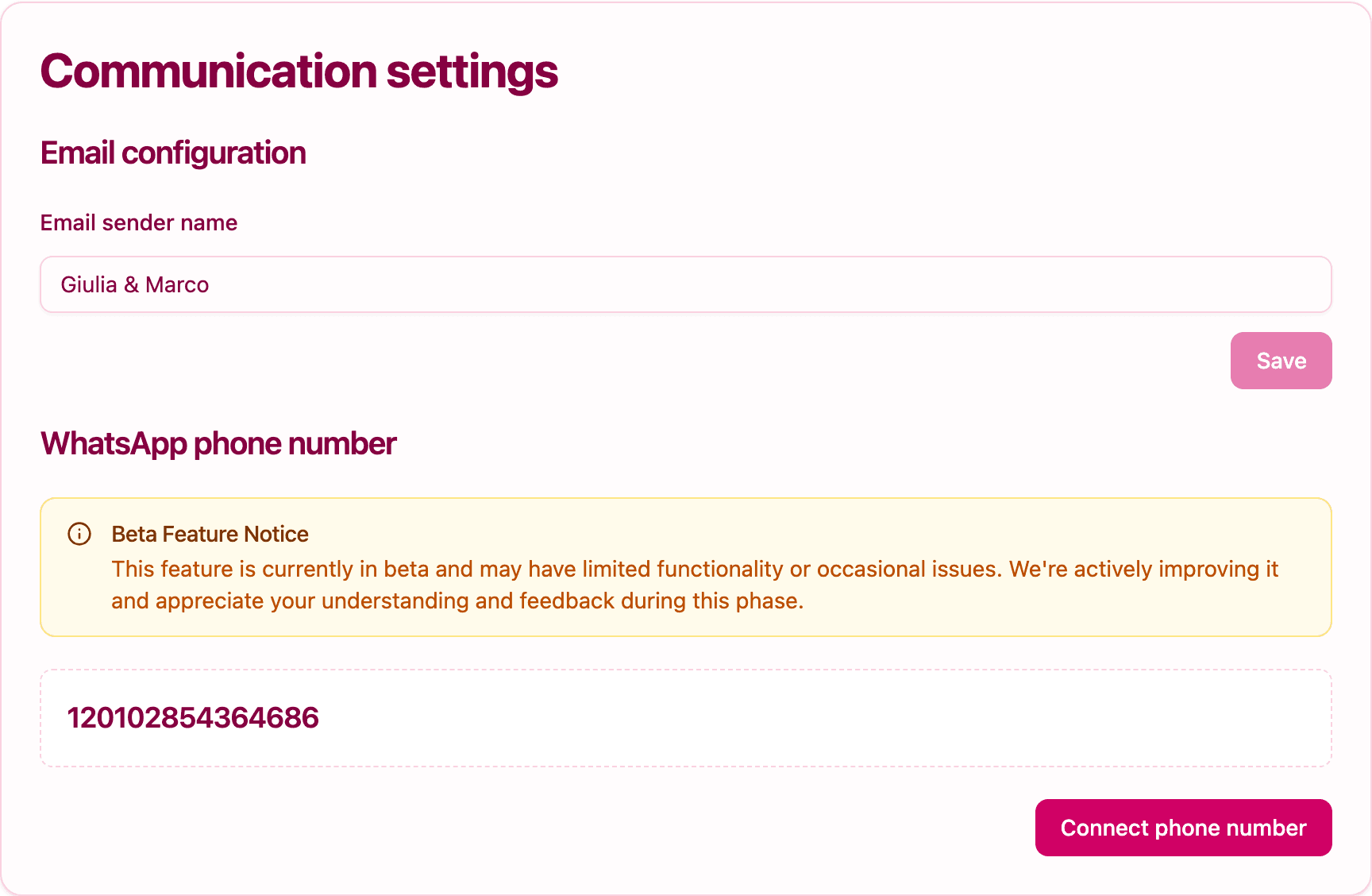
Open Settings from the sidebar and scroll to the Communication settings card. The field is in the Email configuration section.
A couple of things to know:
- Only Admins of the project can change it.
- The card isn't shown on the Exclusive plan, because email communications aren't included. See Sending communications by email for what each plan offers.
What the sender name does
The sender name is the display name guests see next to your emails. The address behind it is always noreply@invytly.com, so:
- Guests see your chosen name, sent from Invytly's address.
- Replies to your emails are not received. If you want guests to be able to reach you, tell them how in the message, or set up the help contact on your RSVP page from Settings > Support.
This is the only email setting you need. There's no custom domain to configure and no address to verify: once the name is saved, your emails are ready to go.
Choosing a good name
Pick something your guests will recognise at a glance:
- The couple's names, for example "Giulia & Marco", when the emails are about their wedding.
- Your studio's name, for example "Studio Eventi", if guests know you as the planner.
The name must be between 3 and 50 characters. If you leave the field empty, your emails are sent as Invytly.
Set the sender name
- Open Settings from the sidebar.
- In the Communication settings card, find Email sender name under Email configuration.
- Type the name you want guests to see.
- Click Save.
The new name is used for every email you send from now on. You can change it whenever you like, and emptying the field and saving brings back the default "Invytly".
Help your emails reach the inbox
A recognisable sender is the first step; a few habits help even more:
- Pair it with a clear subject. "Giulia & Marco: confirm your attendance" tells guests straight away what the email is and why it matters.
- Send a test first. Before sending to everyone, use Send test message on the communication to see exactly how the sender and subject look in a real inbox.
- Follow the deliveries. After a send, the Message summary shows who received and opened the email, so you can spot addresses that need checking.
If a guest can't find your email
Invytly sends your emails through SendGrid, a professional delivery service, so it rarely happens. If a guest tells you they haven't received an email, ask them first to check their inbox carefully: it can happen that an email is deleted by mistake. Only as a last resort, ask them to look in the spam folder, because some email providers occasionally mark messages as spam by mistake.
The full walkthrough, including what Delivered and Opened mean, is in Sending communications by email.