WhatsApp conversations is your project's WhatsApp inbox. Every message a guest sends to your project's WhatsApp number lands here, grouped by guest, so you can answer questions about parking, the dress code or the RSVP without reaching for your phone.
The section is visible only to Admins of the project, and it's really useful on the Glam plan, the one that includes WhatsApp. If you haven't sent anything on WhatsApp yet, start with Sending communications on WhatsApp.
How guests end up here
A conversation starts when a guest replies to one of your WhatsApp communications, or simply writes to your project's WhatsApp number.
Invytly recognises the guest by their phone number, matching it with the WhatsApp number saved in your guest list. This is why the number in Guests management must be correct and include the country code (for example +39). Messages from numbers that don't match any guest are not shown.
Knowing when someone writes
You don't need to keep the page open to notice new messages:
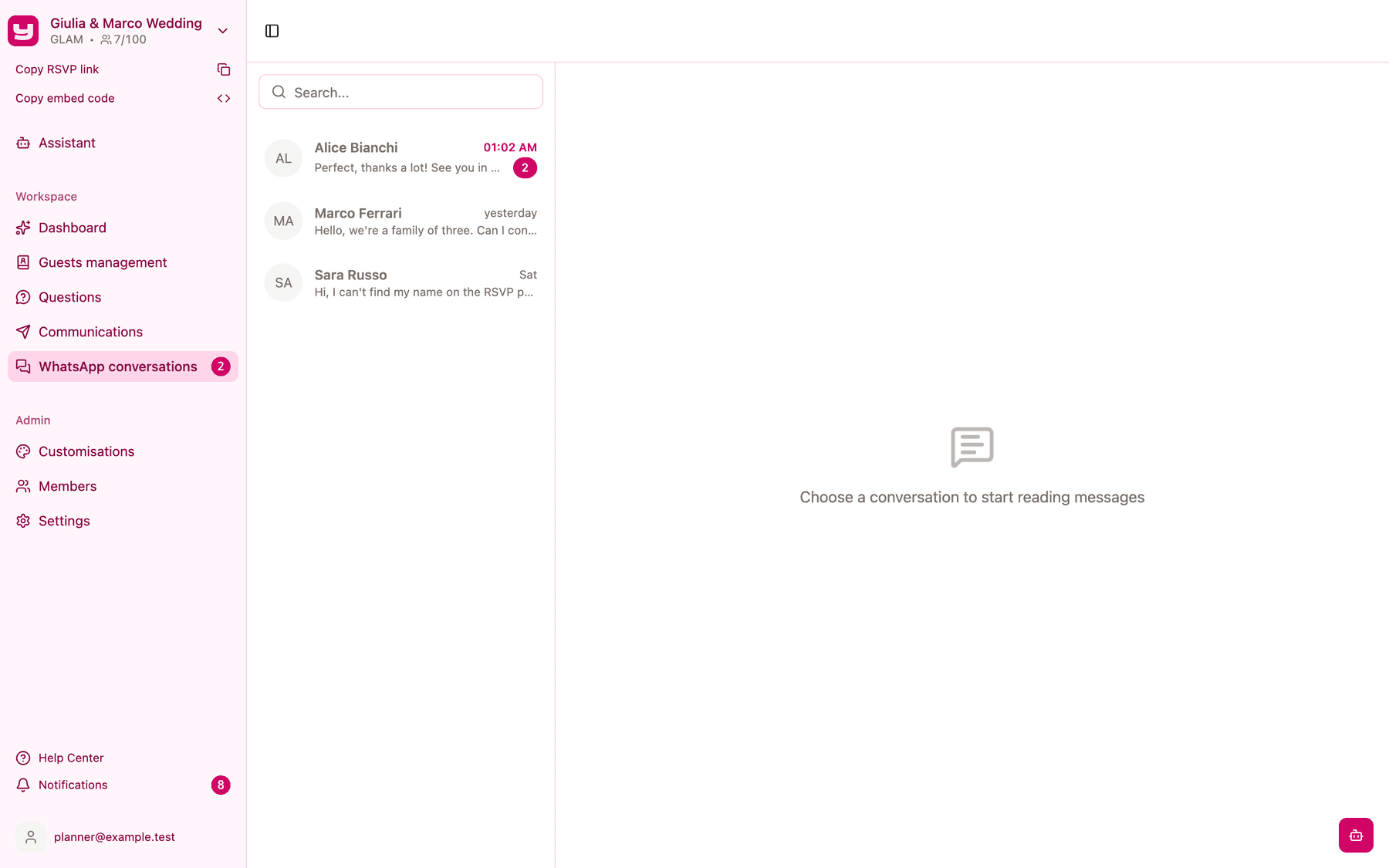
- The WhatsApp conversations item in the sidebar shows a badge with the number of unread messages.
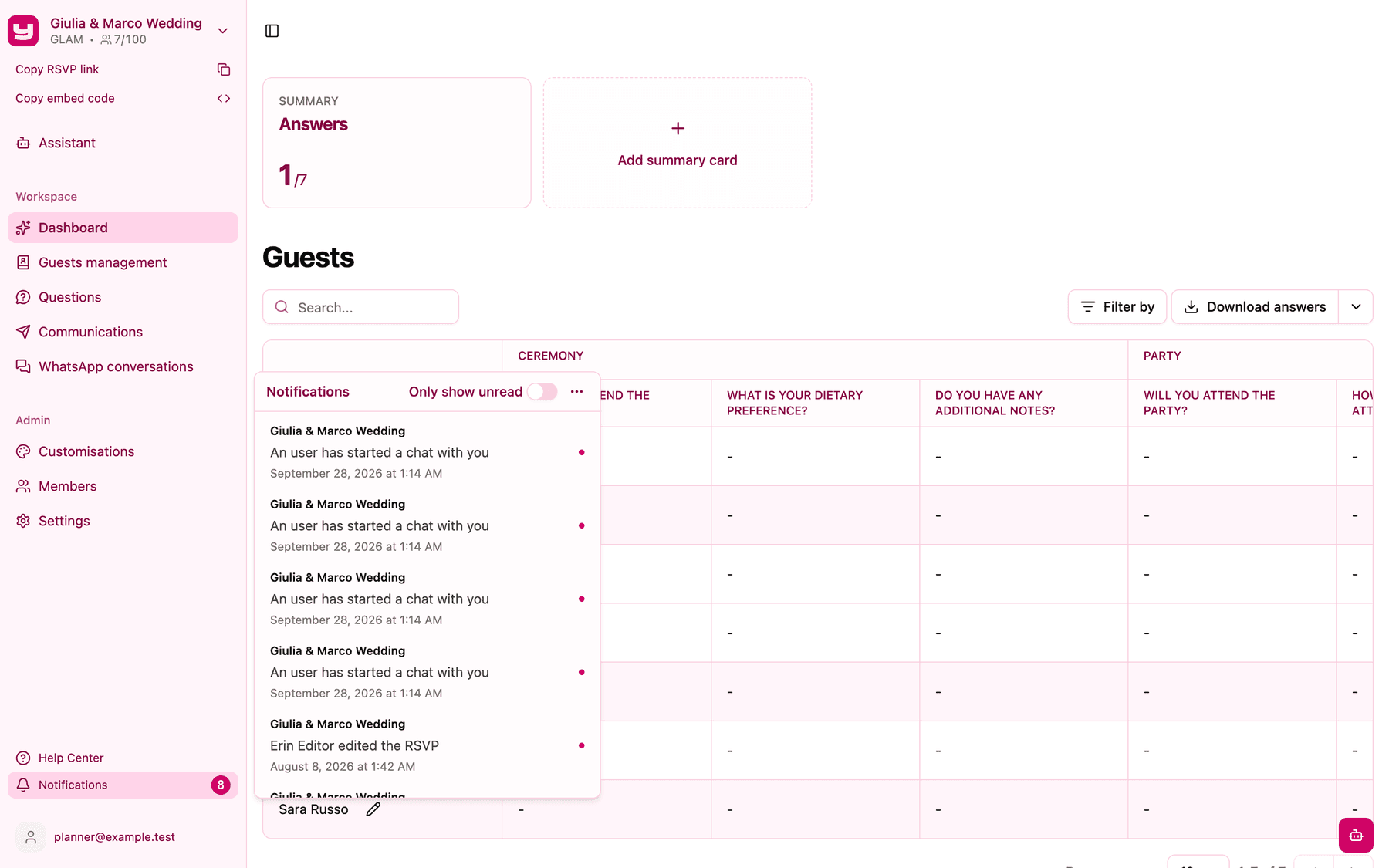
- Each new message also creates a notification in the bell panel (Notifications), with the text "An user has started a chat with you". Click it to jump straight to the conversation. In the panel you can turn on Only show unread or use Mark all as read.
The conversation list
Open WhatsApp conversations from the sidebar. On the left you'll see one row per guest, with:
- their initials and name (or their WhatsApp name or number, if they aren't in the guest list);
- a preview of the last message, with "Image" or "Video" for media;
- when the last message arrived;
- a counter of unread messages.
Conversations with unread messages come first, then the most recent ones. Use Search... at the top to find a guest by name or number.
Reading a conversation
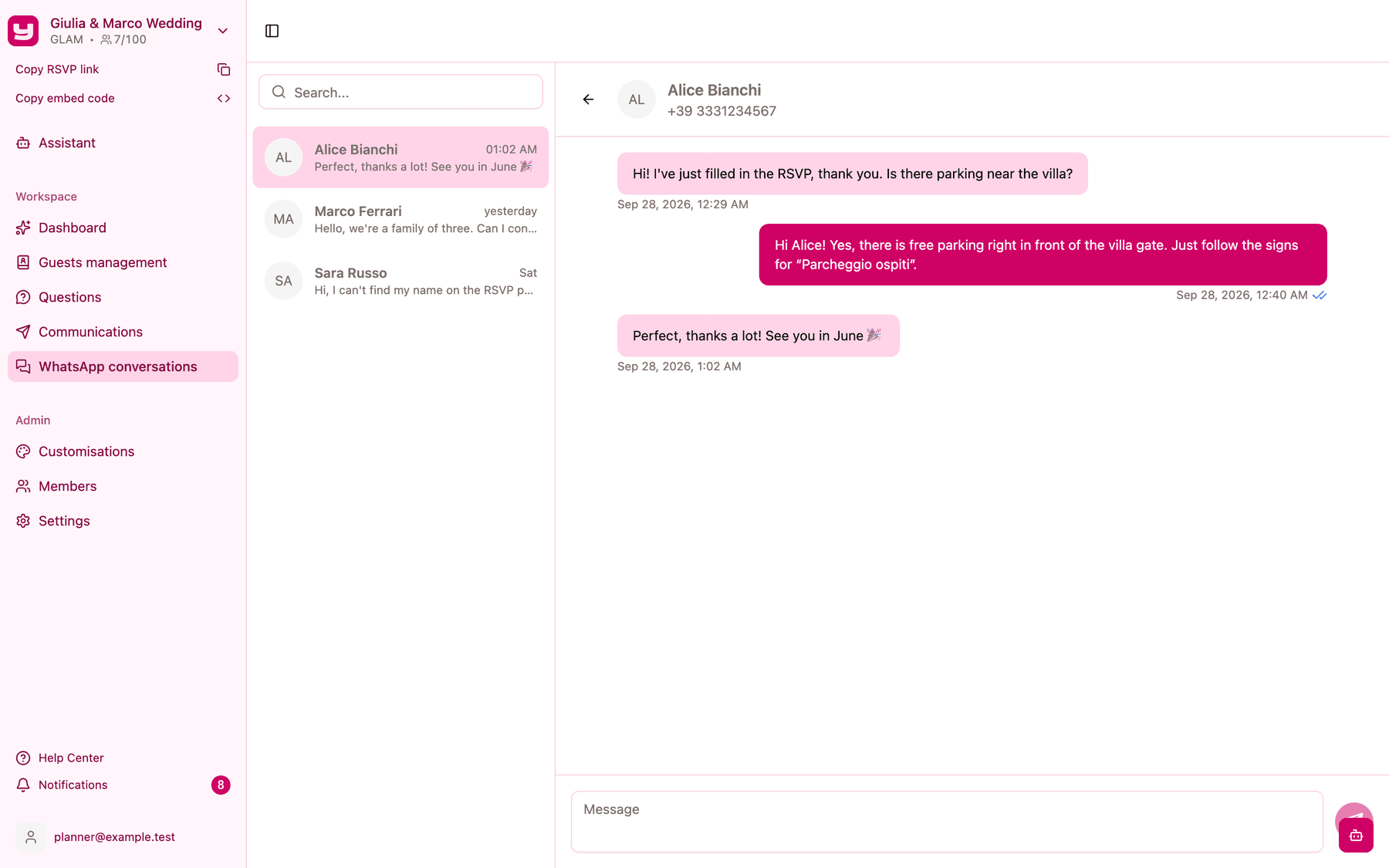
Click a conversation to open it. The header shows the guest's name and number. Opening a conversation marks its messages as read.
- The guest's messages are on the left.
- Your messages are on the right: your replies, the WhatsApp communications you sent and the automatic opt-in message. Messages sent from a communication carry a FROM A TEMPLATE badge.
Next to each of your messages, a small icon tells you how it's doing:
| Icon | Meaning |
|---|---|
| Clock | Sending |
| One tick | Sent |
| Two ticks | Delivered to the guest's phone |
| Two blue ticks | Read by the guest |
| Red mark | Not delivered |
For now, only text messages and images (with their caption) are shown. Other kinds of content, such as voice messages, videos, documents or locations, aren't supported yet; if a guest sends one, ask them to write it in a message instead.
Replying
Type your answer in the Message box at the bottom and click the send button. If something goes wrong, a message tells you the reply couldn't be sent: just try again.
The 24-hour window
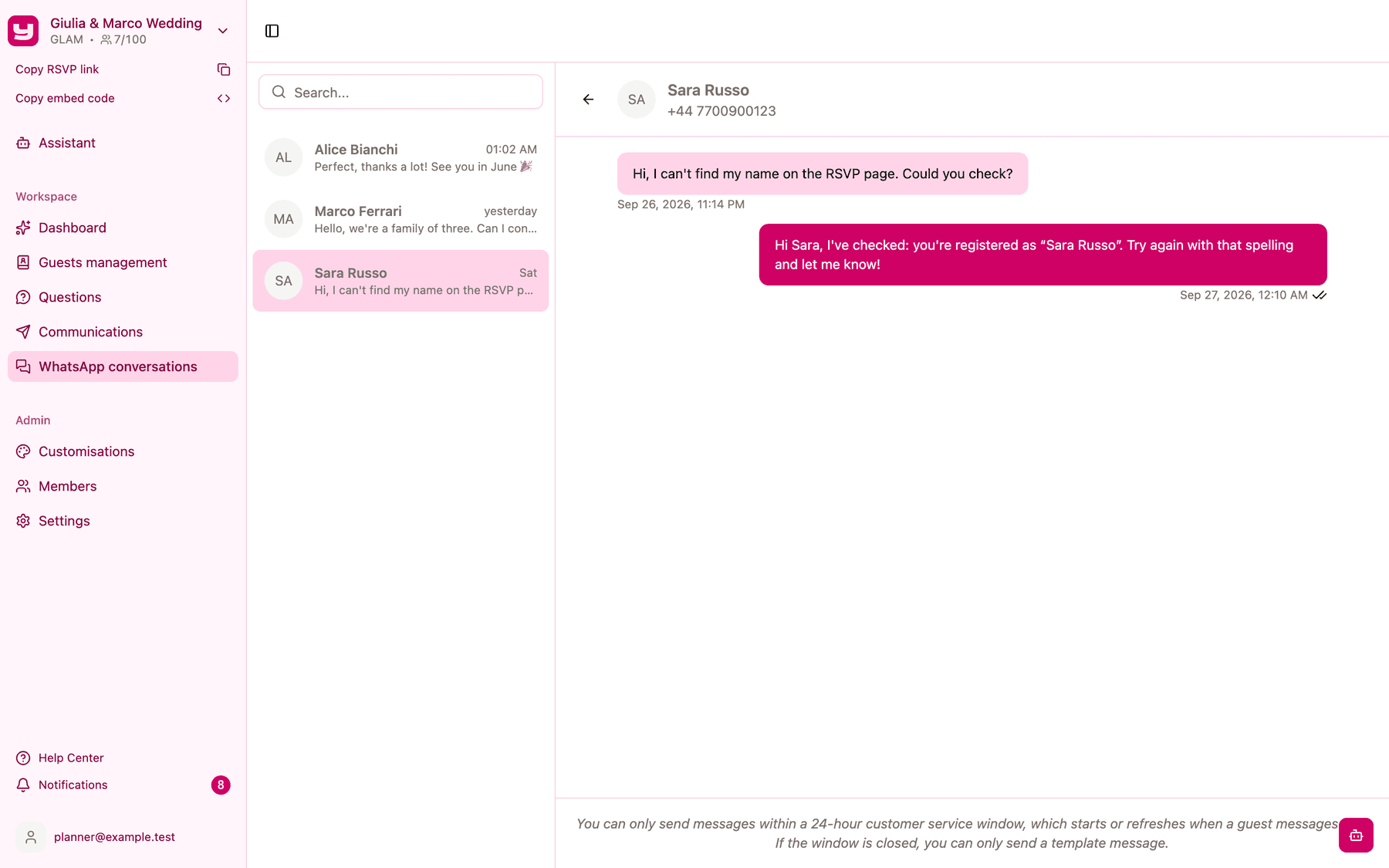
WhatsApp has one important rule: you can reply freely only within 24 hours of the guest's last message. Every time the guest writes to you, the 24 hours start again.
When the window is closed, the message box is replaced by a notice explaining this, and you can't write a free reply. To reach the guest again, send them a WhatsApp communication from the Communications section: those messages are approved by WhatsApp in advance, so they can be sent at any time. See Sending communications on WhatsApp.
Opening a chat from the guest list
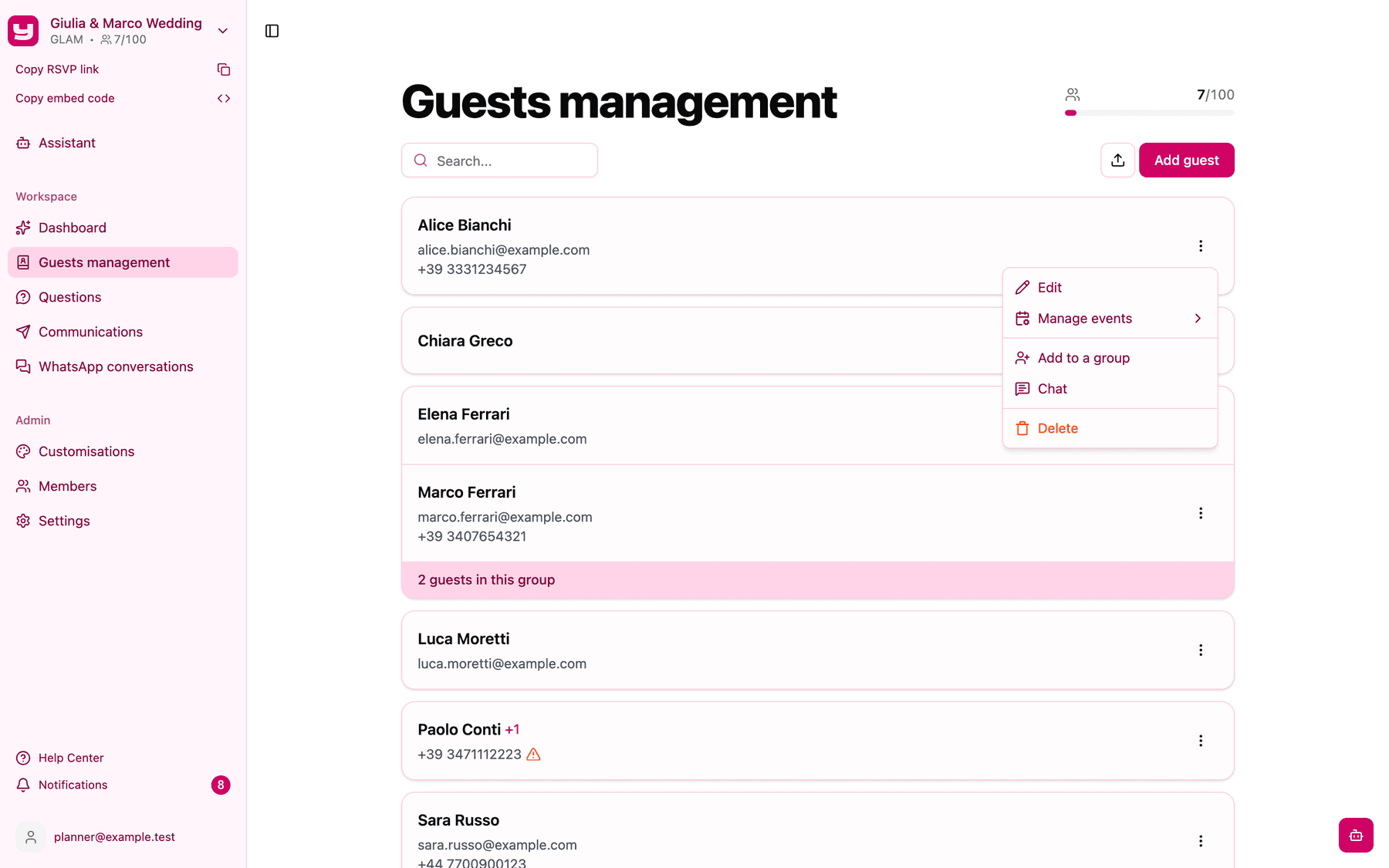
You can also start from a guest. In Guests management, open the ⋮ menu on the guest's row and choose Chat: their conversation opens directly. The option appears only for guests with a WhatsApp number.
What isn't available
To keep things simple, the inbox has no archiving, no way to assign conversations to a colleague, no filters beyond search and no "mark as unread". There are no automatic replies either: every answer is written by you.
Good practices
- Reply within the window. If a guest writes in the evening, answering the next morning is fine; waiting two days means you'll need a communication to get back to them.
- Keep numbers up to date. A missing country code or an old number means the guest's messages won't reach you. Check the numbers in Guests management before your first WhatsApp send.
- Point RSVP questions to the RSVP page. When a guest asks how to confirm, remind them to open the link in your invitation and sign in with their first and last name as they appear in your guest list.