WhatsApp communications are included in the Glam plan. By default, every Glam project already sends its WhatsApp messages from Invytly's shared, verified WhatsApp Business number, so you can start sending right away without setting anything up.
Connecting your own number is optional. It's worth doing when you want guests to see a name and number they recognise, such as your studio's, instead of Invytly's.
Note: connecting your own WhatsApp number is a beta feature. It may have limited functionality or occasional issues while we keep improving it, and your feedback is very welcome.
Where to find it
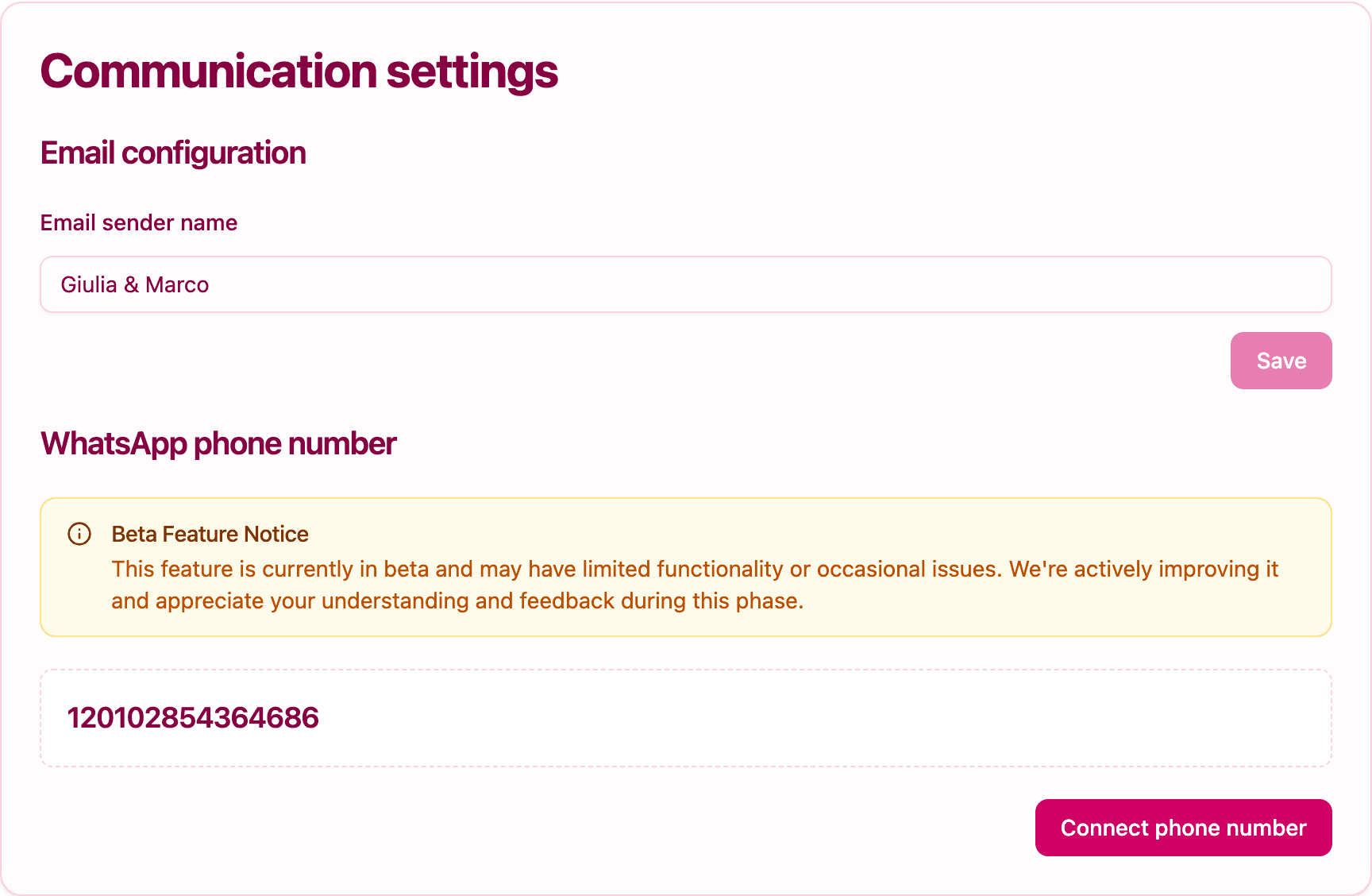
Open Settings from the sidebar and scroll to the Communication settings card. The WhatsApp phone number section shows the beta notice, a box with the ID of the number your project currently uses, and the Connect phone number button. Only Admins can connect a number, and the section appears only on the Glam plan.
The box shows a long numeric ID rather than the phone number itself: that's how WhatsApp identifies the number behind the scenes.
Before you start
Check these points first; they save you from getting stuck halfway:
- The number must be able to receive an SMS. The verification code arrives by text message.
- The number must not be active on the WhatsApp or WhatsApp Business app. A number can only be active on one of the two: the app on a phone, or a business account used by a platform like Invytly. If the number is currently registered on WhatsApp, delete the WhatsApp account for that number from the app first. Keep in mind that, once connected to Invytly, you won't be able to use that number in the WhatsApp app anymore, so a dedicated number is the best choice.
- Have the display name ready. This is the name guests will see on WhatsApp, such as "Studio Eventi" or "Giulia & Marco".
- Be ready to save a PIN. In the last step you'll choose a 6-digit PIN. Write it down somewhere safe: you'll need it for any future change to the number.
Connect your number
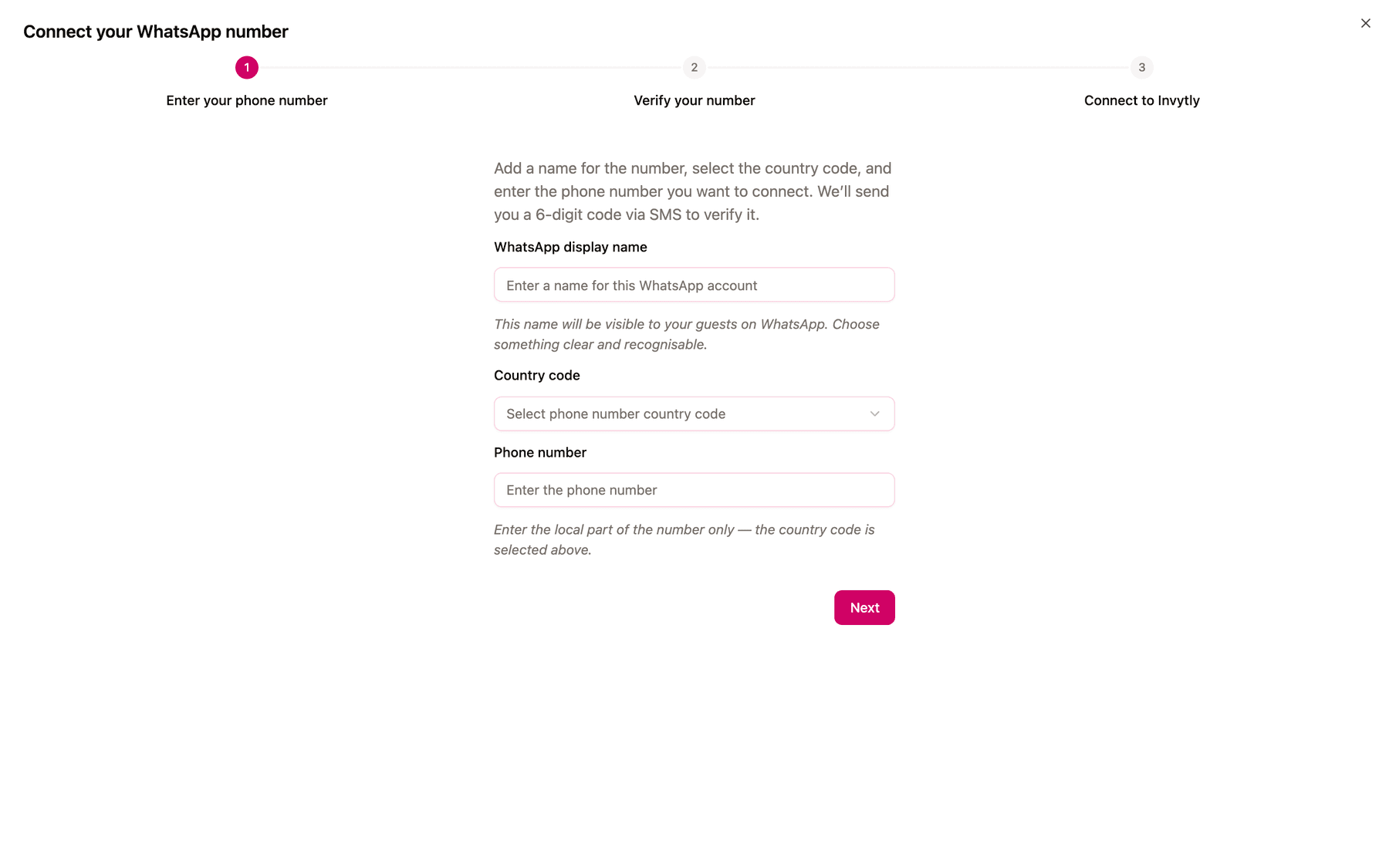
Click Connect phone number. The Connect your WhatsApp number window opens with three steps.
Step 1: Enter your phone number
- In WhatsApp display name, type the name guests will see. Choose something clear and recognisable (3 to 255 characters).
- In Country code, pick your country's code, for example "IT +39".
- In Phone number, type only the local part of the number, without the country code: that's already selected in the field above.
- Click Next.
A confirmation tells you the verification code has been sent by SMS.
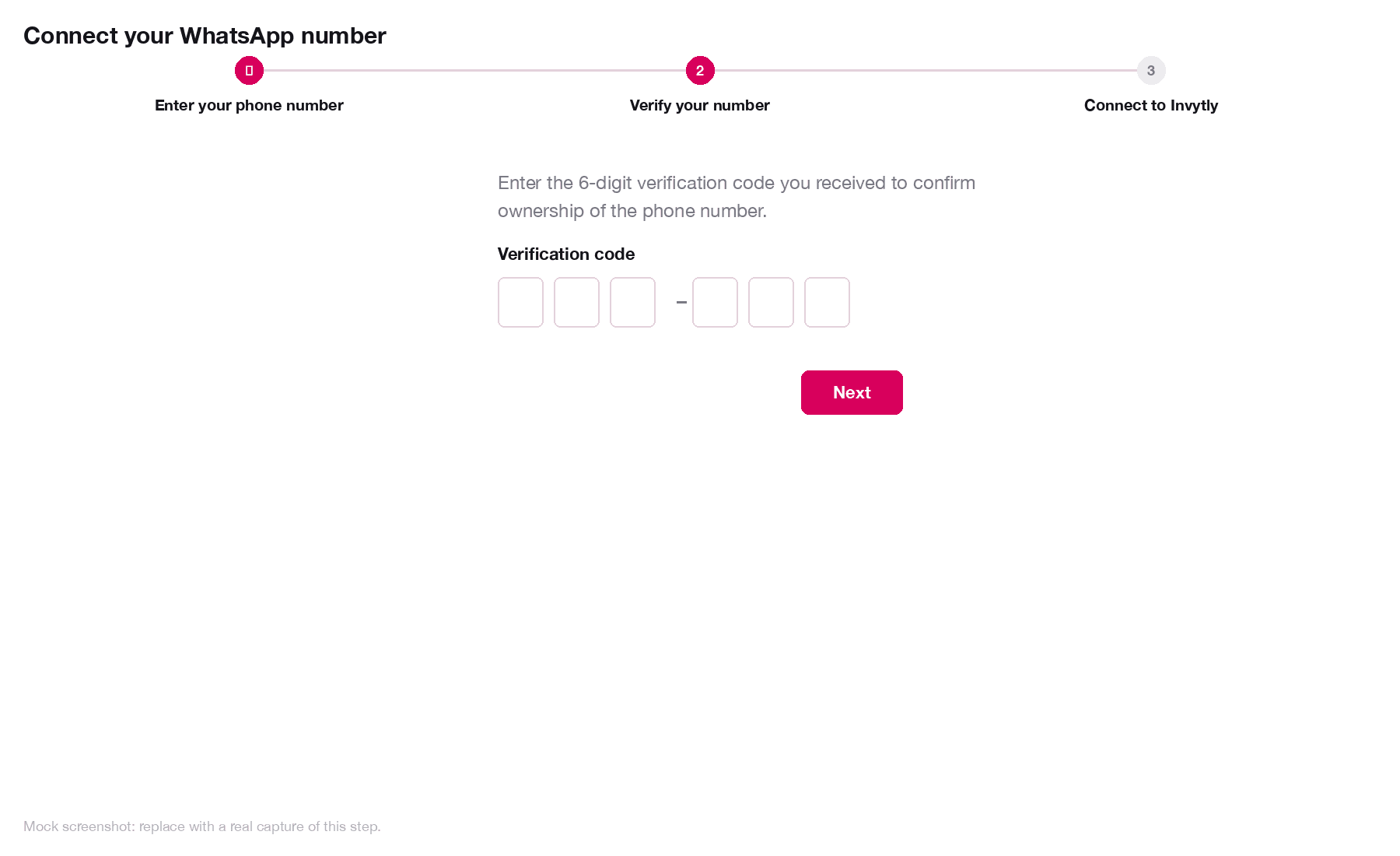
Step 2: Verify your number
- Check your phone for the text message with the 6-digit code.
- Type it in the six boxes.
- Click Next.
A confirmation tells you your number has been verified.
Step 3: Connect to Invytly
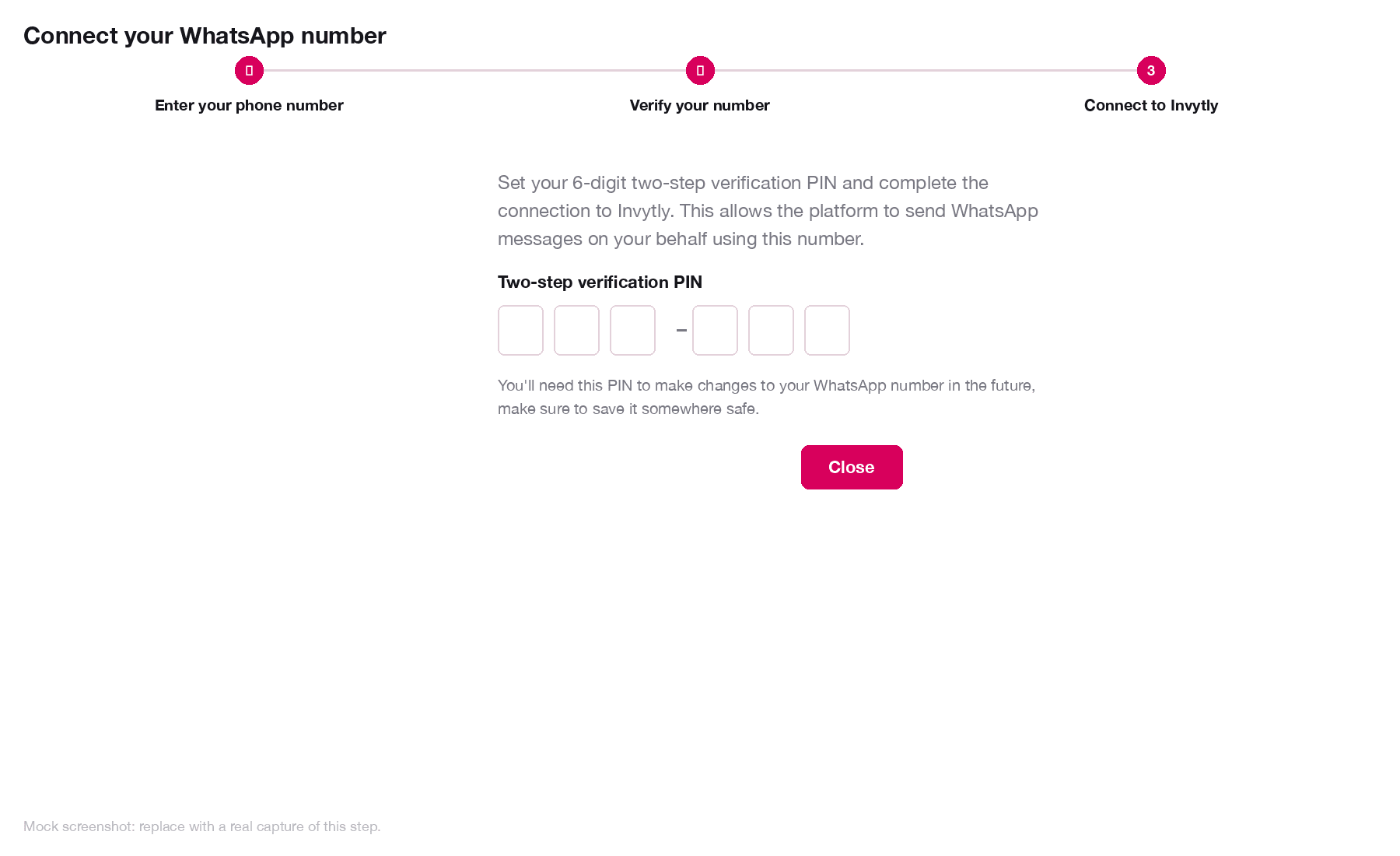
- In Two-step verification PIN, choose a 6-digit PIN. This PIN protects your number and lets Invytly send WhatsApp messages on your behalf.
- Save the PIN somewhere safe before moving on.
- Click Close to complete the connection.
A confirmation tells you the number is connected to Invytly.
What happens next
From now on, your project's WhatsApp communications go out from your number, and guests see the display name you chose. Replies from guests arrive in WhatsApp conversations.
There's currently no button to disconnect the number or replace it with another one. If you need to do either, contact Invytly support at support@invytly.com (or your Invytly contact person).
Troubleshooting
The code doesn't arrive. Check that the country code and number are correct, and that the phone can receive text messages. Wait a few minutes, as SMS can be slow. If it still doesn't arrive, close the window and start again from Connect phone number.
The number is already in use on WhatsApp. The connection can't be completed while the number is active on the WhatsApp or WhatsApp Business app. Delete the WhatsApp account for that number from the app, then start again.
You've lost the PIN. Contact Invytly support at support@invytly.com.
Ready to send? See Sending communications on WhatsApp.