Every time you send a communication, you decide exactly who gets it. The Select guests window is where you make that choice: you can tick guests one by one, or let filters do the work and send a reminder only to the people who haven't answered yet, only to the ceremony guests, or only to the addresses that didn't work last time.
This article covers the picker in detail. To create and send the message itself, see Sending communications by email and Sending communications on WhatsApp.
Open the picker
-
In Communications, open the communication you want to send.
-
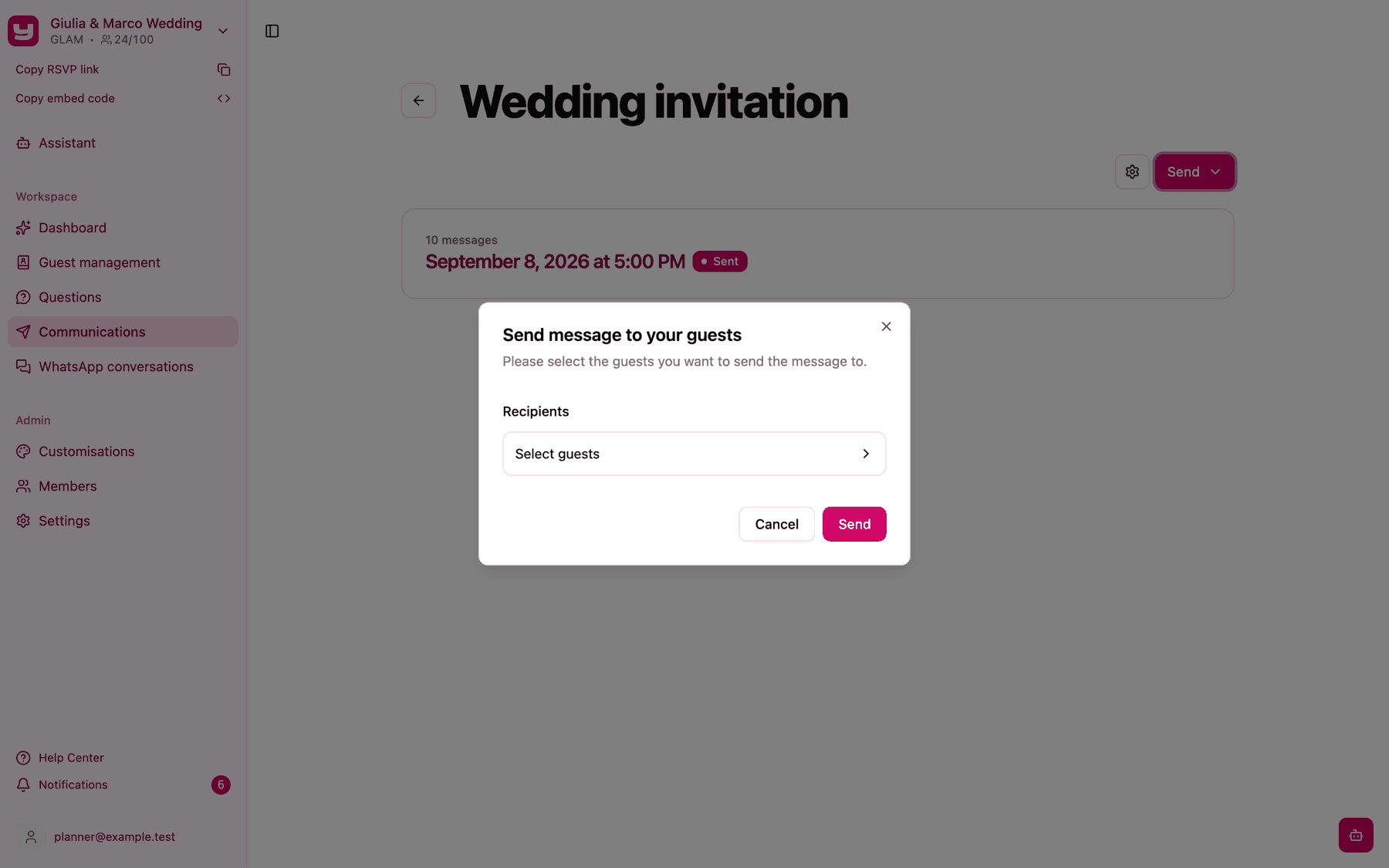
Click Send and choose Send message. The Send message to your guests window opens.
-
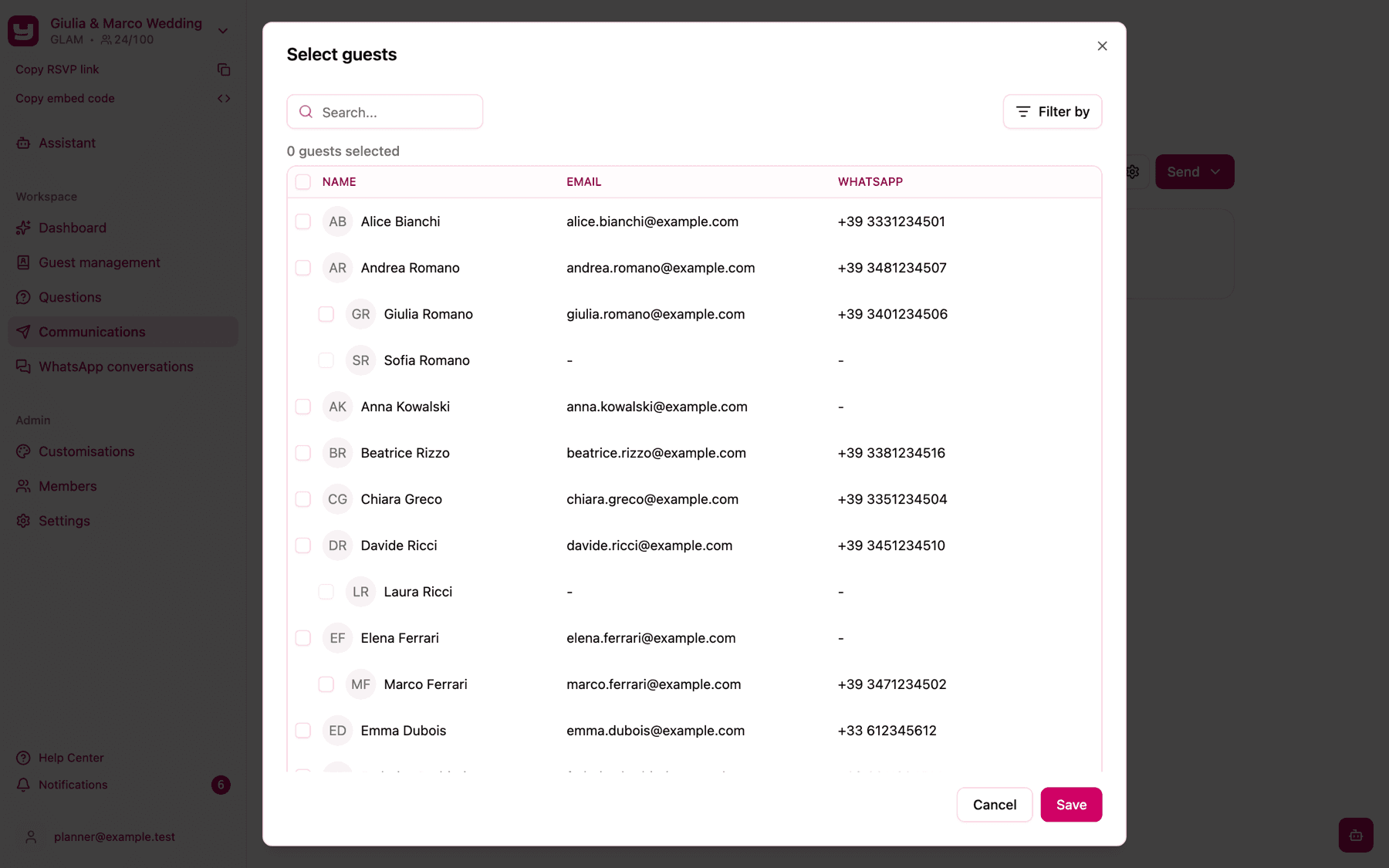
Under Recipients, click Select guests. The Select guests window opens with your whole guest list.
Each send starts with nobody selected, so you always choose the recipients consciously.
What the list shows
The list has three columns: Name, Email and WhatsApp (on a phone, only the name is shown). Above the list, a counter such as "12 guests selected" tells you how many guests are ticked so far.
Households are grouped. The first guest of a group (a family, a couple) is shown first, with the other members indented below. Ticking the first guest selects or deselects the whole group in one click; the other members can also be ticked one by one.
Why some guests are greyed out
A greyed-out guest can't be ticked, because the message has no way to reach them on this communication's channel:
- Email communications: the guest has no email address in the guest list.
- WhatsApp communications: the guest has no WhatsApp number, or they opted out of WhatsApp messages.
Guests who opted out of WhatsApp also show a red warning icon next to their name; hover it to read "This user has requested not to receive further messages." On an email communication they can still be selected: the opt-out only concerns WhatsApp.
To make a greyed-out guest selectable, add the missing email address or number to their details (see Adding and editing guests).
Guests who aren't in any section can be ticked, but they won't receive the message: when you send, Invytly skips them and the Message summary shows "This guest was not invited to any event". Add them to at least one section's Guestlist before sending (see Assigning guests to sections).
Search
Type in the Search... box to find guests by first name, last name, email address or WhatsApp number. When one member of a household matches, the whole household is shown, so you can tick it all at once.
Filter by tags and answers
Click Filter by to open the Filter guests panel:
- Tags: turn on one or more tags to show only guests who have at least one of them (see Using tags to organise your guests).
- Questions: every question of your survey, grouped by section, with its possible answers (Yes and No, or each option of a choice question) plus Answered and Not Answered.
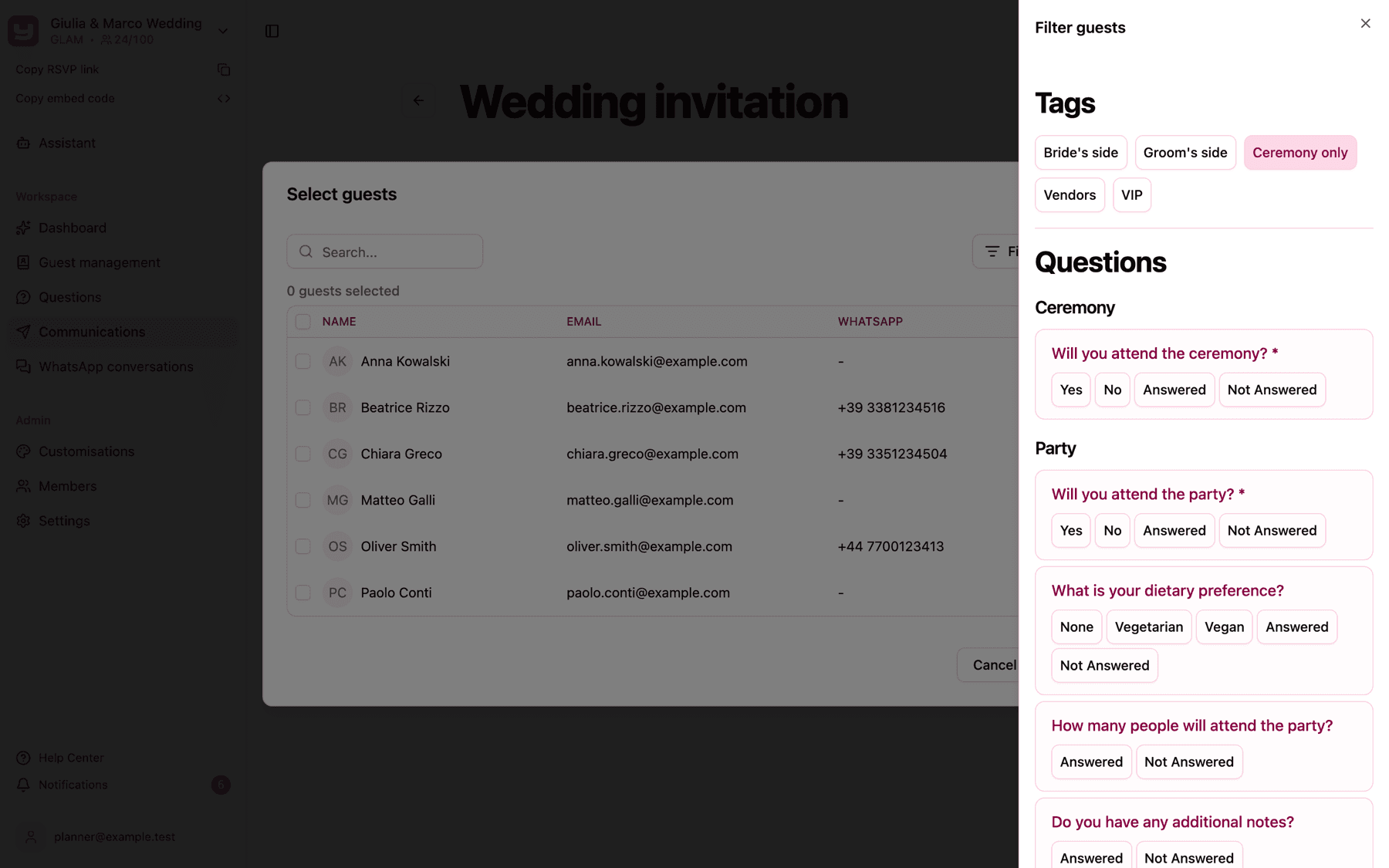
Answers you select on the same question add up (guests who picked either one), while conditions on different questions, and tags plus questions, must all be true at the same time. The Filter by button shows how many filters are active; click a highlighted button in the panel again to turn it off.
Select all and deselect
The checkbox in the header of the list, next to Name, works on the guests you can currently see:
- Click it to tick every visible guest who can receive the message (greyed-out guests are skipped).
- When all visible guests are ticked, click it again to untick them all.
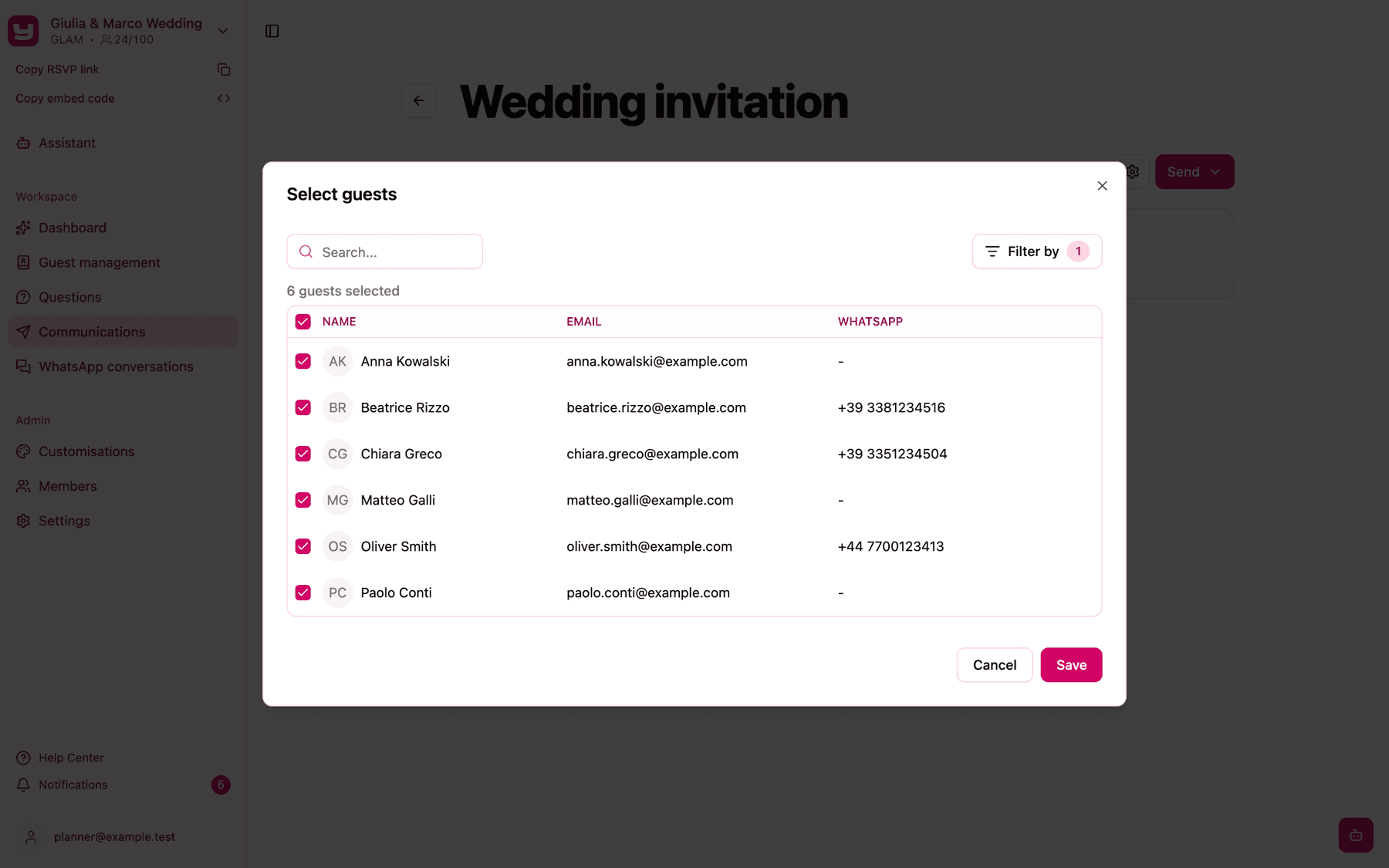
Guests you ticked earlier stay ticked even when a new search or filter hides them, and the counter keeps counting them. This lets you build a list in steps: filter by one tag, select all, switch to another tag, select all again. It also means you should check the counter before saving: if it's higher than what you see, some selected guests are hidden by your filters. To start again from zero, clear the search and the filters, then use the header checkbox until nobody is ticked.
Save and send
Click Save to go back to the Send message to your guests window, which now shows the count, for example "12 guests selected". Clicking Cancel instead closes the picker without changing the previous selection. Then click Send. If nobody is selected, you'll see "You must add at least one recipient".
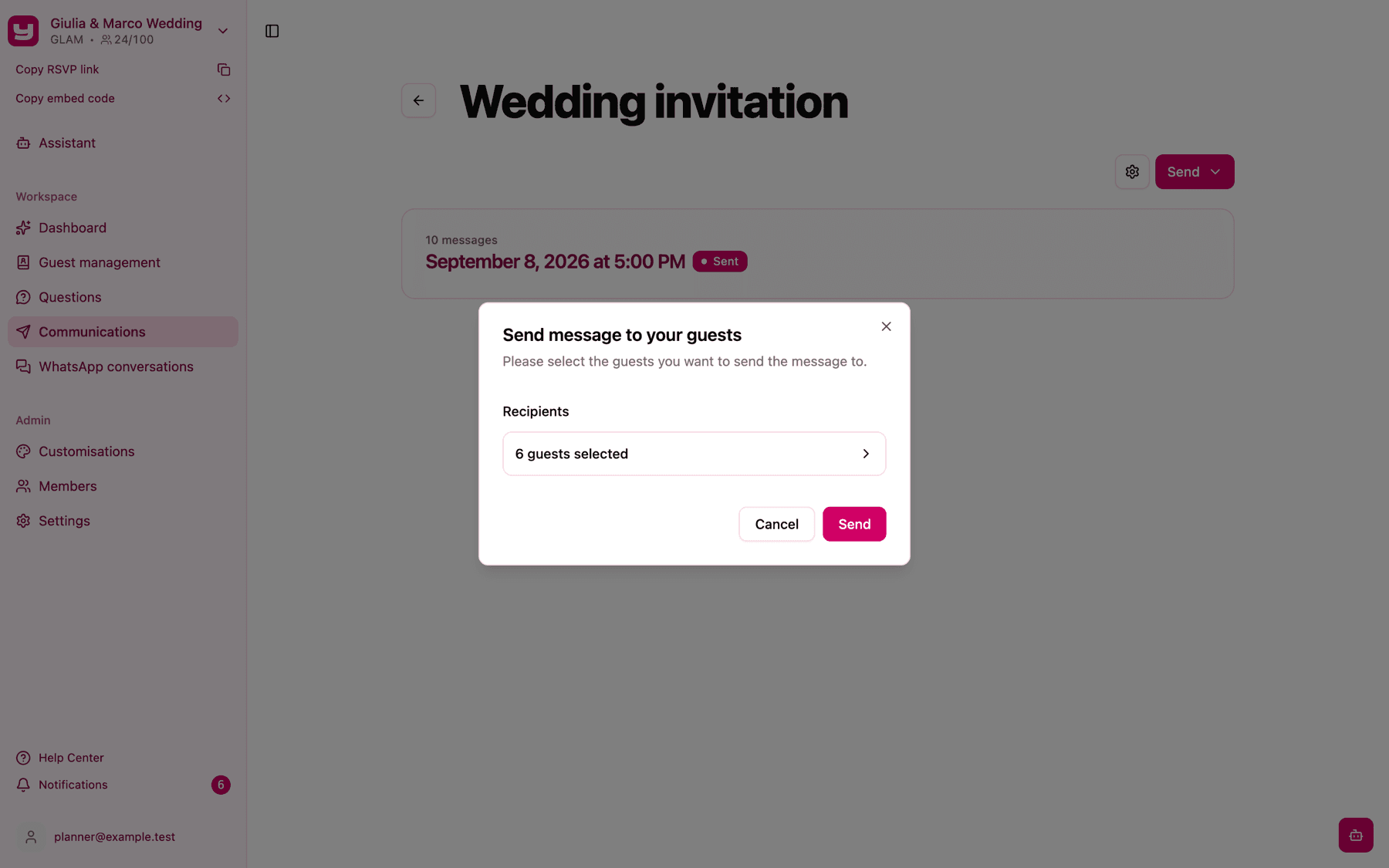
The count is the number of guests you ticked: the picker doesn't show a sending allowance or stop you at a limit.
Recipes
Remind only the guests who haven't answered
- Open the picker and click Filter by.
- Under Questions, find the attendance question of your main event (usually the first question of the section, such as "Will you participate?") and turn on Not Answered.
- Click the header checkbox to select everyone in the list, then Save and Send.
A plain text or invite reminder works well here. Keep in mind that Not Answered refers to that question only: guests who aren't invited to that section also appear, because they were never asked. If you have several events with different guest lists, repeat the filter on each event's attendance question, selecting all each time: the selections add up. Answers you recorded on a guest's behalf from the dashboard count as answered.
Send only to the ceremony guests
The picker has no section filter, so tags are the way to target a subset of guests. Give a tag such as "Ceremony" to the right guests in the guest list (see Using tags to organise your guests), then in the picker open Filter by, turn on the Ceremony tag, select all and save. If you turn on two tags, guests with either tag are shown.
Resend to addresses that didn't work
The Message summary doesn't let you pick recipients directly, but you can use it to find them:
-
On the communication page, click the previous send to open the Message summary.
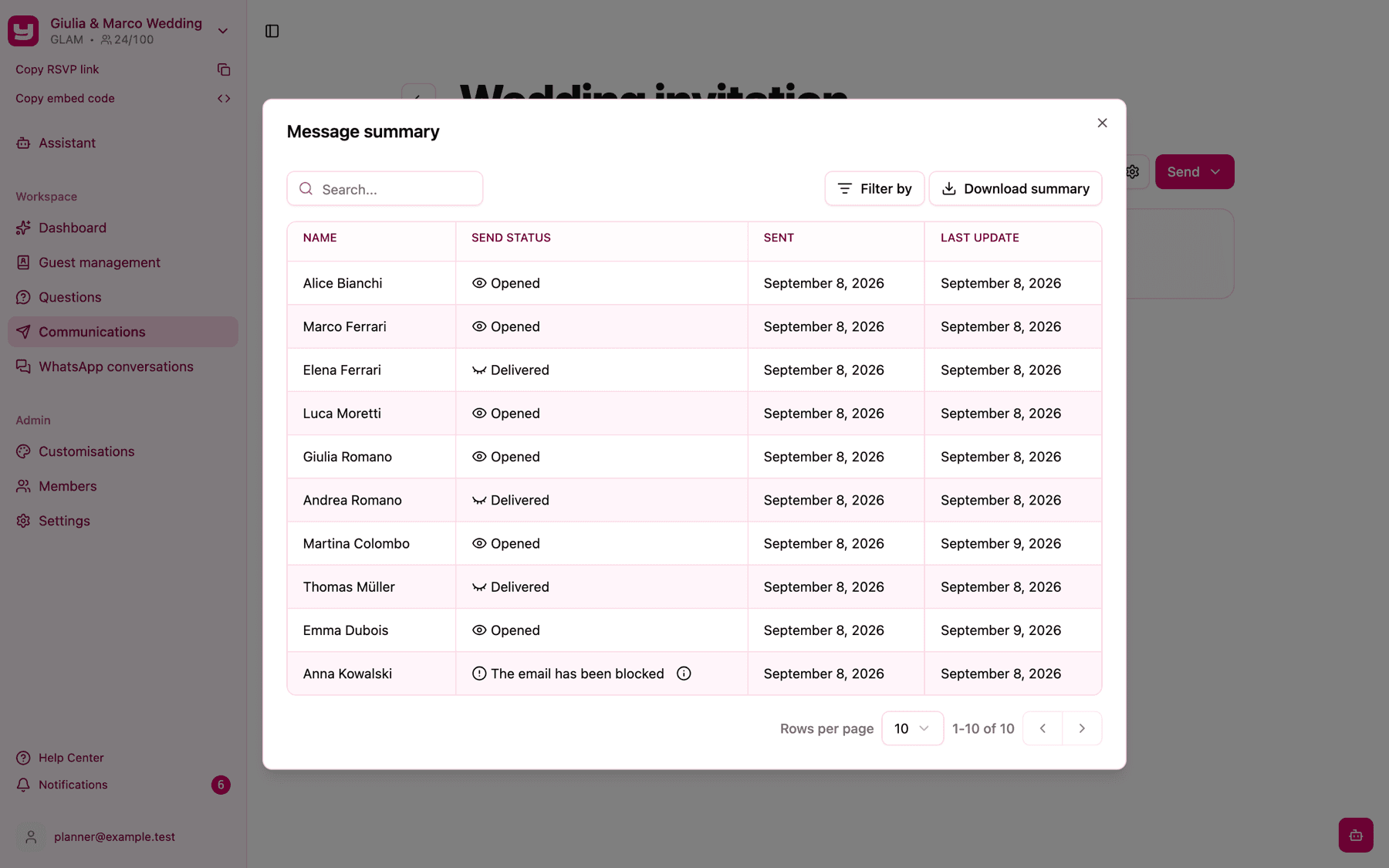
-
Click Filter by and choose the statuses that mean the email didn't arrive: "The email has been blocked", "The email has been temporarily blocked", "The email has been dropped" or "Delivery failed". Note the names, or click Download summary to keep the list in an Excel file.
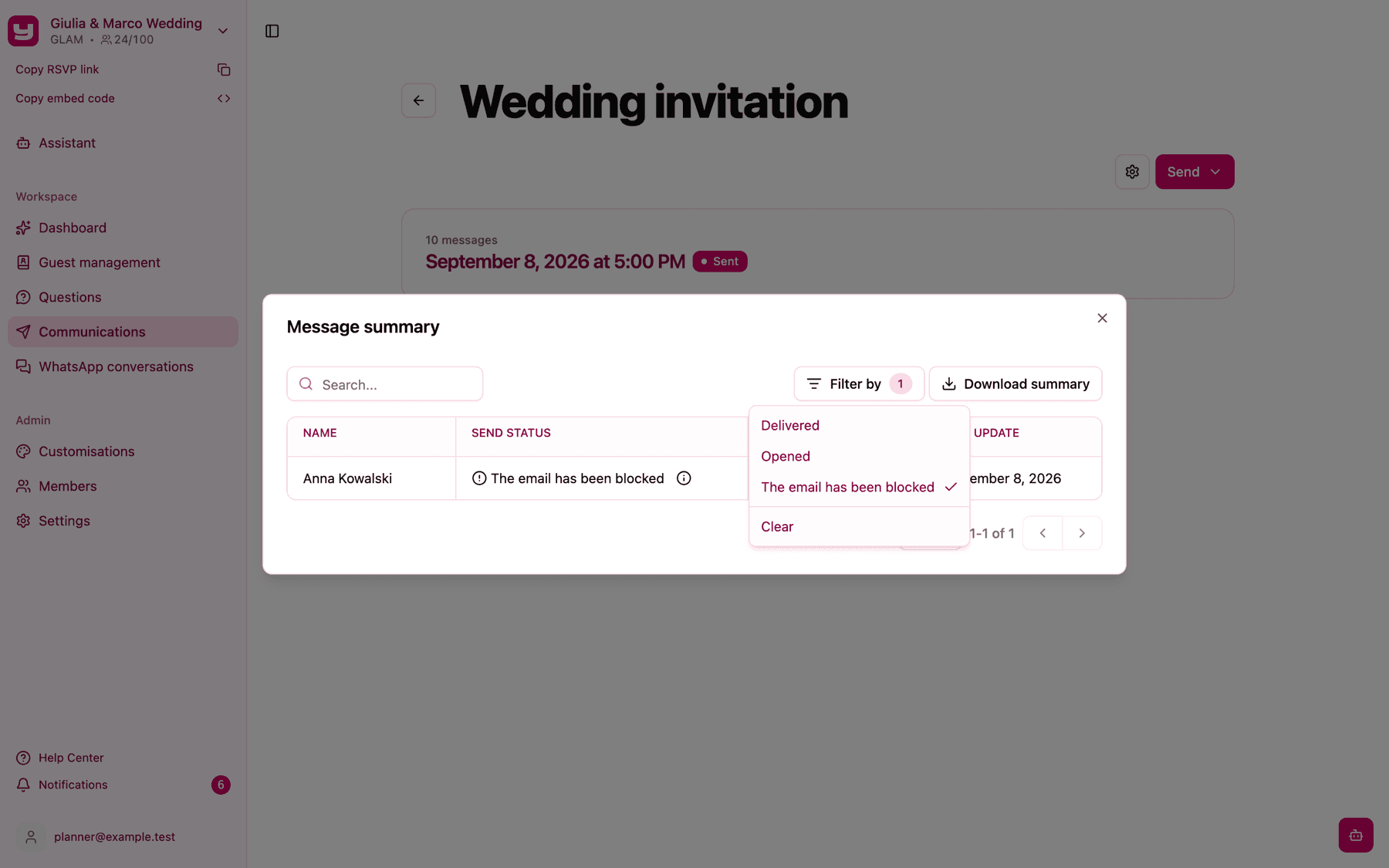
-
Correct those guests' email addresses in Guests management. An email that doesn't arrive usually has a typo.
-
Send again: in the picker, search each guest by name and tick them. For a long list, give them a temporary tag such as "Resend" first and filter by that tag instead.
"Attempt in progress" means delivery is still being retried, so wait before resending to those guests. On WhatsApp, guests marked "The guest opted out from messages" can't be reached again on that channel; use email instead.