WhatsApp is a direct way to reach guests: your messages arrive right on their phone, in the app they already use every day. In Invytly, WhatsApp messages are created and sent from the same Communications section you use for email.
Most steps are identical to email, so this article focuses on what's specific to WhatsApp. For the common steps (choosing recipients, filters, send history and the summary), see Sending communications by email.
Who can use it
WhatsApp is part of the top plan:
| Plan | WhatsApp communications |
|---|---|
| Exclusive | Not included |
| Trendy | Not included (email only) |
| Glam | Included, as a Beta feature |
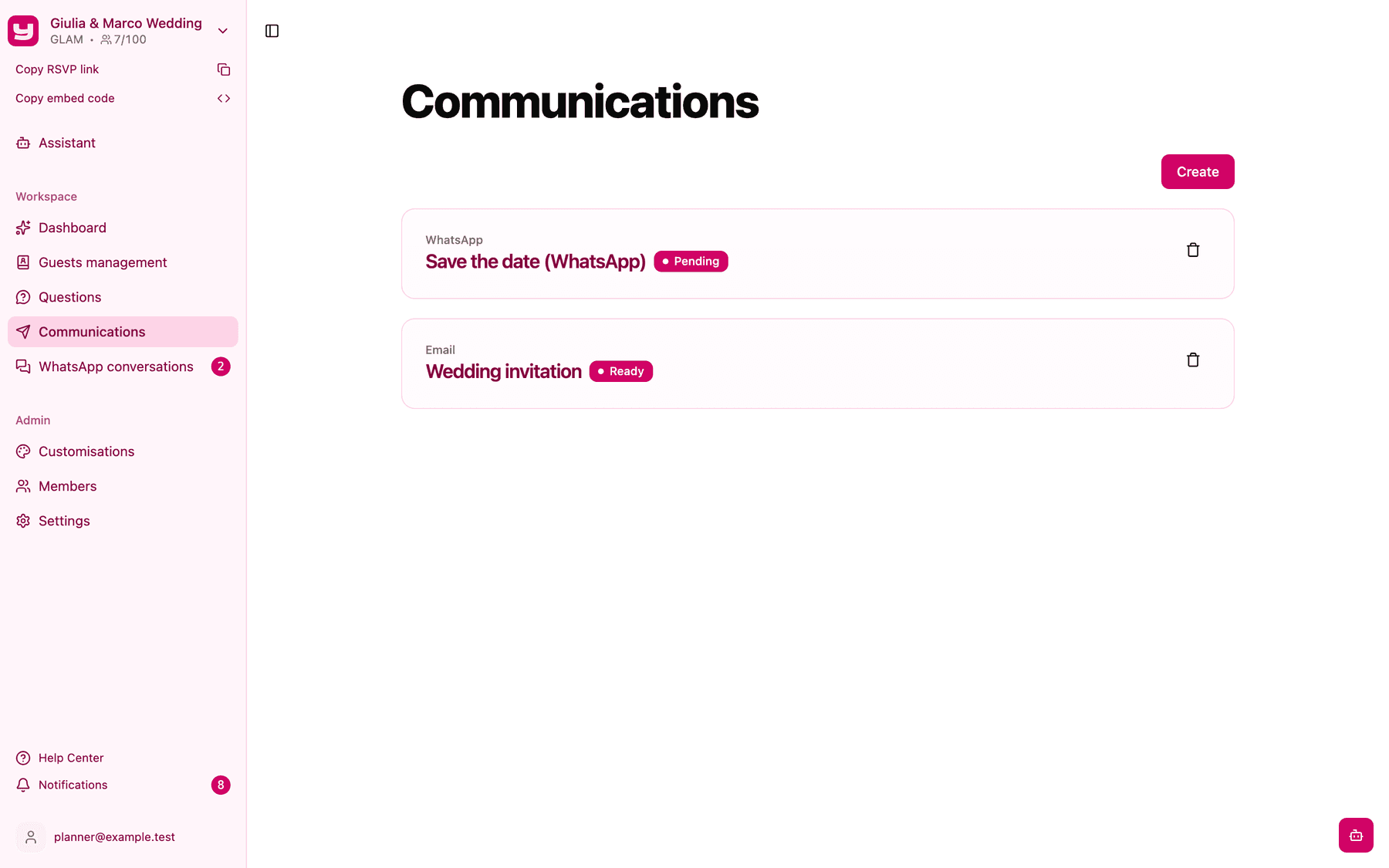
Only Admins of the project see the Communications section, and only once the project is active. WhatsApp communications appear in the list next to email ones, with WhatsApp under the title.
What a communication is
For each communication you:
- give it a title: only you see it, and it helps you tell at a glance what the message is about without having to open it every time;
- choose the channel the message is sent through (here, WhatsApp);
- choose the type of message you want to send.
On WhatsApp there are two types of message:
- Invite: use it only when you want to send a ready-made message in which you change just the text, the button label and the signature. The link is added automatically and always takes guests to the Invytly RSVP page (not to a website with a custom domain).
- Save the date: use it when you want a message you can customise in every field. You can personalise the message text, add an image or a short video, add a link as a button and customise the signature.
Plain text is available for email only.
Before you start
- Numbers with the country code. Guests need a WhatsApp number in the guest list, saved with the international prefix (for example +39 for Italy). Guests without a number can't be selected for WhatsApp sends.
- The sending number. Glam projects send from Invytly's shared, verified WhatsApp Business number, so you can start right away. If you'd rather use your own number, see Connecting a WhatsApp number.
Create a WhatsApp communication
-
In Communications, click Create.
-
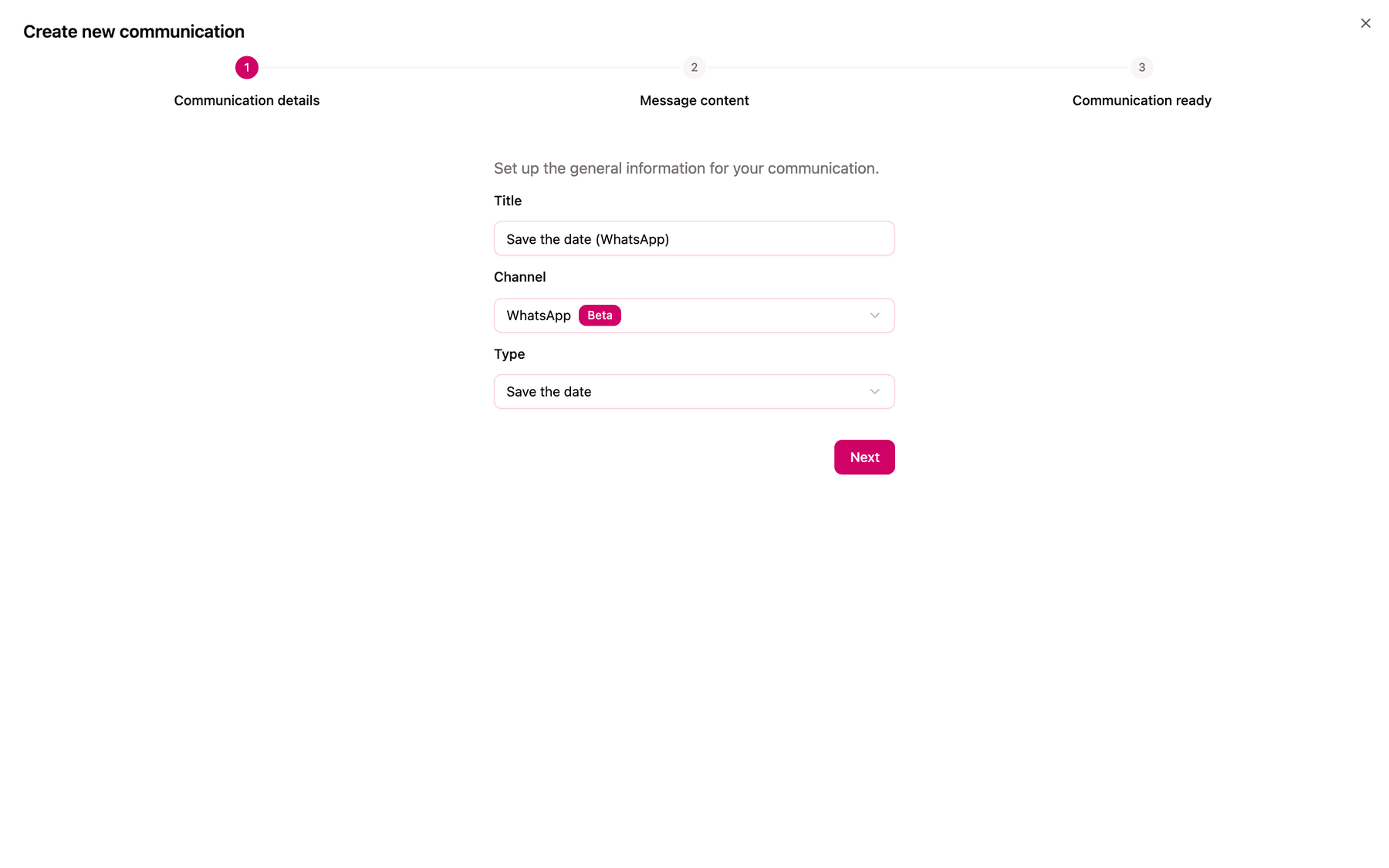
In Communication details, enter a Title, choose WhatsApp as the Channel (it has a Beta badge) and pick Invite or Save the date as the Type. Plain text is greyed out. Click Next.
-
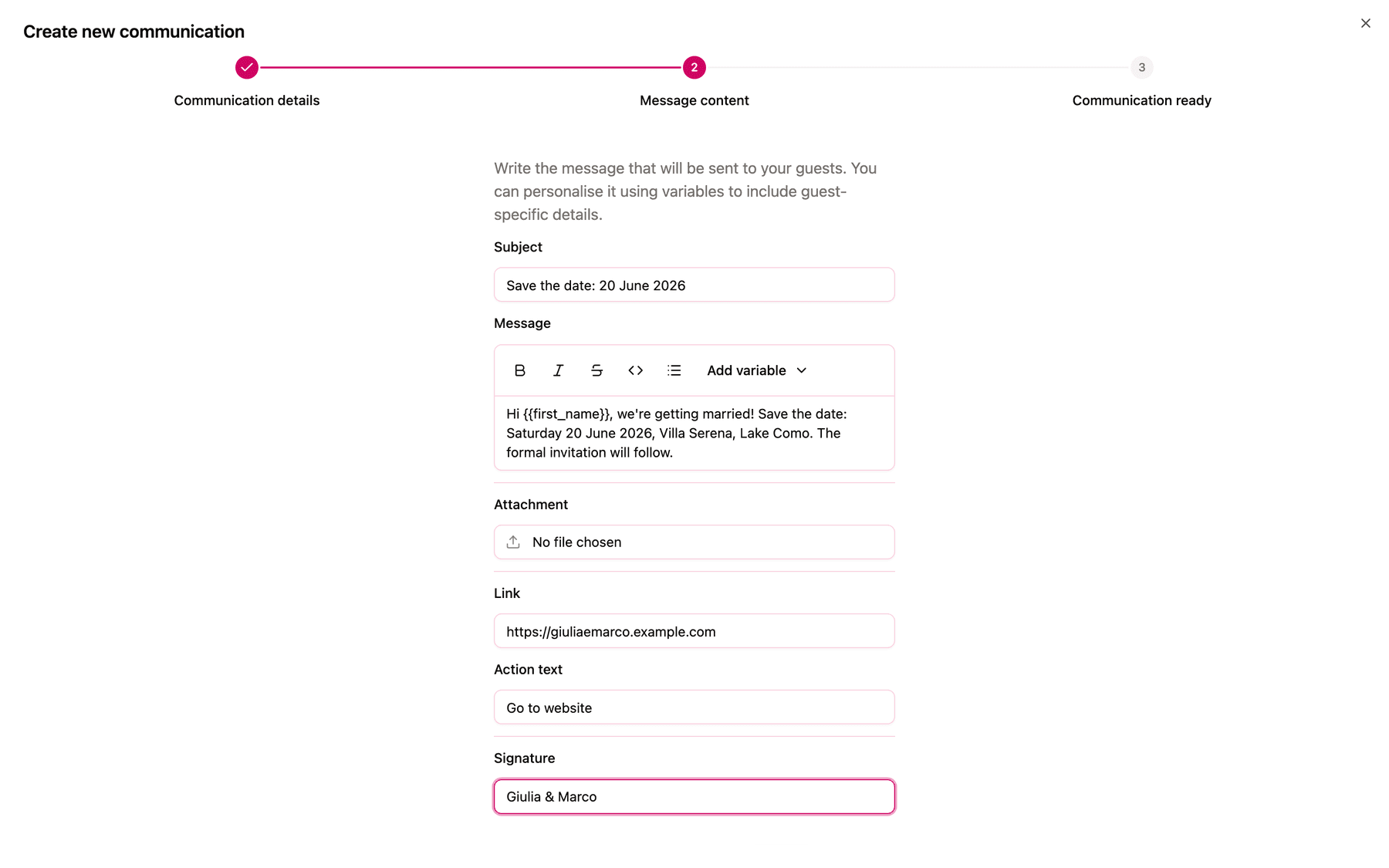
In Message content, fill in the fields as you would for an email, with these differences:
- The Subject becomes the bold heading at the top of the WhatsApp message.
- For a Save the date, the Attachment can be an image (up to 5 MB) or an mp4 video (up to 16 MB). The Link is the address the button opens, such as the wedding website.
- Message, Action text and Signature work as on email, including Add variable > Guest name for
{{first_name}}.
-
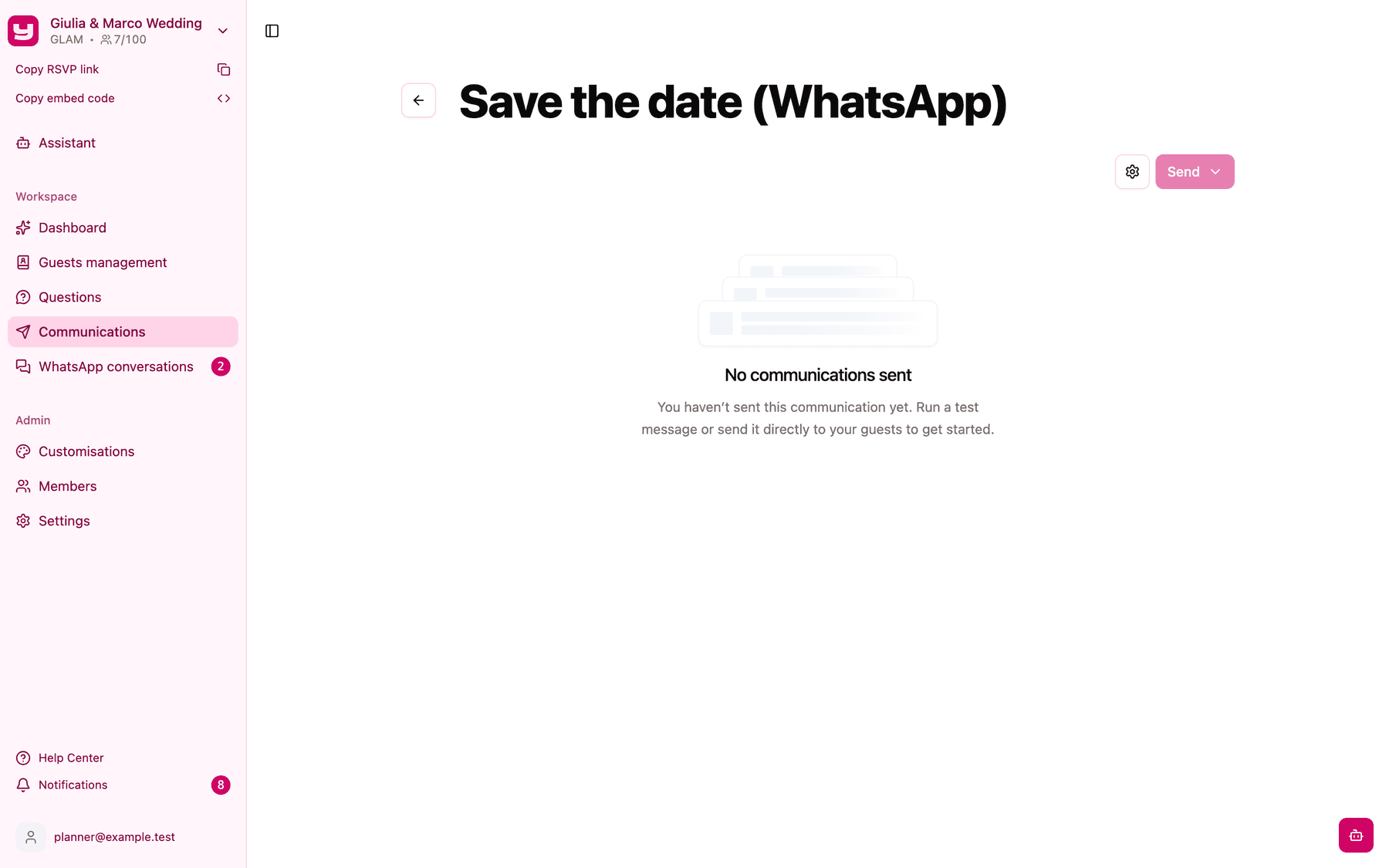
Click Create, then Close to open the communication page.
Note: the content of a WhatsApp message can't be edited after creation. In Message settings you can only change the title. To change the text, create a new communication.
Wait for Meta's approval
When you create a WhatsApp communication, Invytly submits it to Meta (the company behind WhatsApp) as a message template. WhatsApp only allows businesses to start conversations with approved templates, and this check is what makes it possible.
- Pending: Meta is reviewing it. The Send button is disabled in the meantime.
- Ready: approved. You can send it.
- Error: Meta rejected it. Create a new communication with different wording, avoiding anything that sounds promotional.
Send a test first
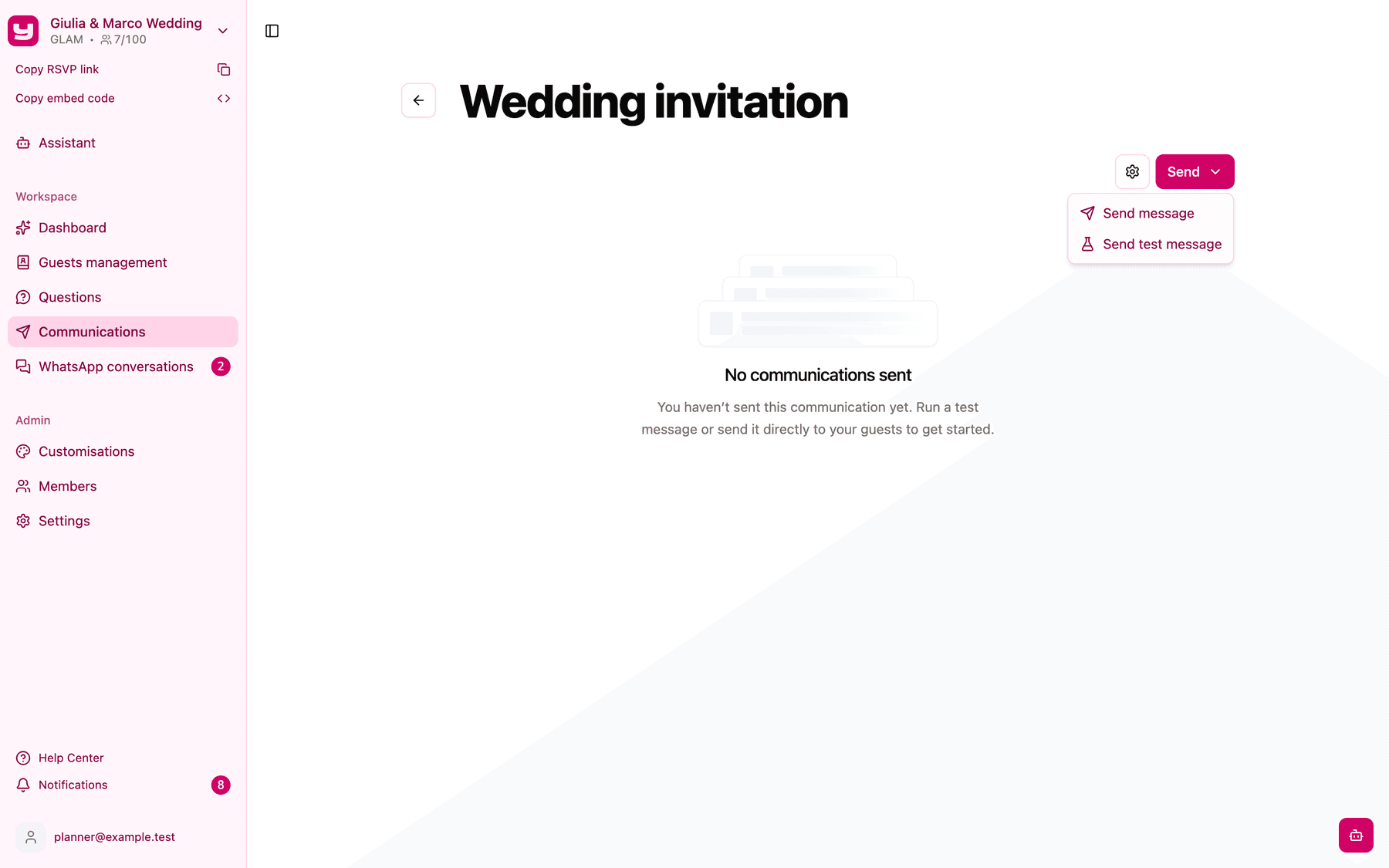
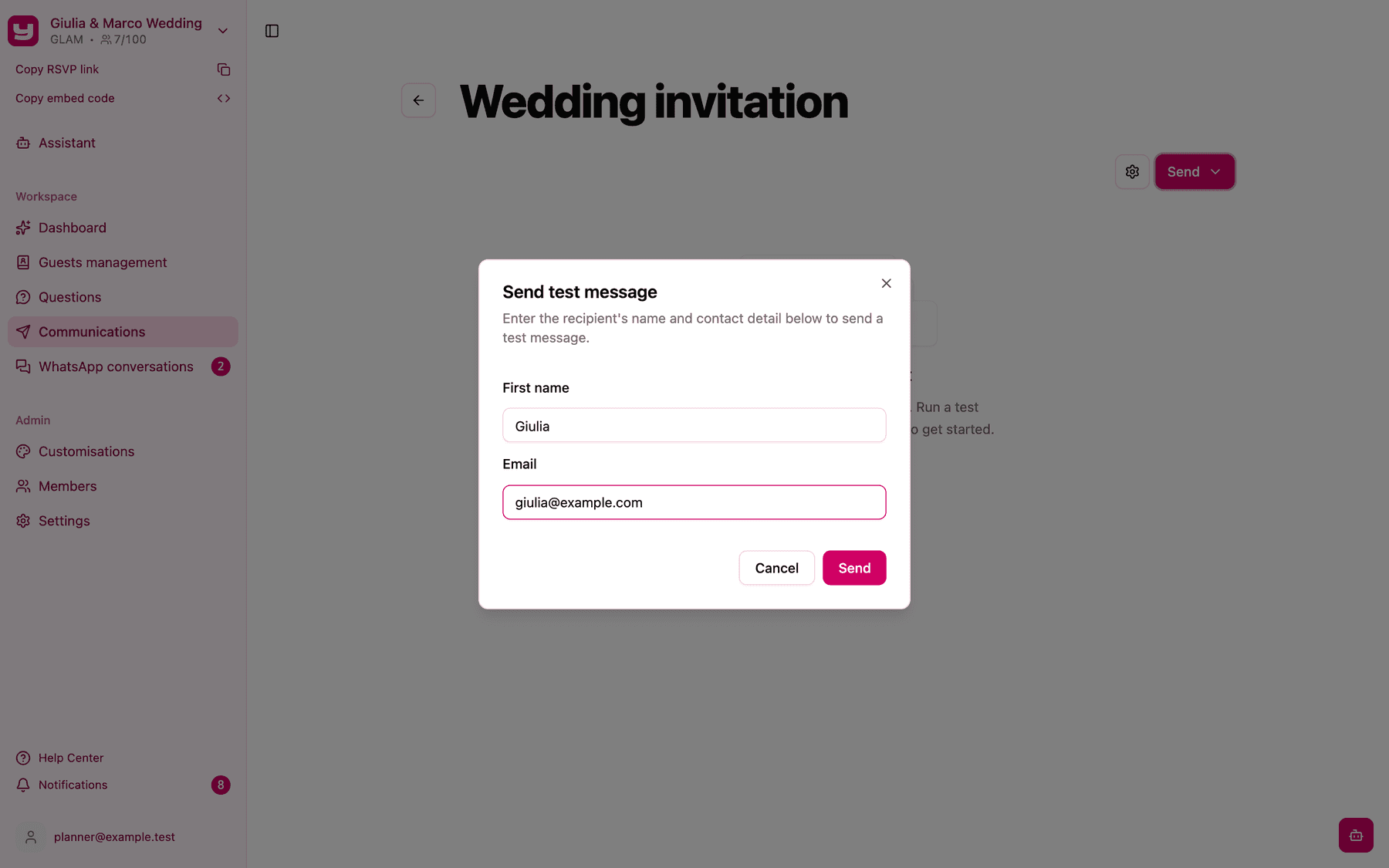
Once the communication is Ready, open Send > Send test message. Enter a First name and your WhatsApp number in the format +39 3331234567: country code, a space, then the number. Click Send and check the message on your phone.
Send to your guests
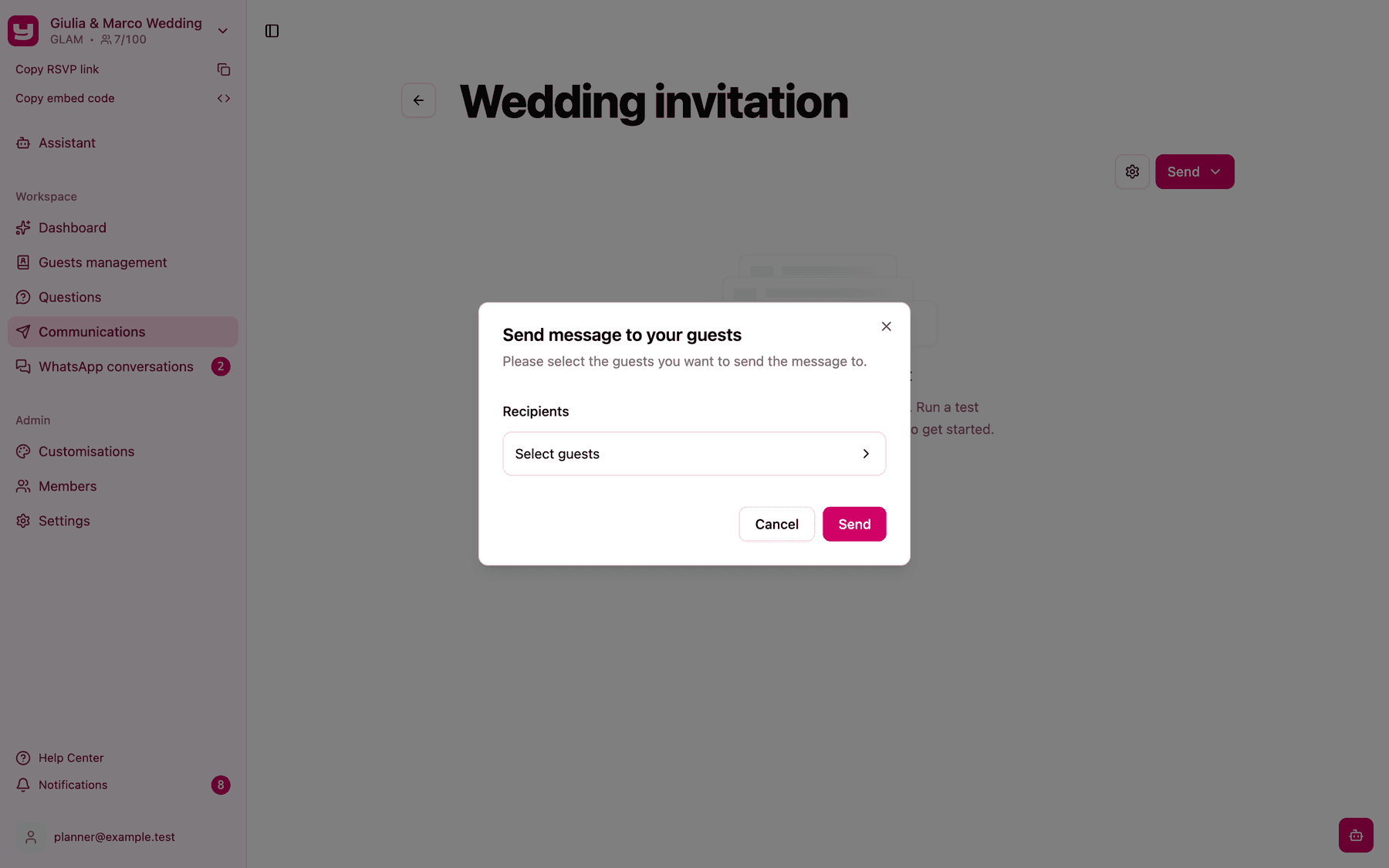
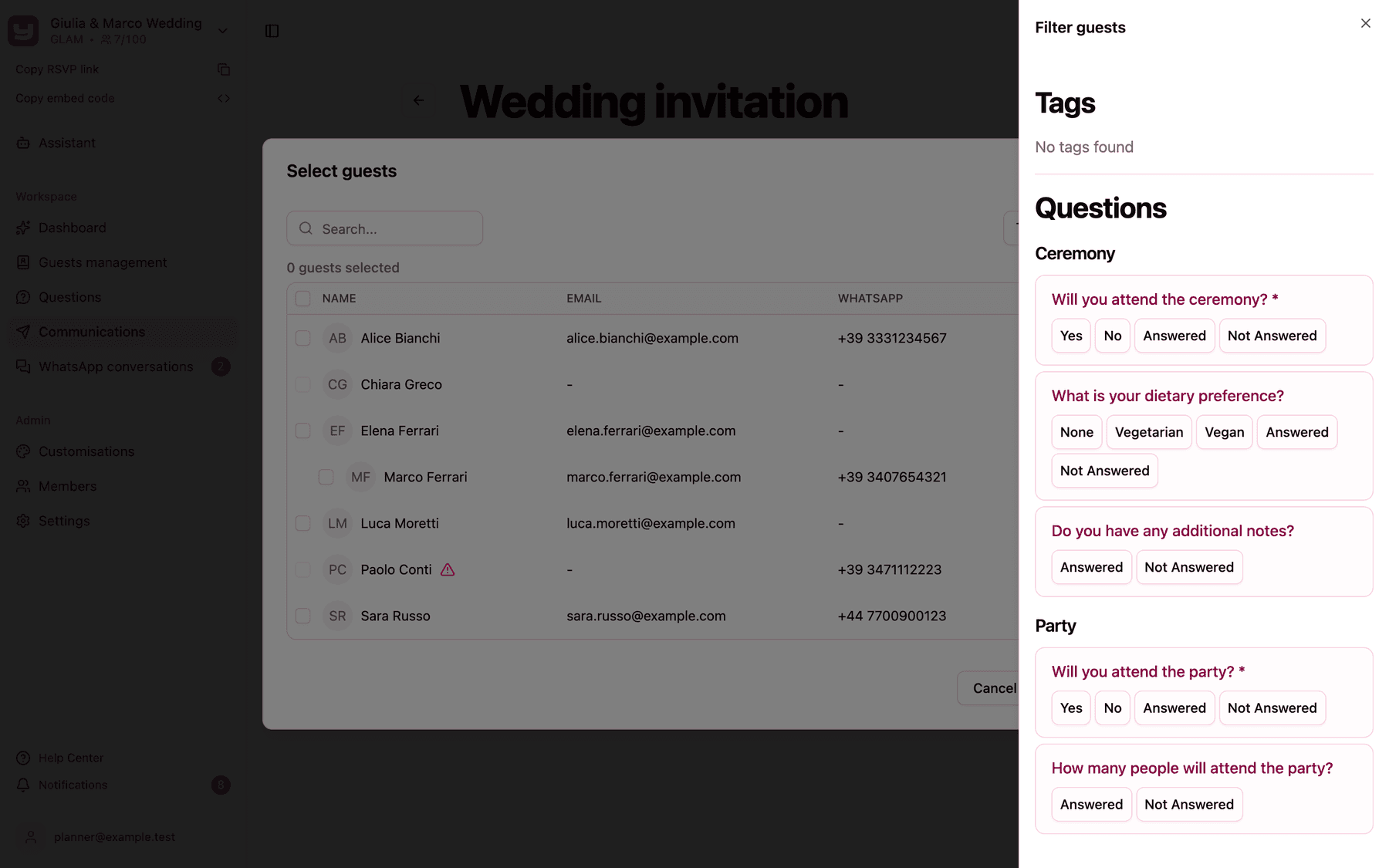
Open Send > Send message, click Select guests and choose the recipients exactly as for email, with search and Filter guests by Tags or Questions. Greyed-out rows are guests without a WhatsApp number or who opted out.
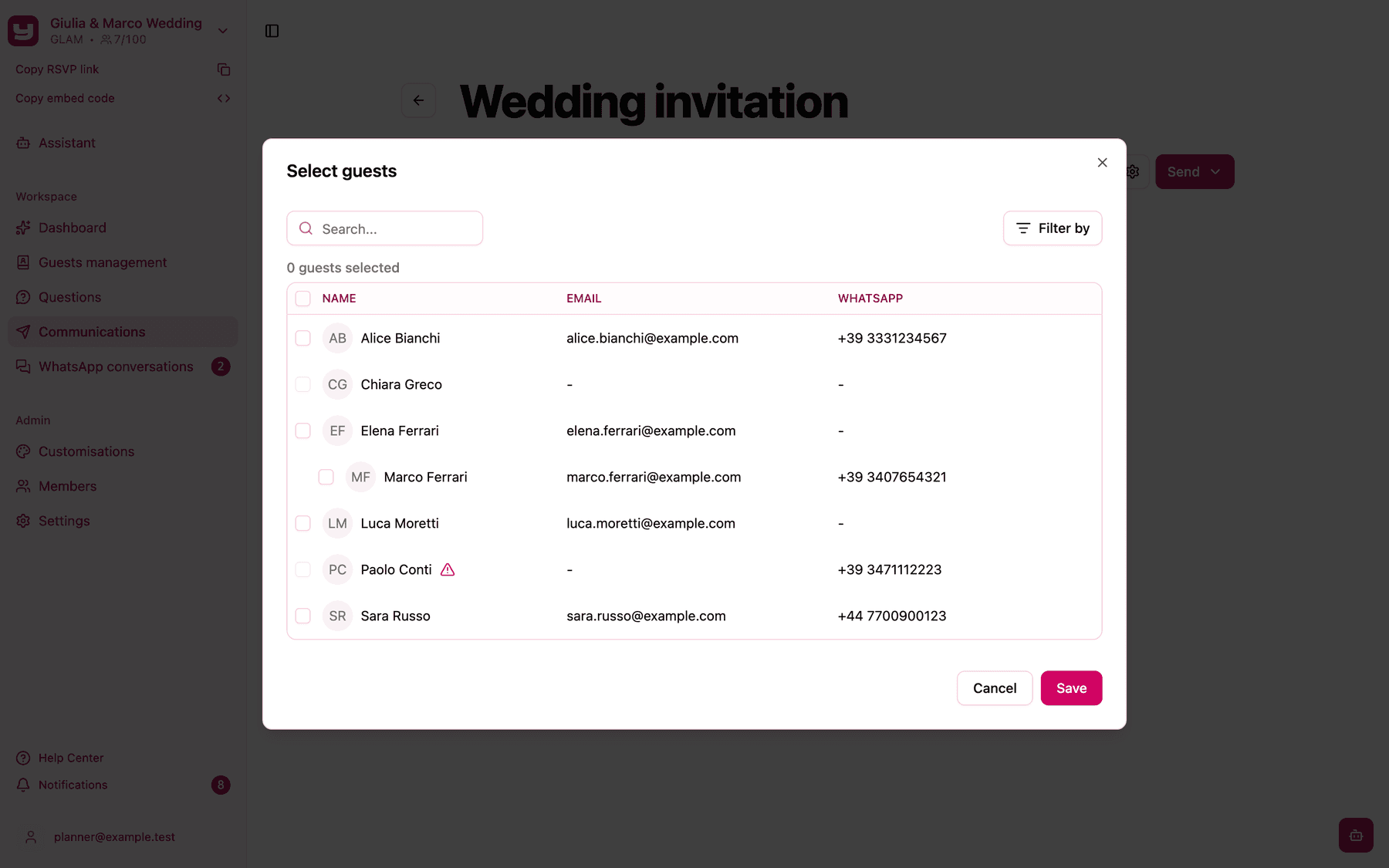
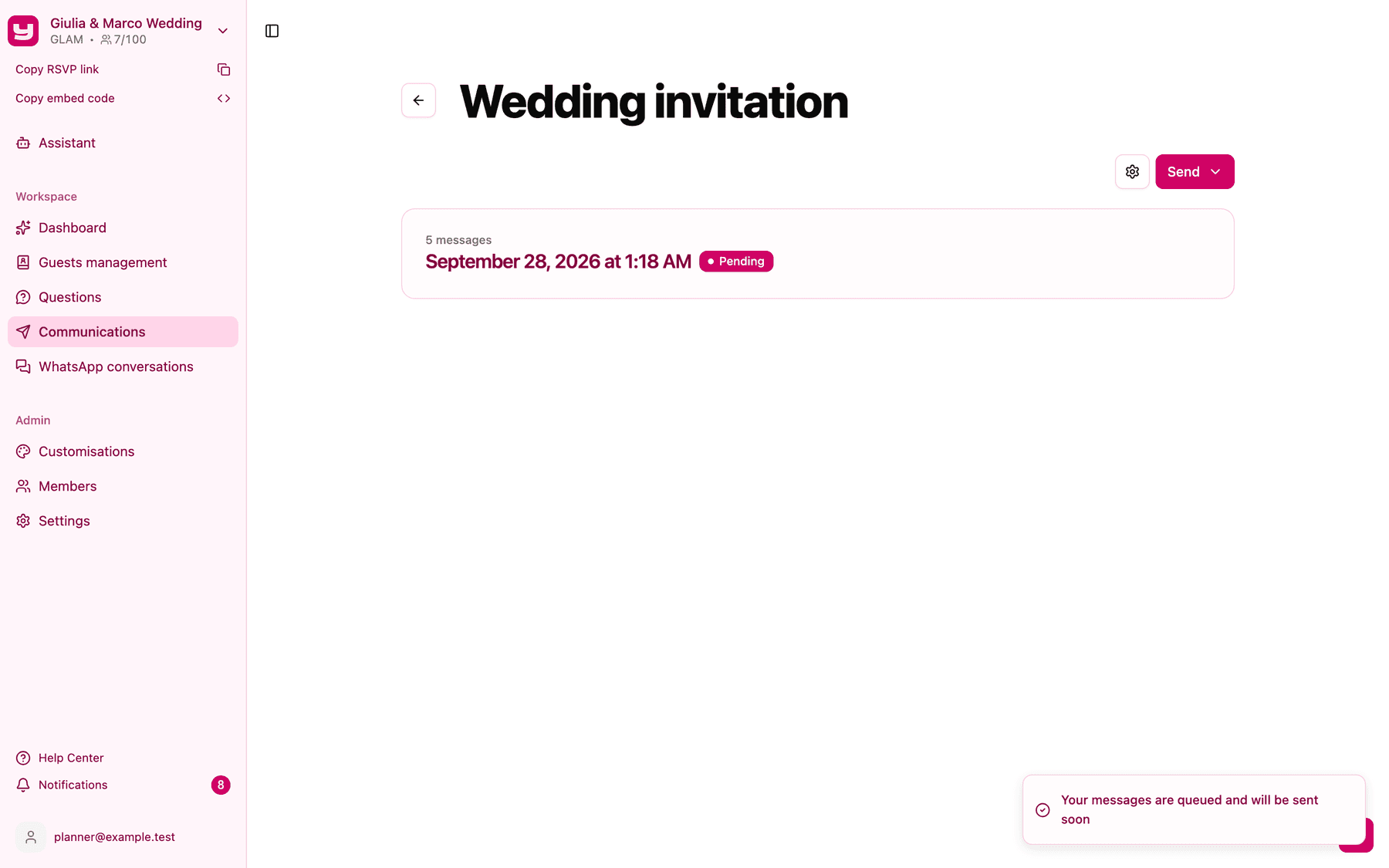
Click Save, then Send. Messages go out right away; there's no scheduling.
The first message and opting out
The first time a guest receives a WhatsApp message from your project, Invytly automatically sends a short opt-in message first, with the guest's first name and the project name, followed by your communication. You don't need to do anything.
If a guest taps Opt-out, every Admin gets a notification, a warning icon appears next to their number in Guests management and they can no longer be selected for WhatsApp sends. This can't be undone from the app; if you need to reach that guest, use email instead.
Follow the deliveries
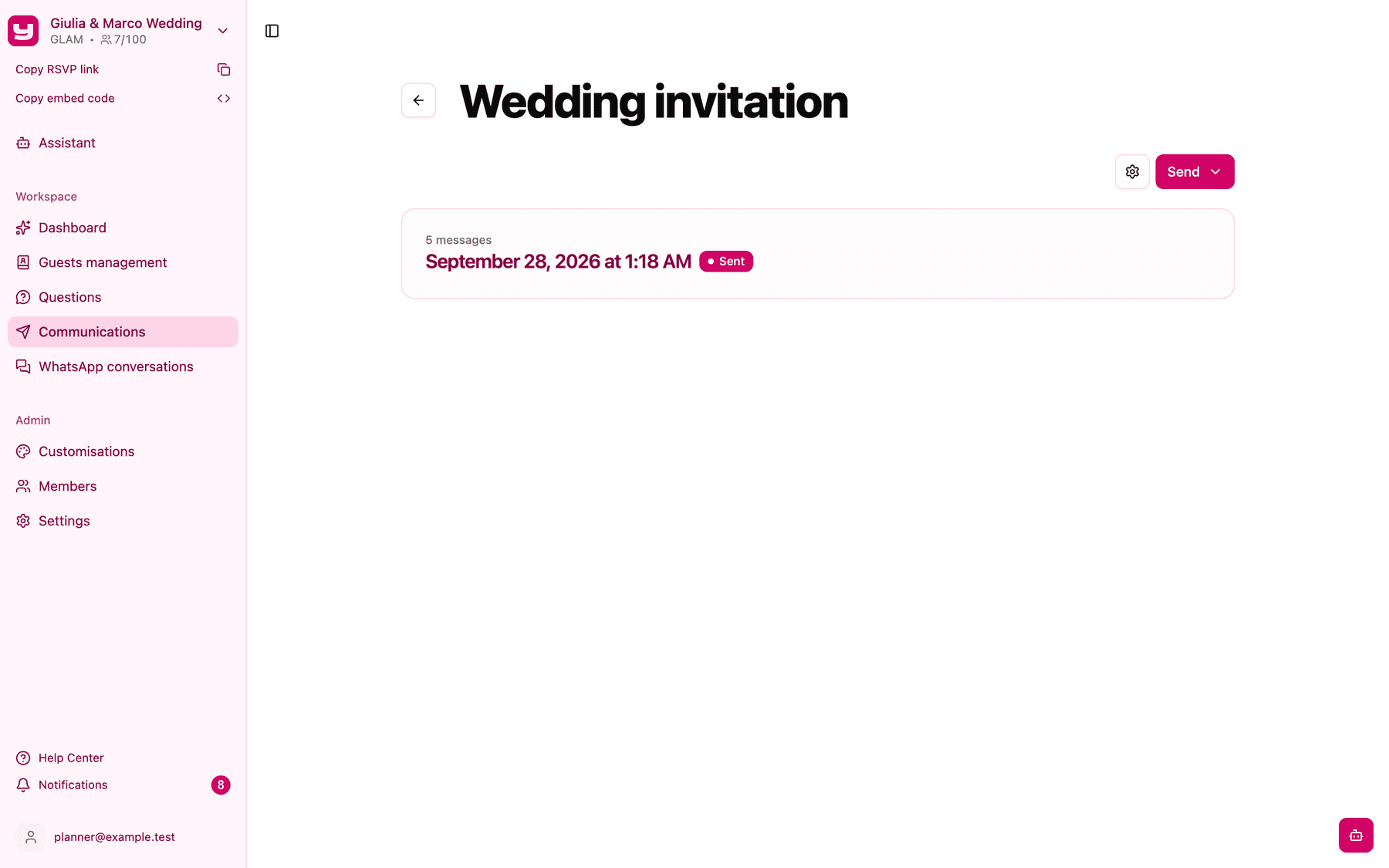
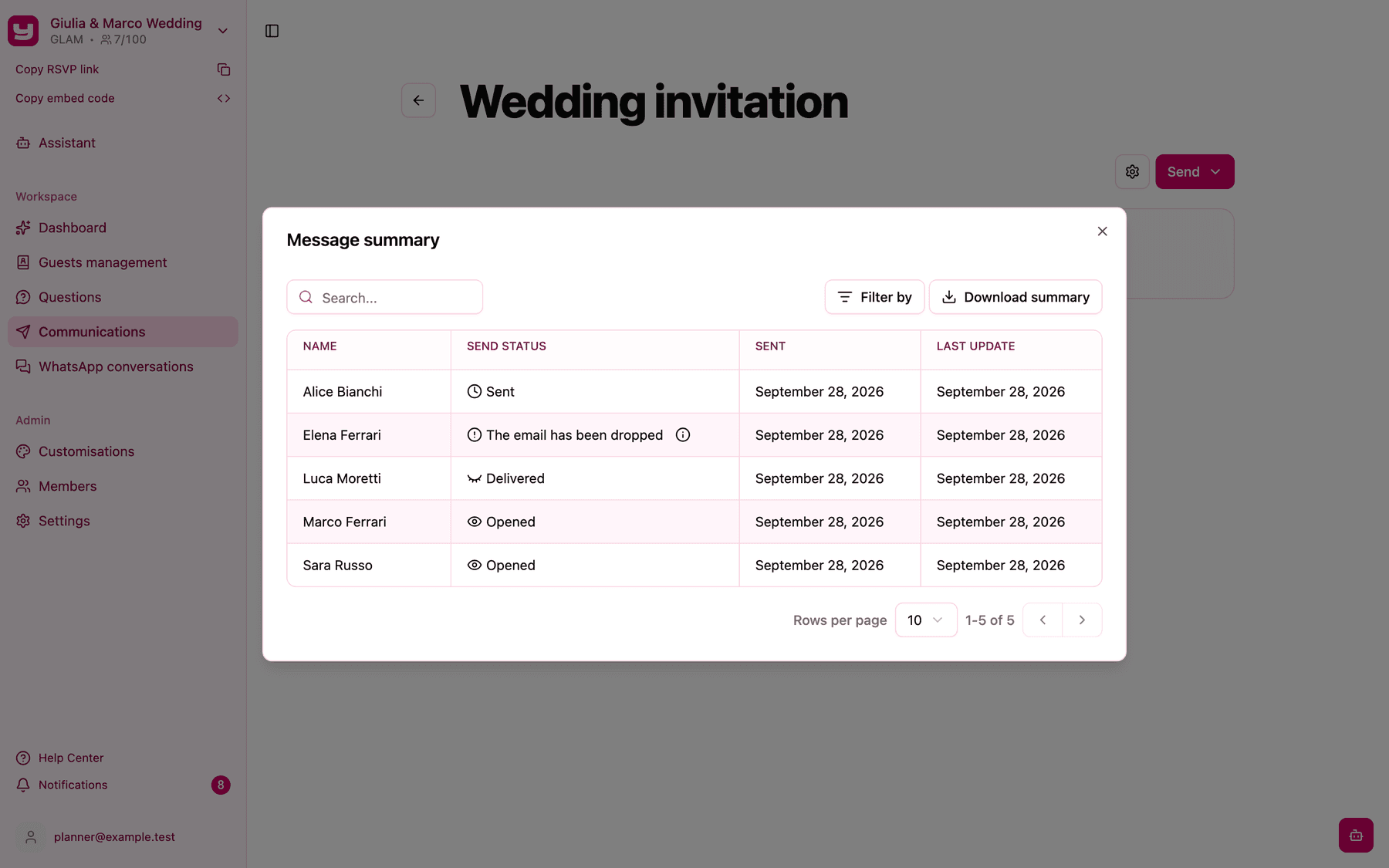
Every send appears as a card on the communication page. Click it to open the Message summary, with one row per guest, exactly as for email. On WhatsApp, Delivered means the message reached the guest's phone and Opened means they read it. The guest opted out from messages marks guests who asked not to be contacted on WhatsApp.
When guests reply
Guests can reply to your WhatsApp messages, and their answers land in WhatsApp conversations, where you can read them and reply.
If your plan doesn't include WhatsApp
On Trendy, WhatsApp simply isn't among the channels, and on Exclusive the Communications section isn't in the sidebar. To add WhatsApp, contact Invytly support at support@invytly.com (or your Invytly contact person): the plan can't be changed from the app. See Upgrading your plan.