The Communications section is where you write messages for your guests and send them by email: the invitation with the RSVP button, a save the date, a reminder for people who haven't answered yet. Every send is tracked, so you always know who received what.
On the Glam plan you can also send on WhatsApp; see Sending communications on WhatsApp.
Who can use it
Email communications are part of your plan:
| Plan | Email communications |
|---|---|
| Exclusive | Not included |
| Trendy | Included |
| Glam | Included (plus WhatsApp) |
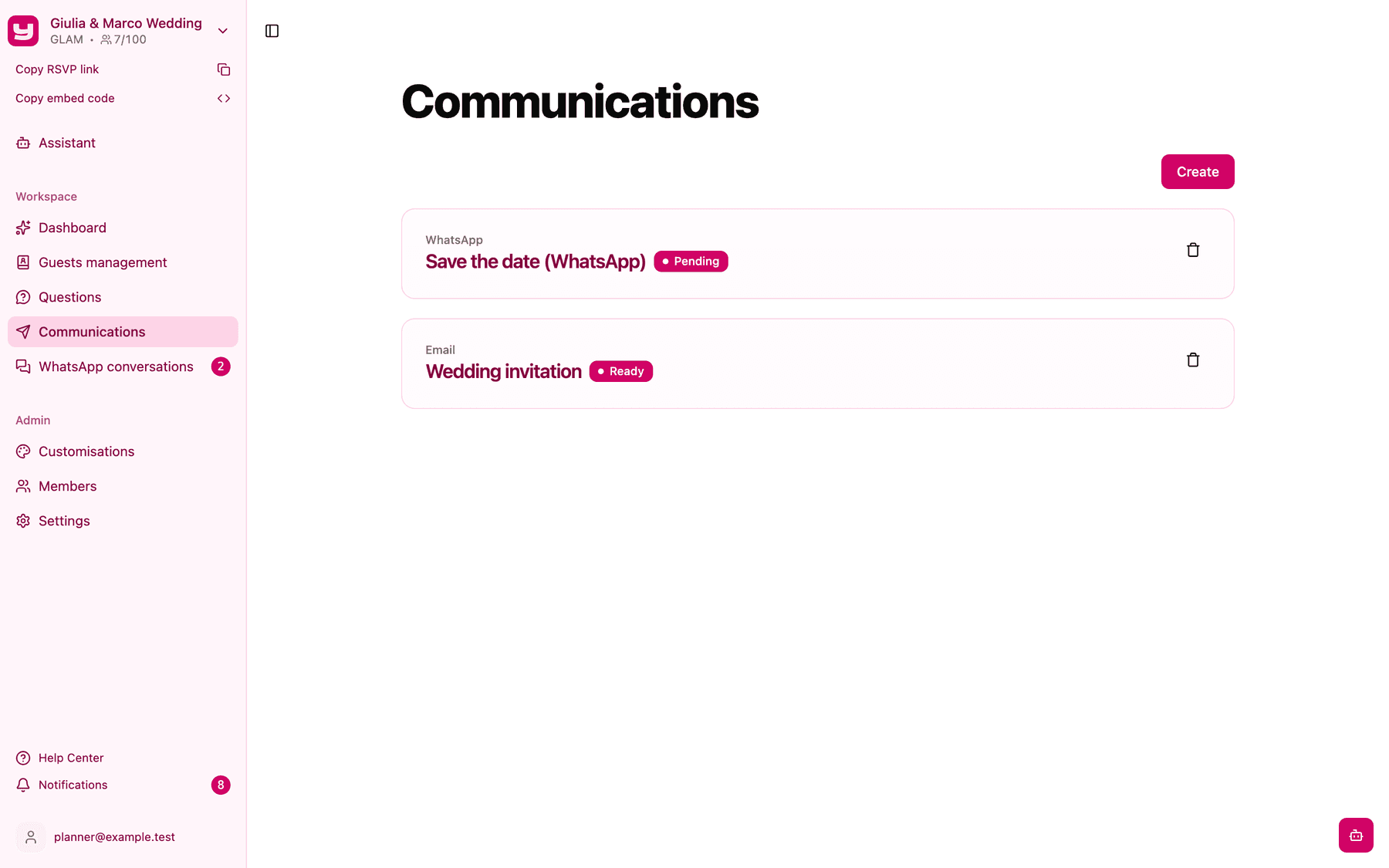
Only Admins of the project see the section, and only once the project is active. You'll find it in the sidebar under Communications, with one card per communication showing its title, channel and status.
What a communication is
A communication is a message you prepare once and can send as many times as you like, to whichever guests you choose. For each communication you:
- give it a title: only you see it, and it helps you tell at a glance what the message is about without having to open it every time;
- choose the channel the message is sent through (email or WhatsApp, depending on your plan);
- choose the type of message you want to send.
There are three types of message:
- Invite: use it only when you want to send a ready-made message in which you change just the text, the button label and the signature. The link is added automatically and always takes guests to the Invytly RSVP page (not to a website with a custom domain).
- Save the date: use it when you want a message you can customise in every field. You can personalise the message text, add an image, add an image link, add a link as a button and customise the signature.
- Plain text: use it when you want to send a text-only message with no button or external links, ideal for updates and reminders. Email only.
Before you start
- Email addresses. Guests need an email address in the guest list. Guests without one can't be selected for email sends.
- Sender name. Set how your name appears in guests' inboxes; see Setting up the email sender name.
Create a communication
-
In Communications, click Create. The Create new communication window opens with three steps.
-
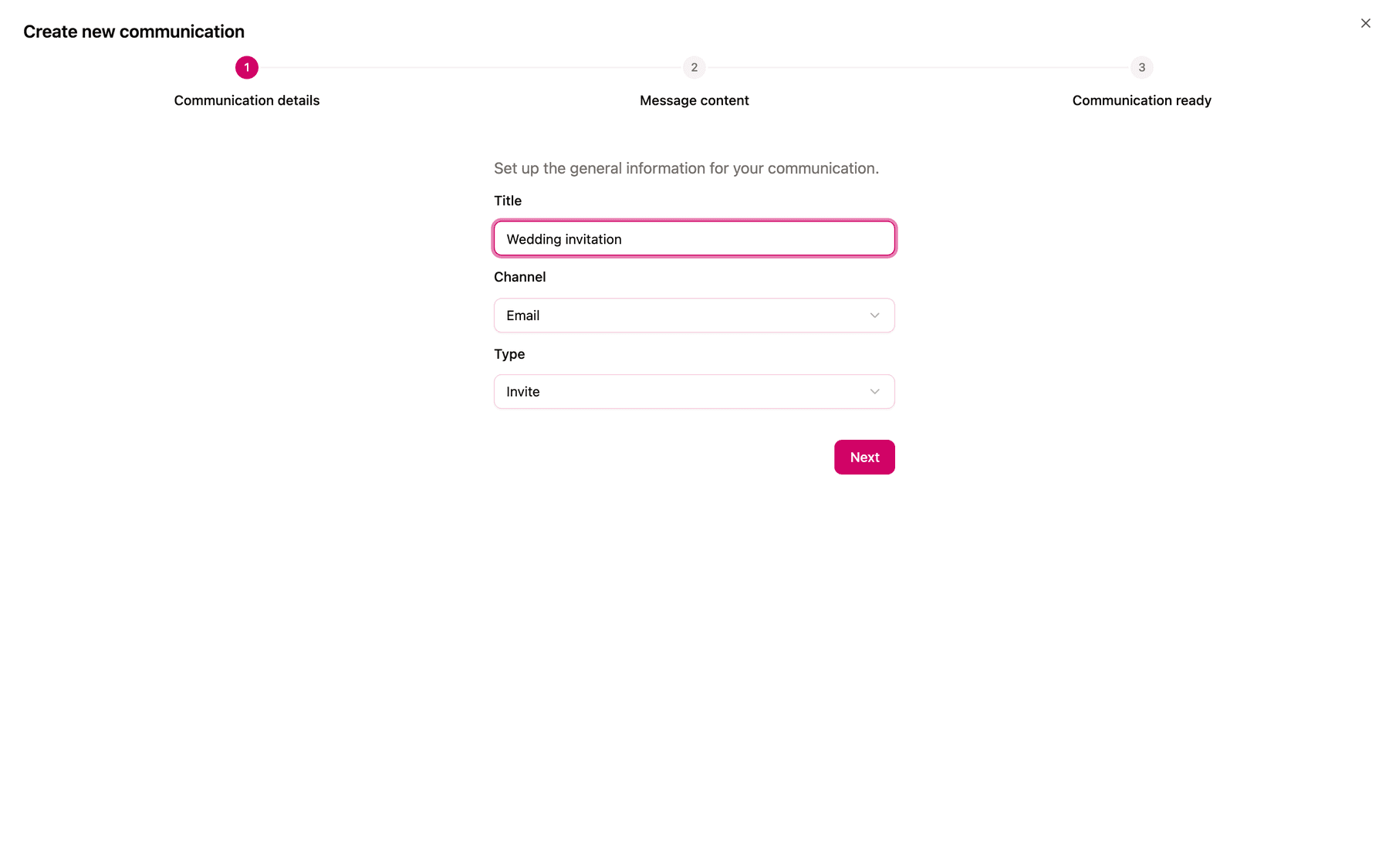
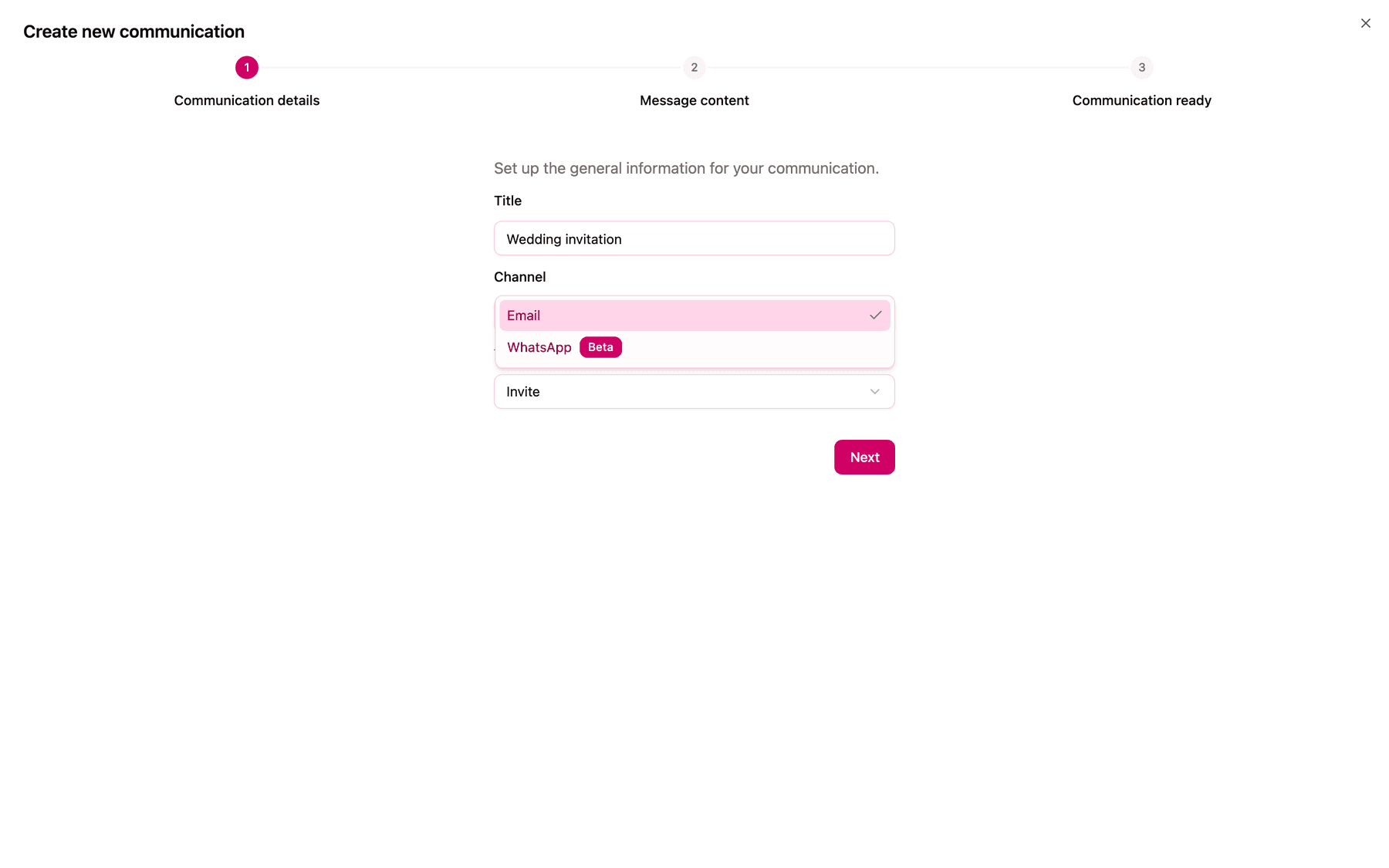
Communication details. Enter a Title, choose Email as the Channel and pick the Type. Click Next.
-
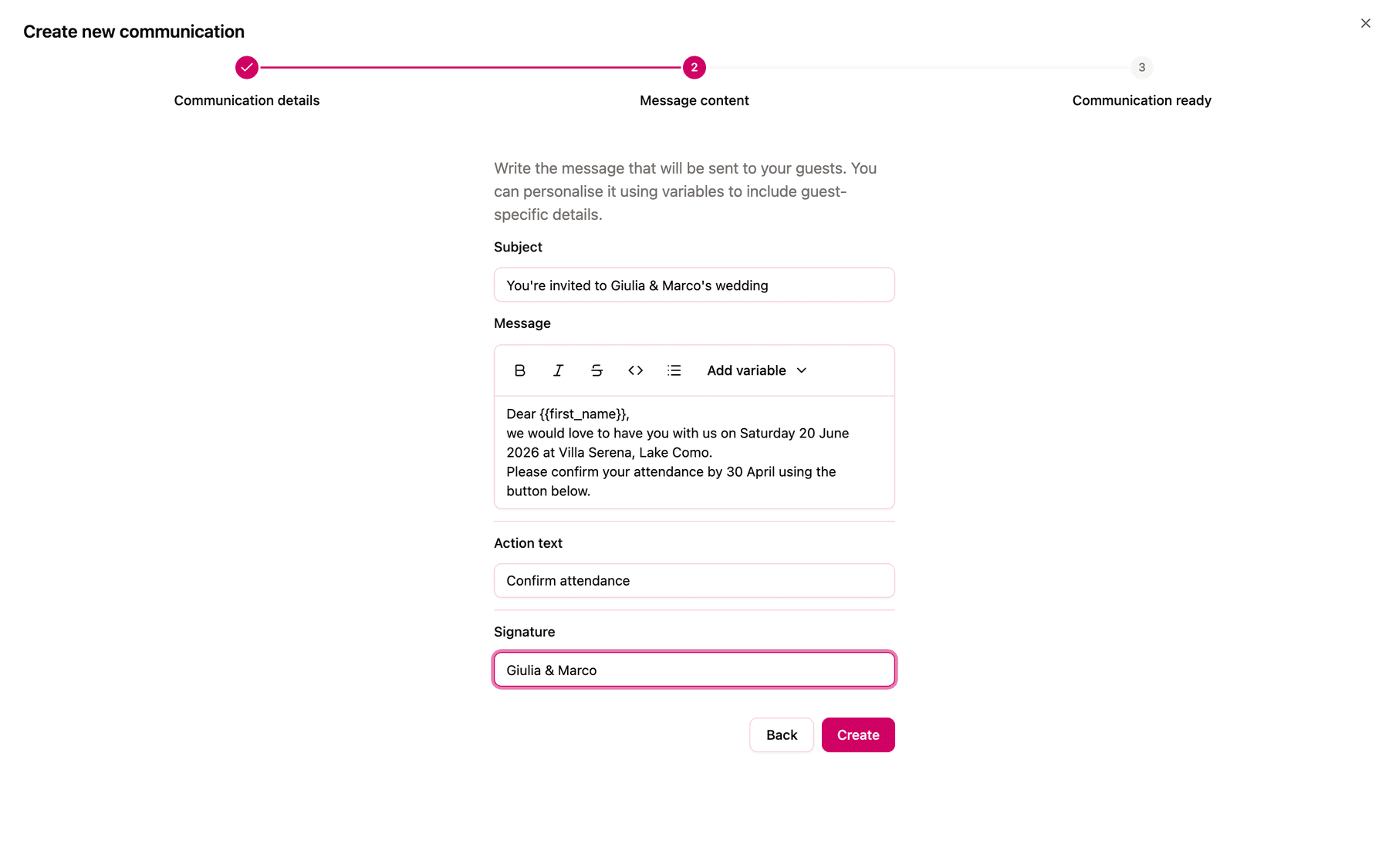
Message content. Fill in:
- Subject: the email subject line.
- Message: the body, with bold, italic, strikethrough, monospace and bullet lists. Use Add variable > Guest name to insert
{{first_name}}, which is replaced by each guest's first name. It's the only variable available. - Attachment, Image link and Link (Save the date only): an image to show (up to 5 MB), or the address of an image as an alternative, and the Link the button opens, such as the wedding website.
- Action text (Invite and Save the date): the button label, such as "RSVP" or "Go to website".
- Signature: the closing line, for example "RSVP Coordination Team".
-
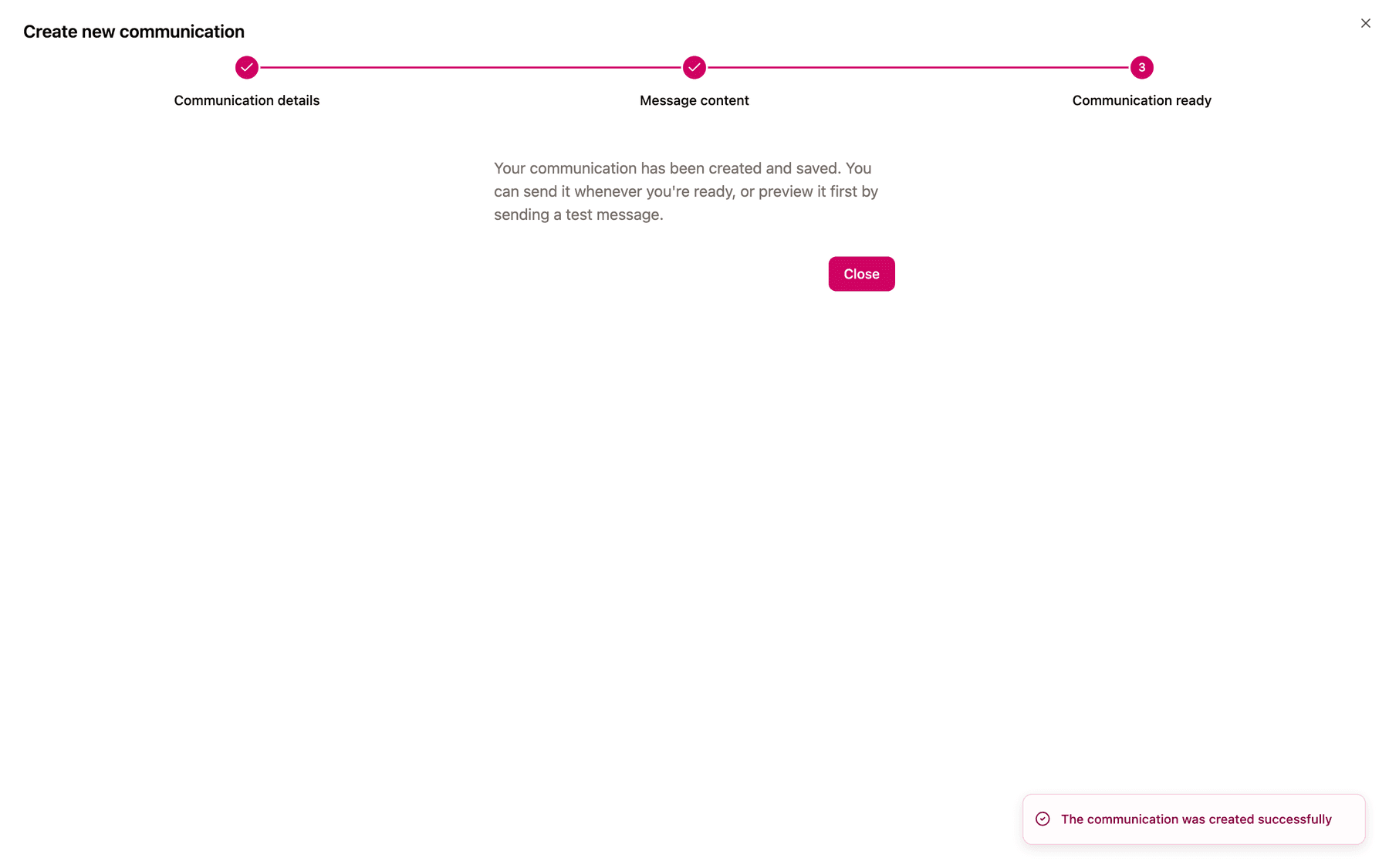
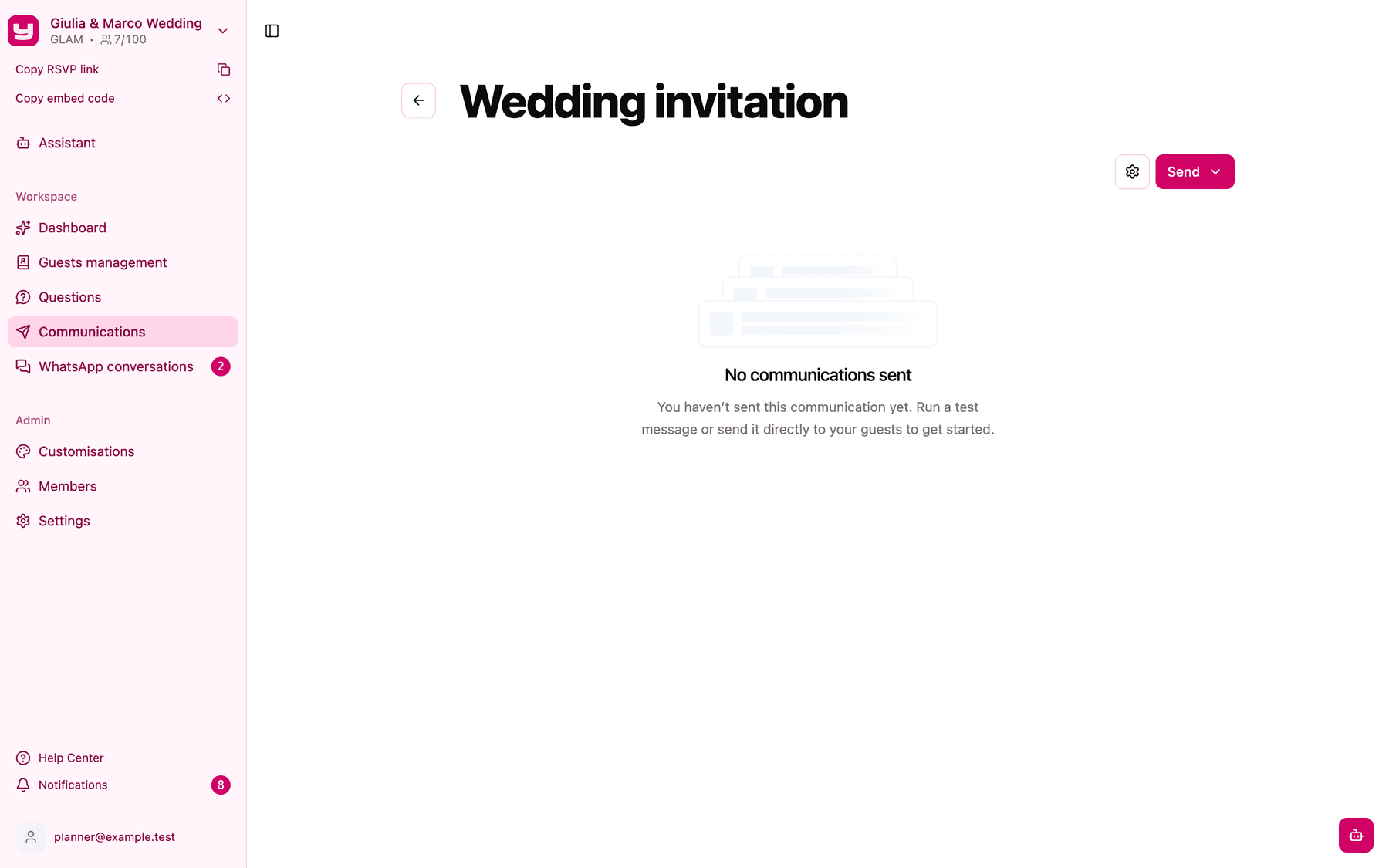
Click Create. The Communication ready screen confirms it's saved; click Close to open the communication page.
Send a test first
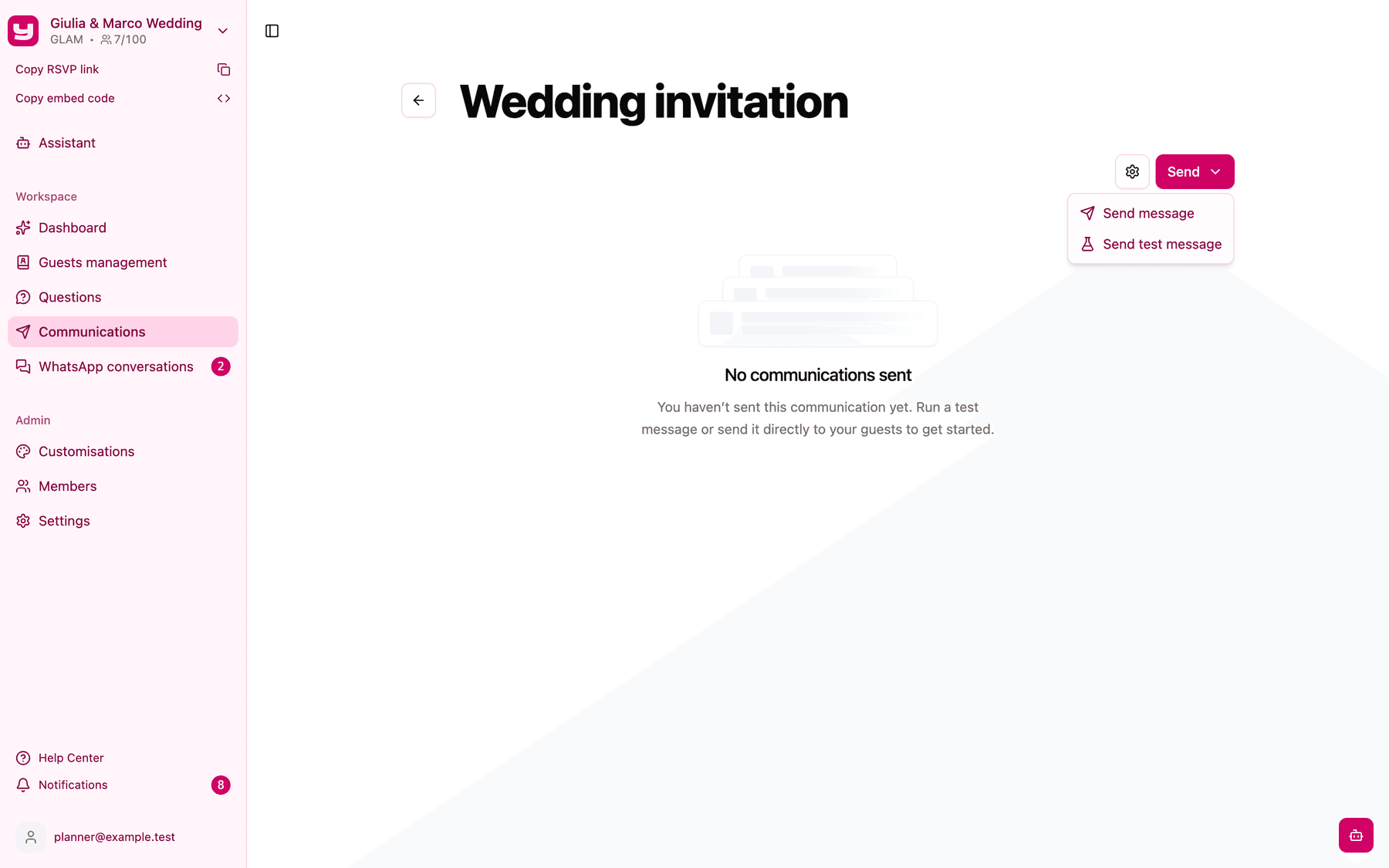
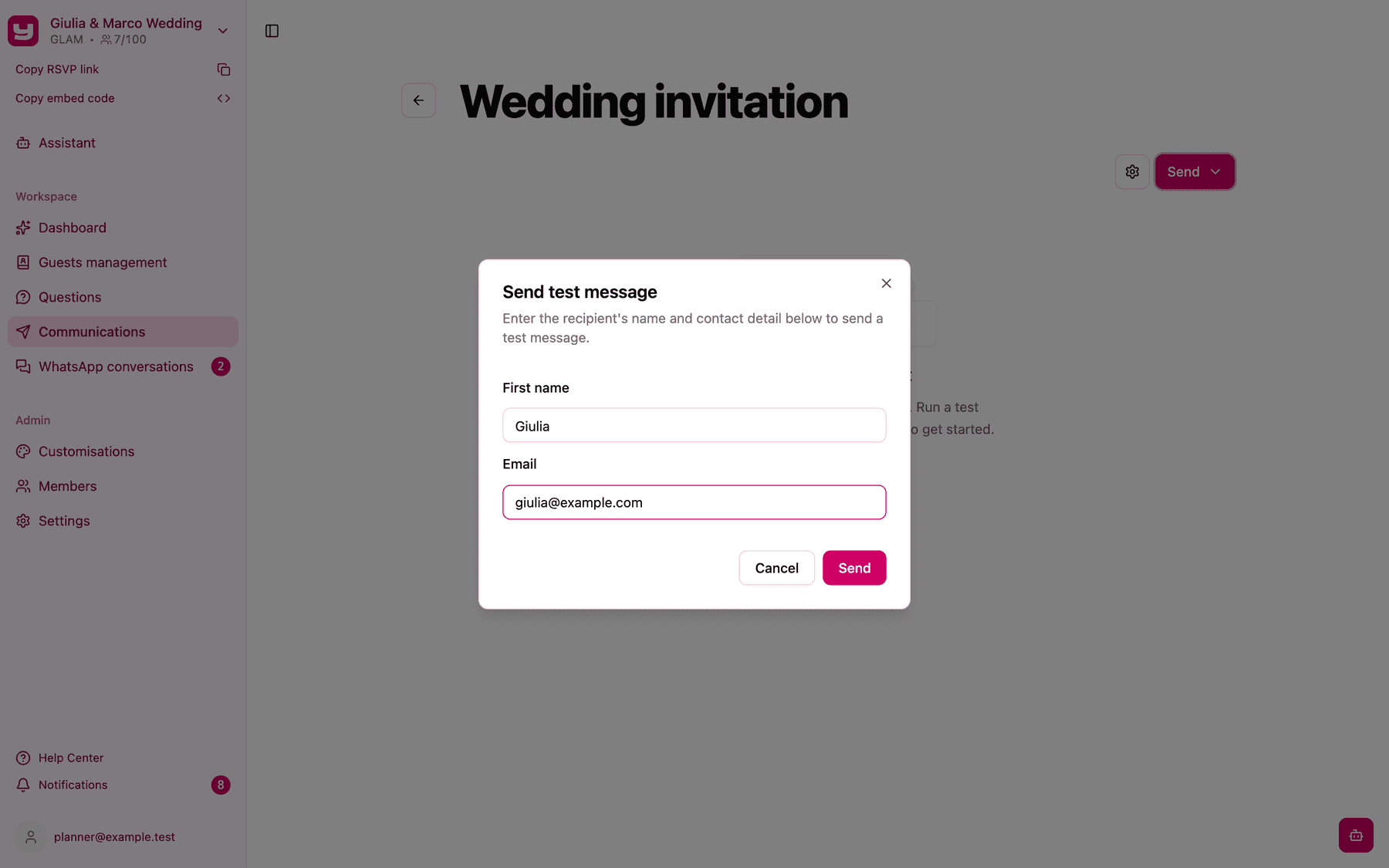
There's no preview inside the app: the test send is your preview. Open Send and choose Send test message, enter a First name (used for {{first_name}}) and your email address, then click Send.
Send to your guests
-
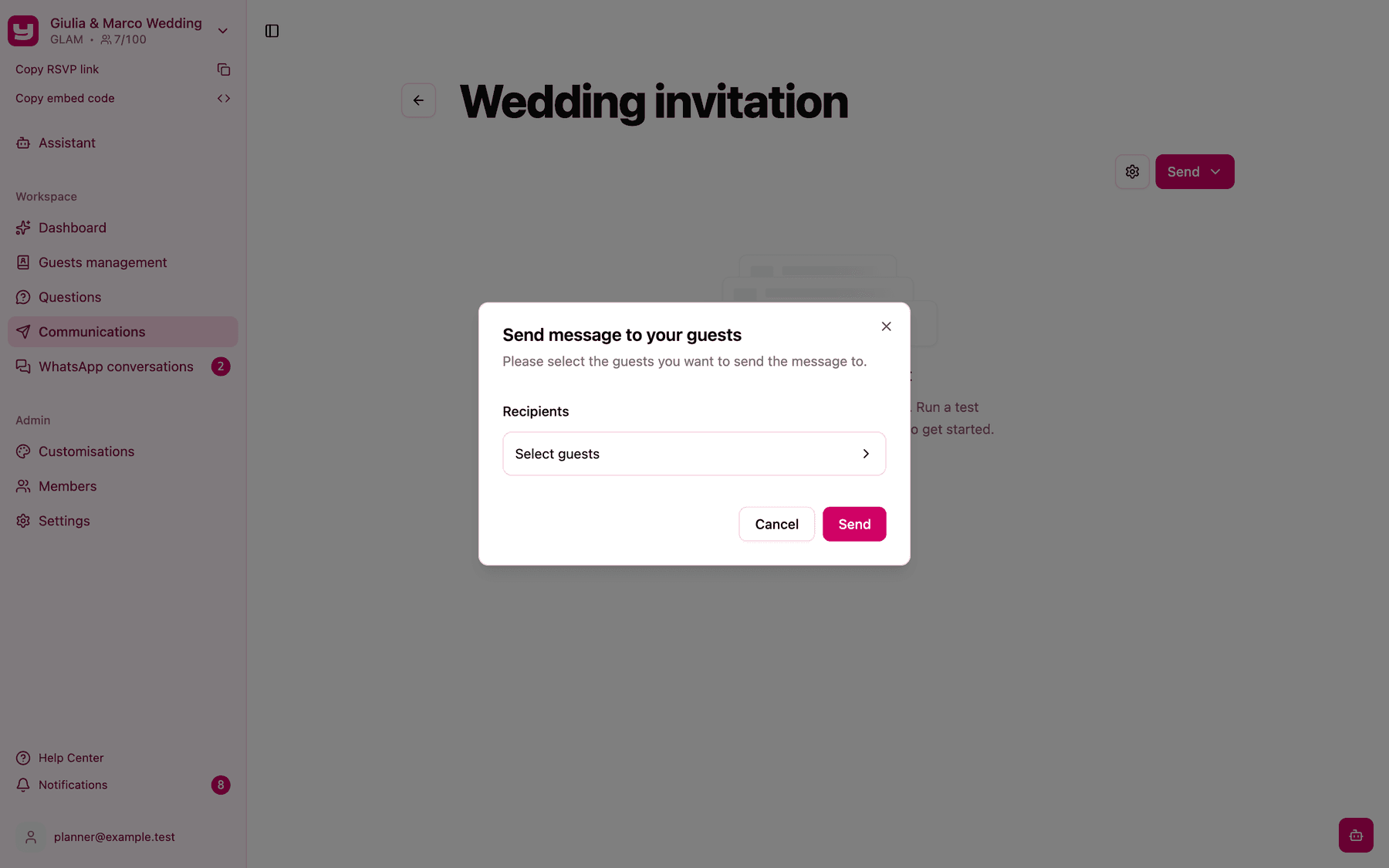
Open Send > Send message, then click Select guests in Recipients.
-
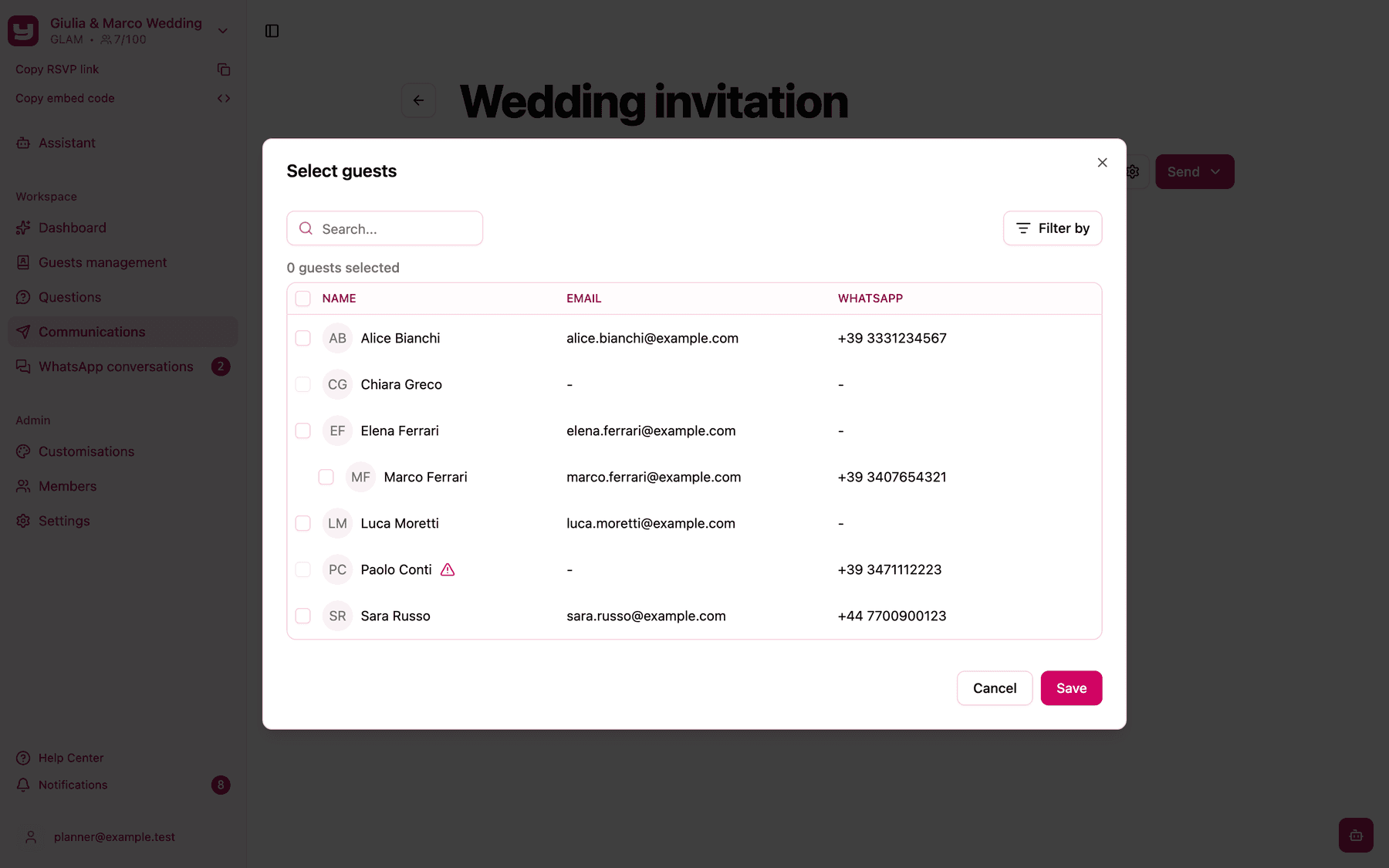
In Select guests, tick the guests you want. Households are grouped: ticking the first guest selects the whole group. Search finds guests by name, email or WhatsApp number. Greyed-out rows are guests without an email address.
-
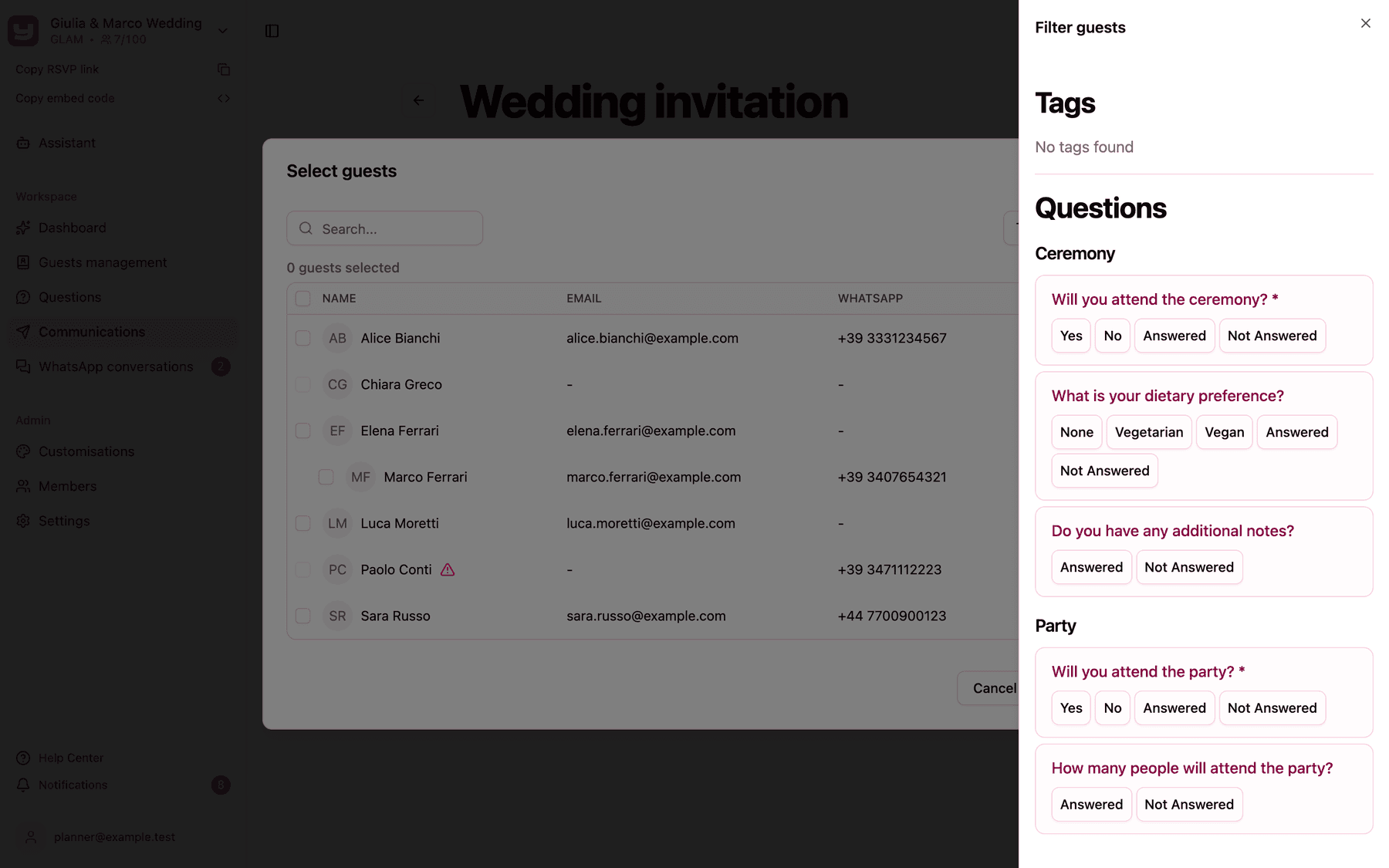
To narrow the list, open Filter guests and filter by Tags or by Questions. Each question offers its answers plus "Answered" and "Not Answered": choose Not Answered on the attendance question and you have exactly who needs a reminder.
-
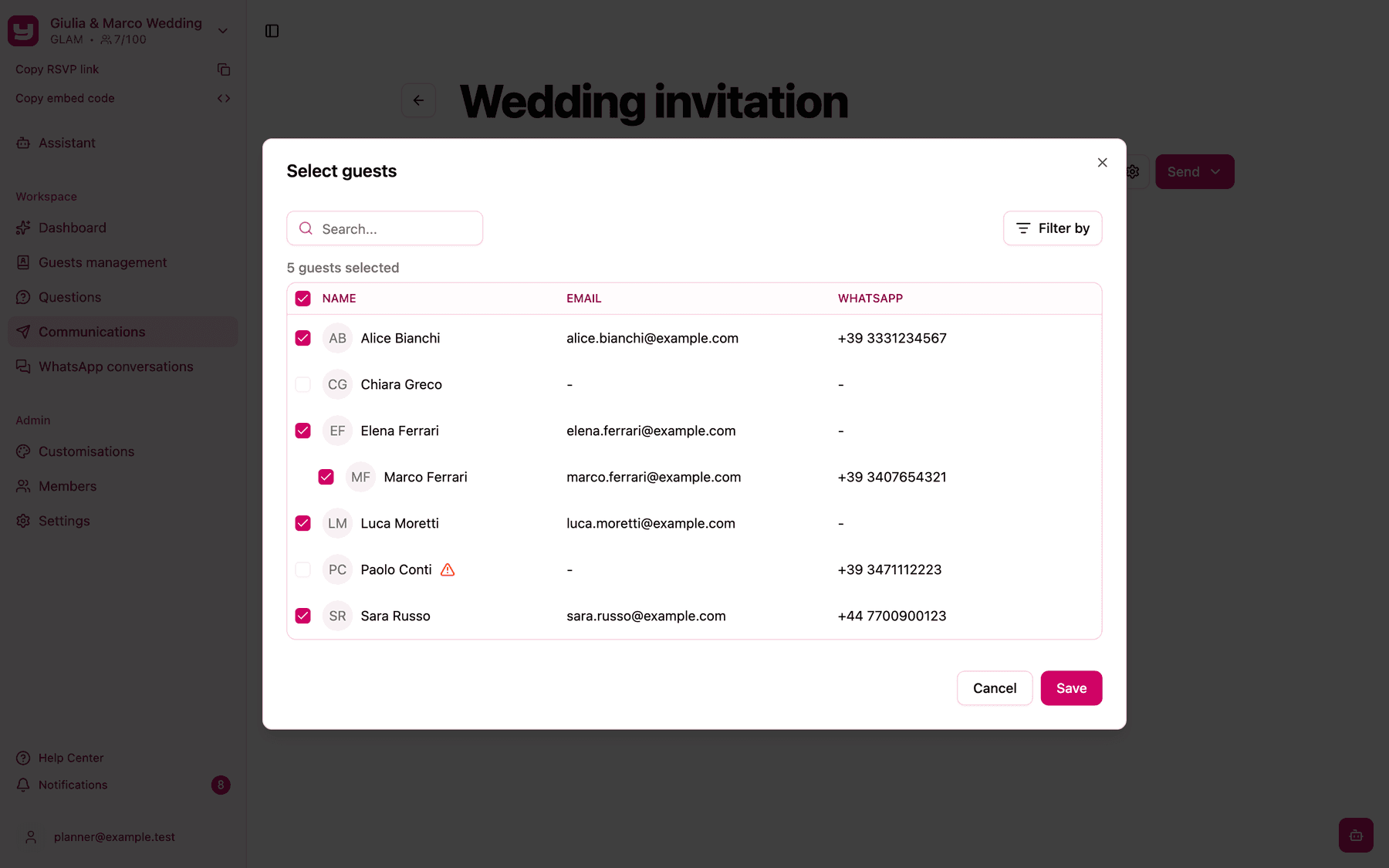
Click Save, check the count ("5 guests selected") and click Send.
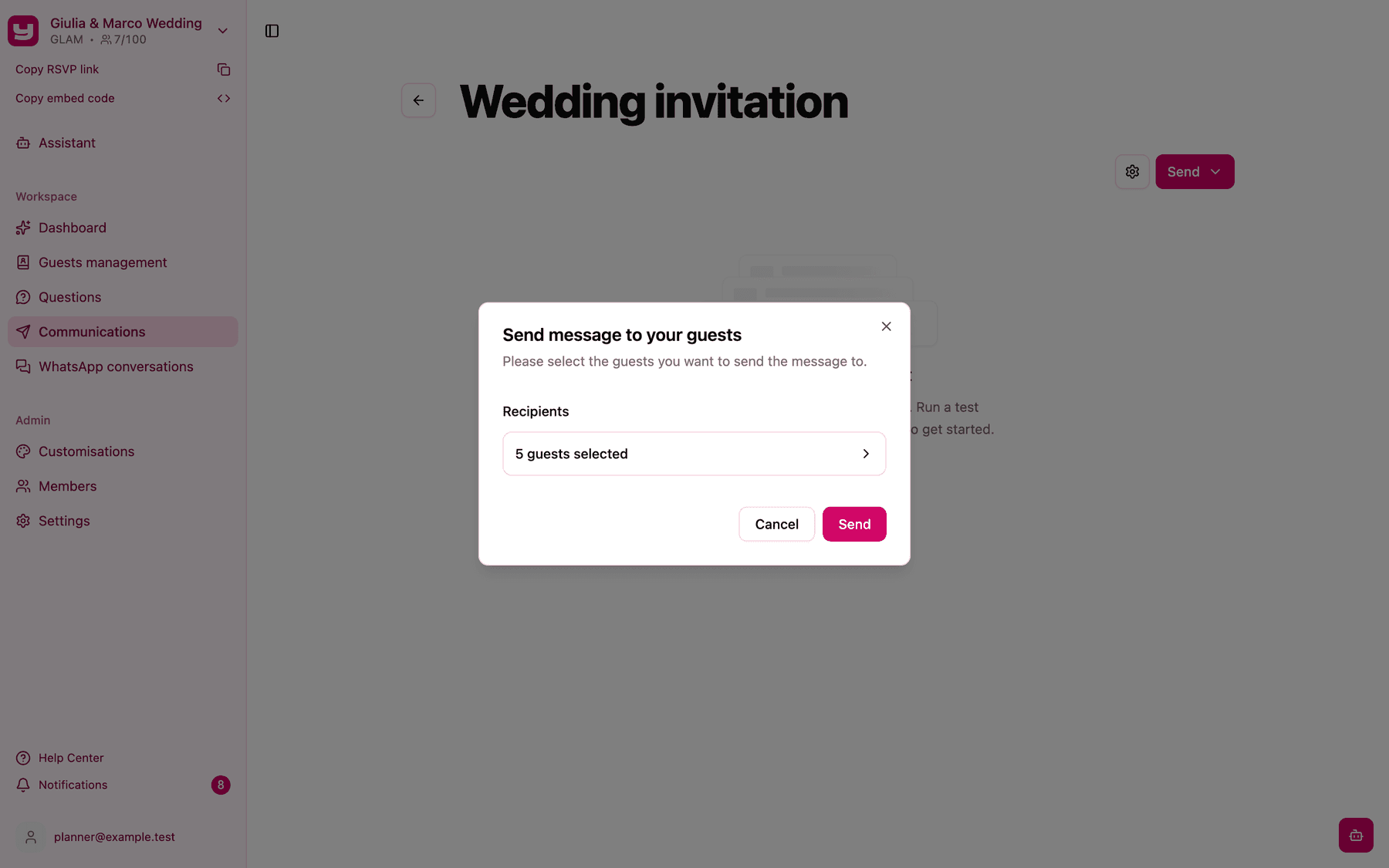
Messages go out right away; there's no scheduling. A confirmation tells you they're queued.
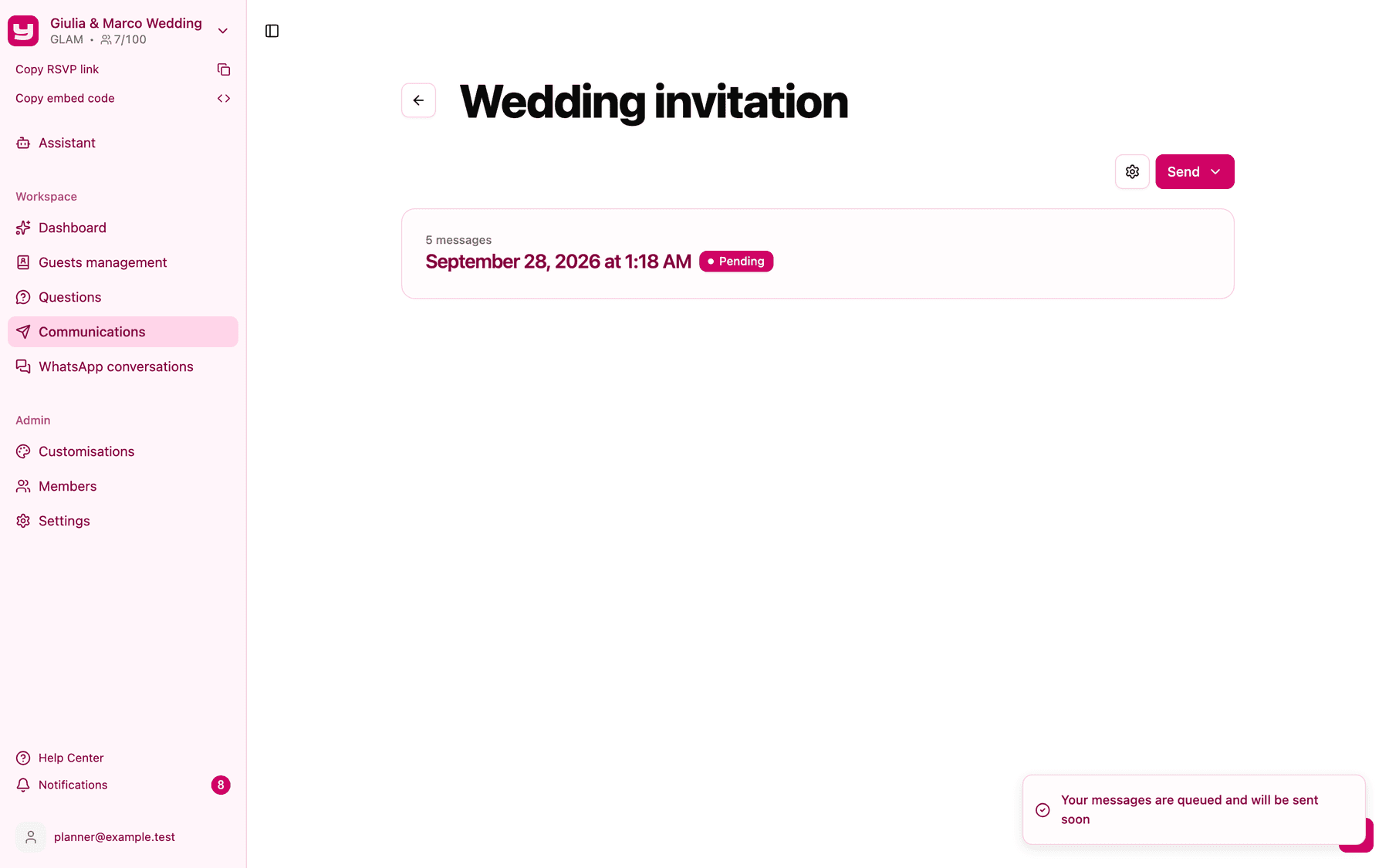
To send again, for a reminder or to guests you added later, repeat the steps: each send is a new entry in the history.
Follow the deliveries
Every send appears on the communication page as a card with date, number of messages and status.
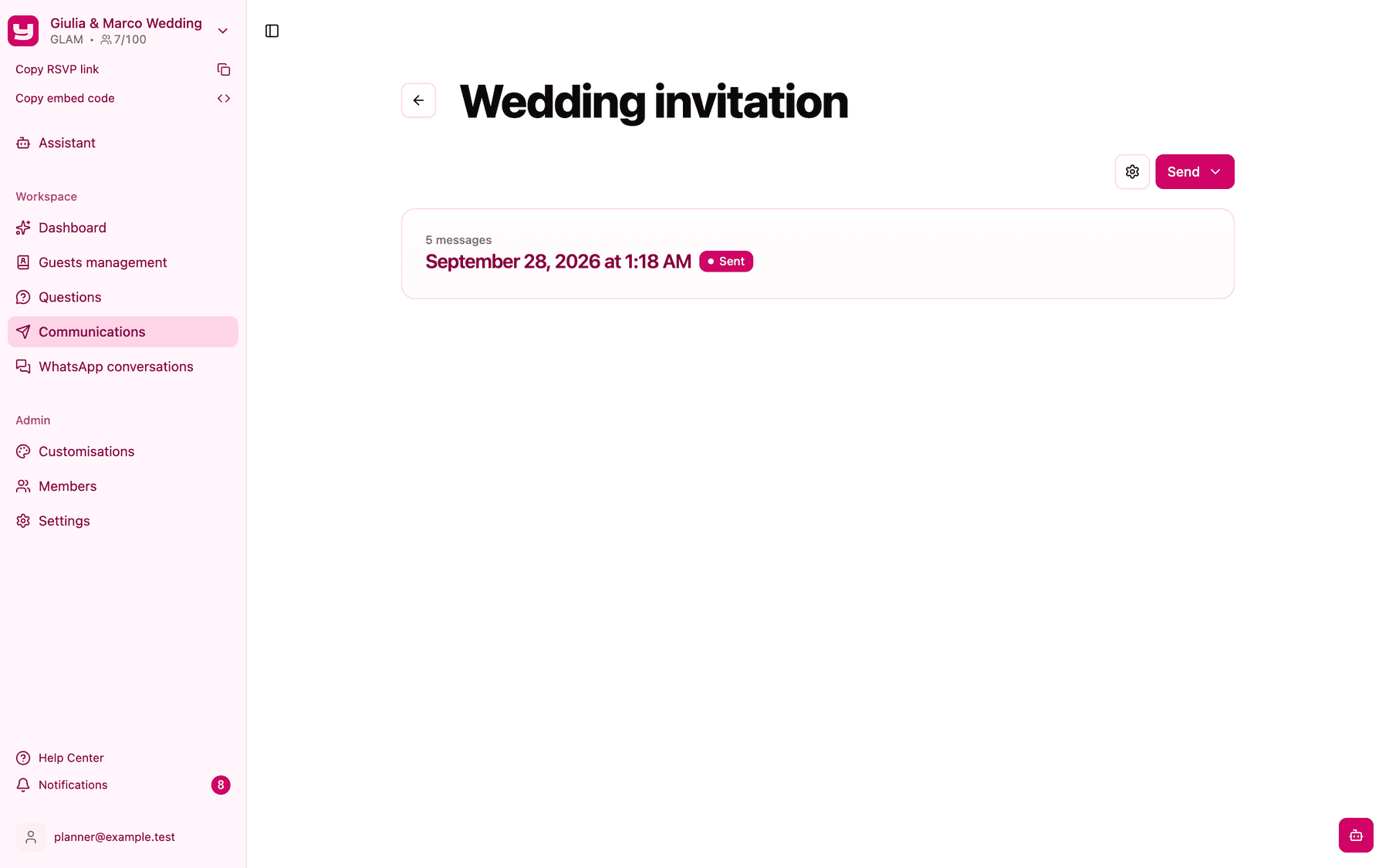
Click it to open the Message summary, with one row per guest. Use Filter by to find a status and Download summary for an Excel file. The ⓘ icon next to an error explains it.
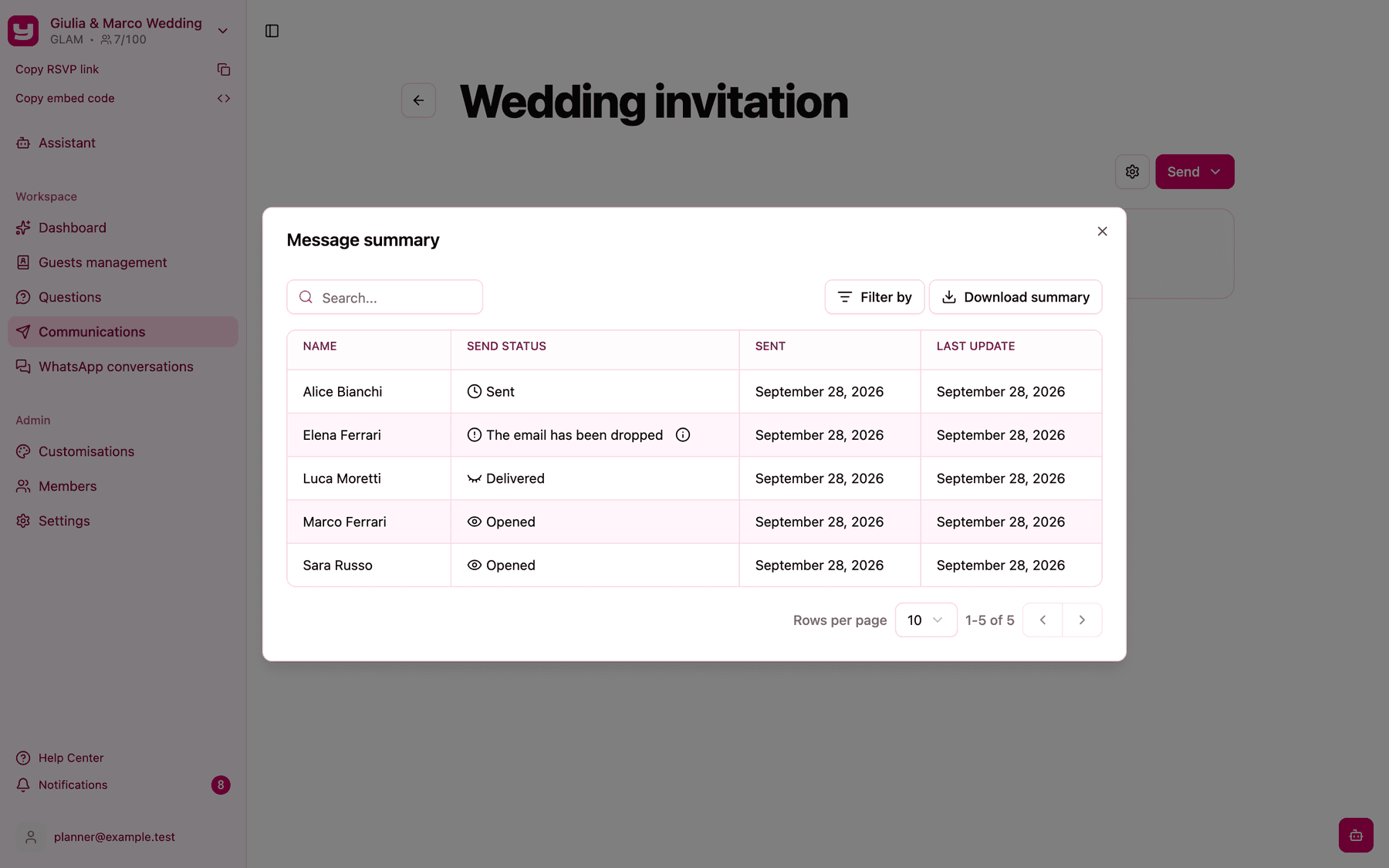
| Status | Meaning |
|---|---|
| Sending / Sent | On its way, or handed over for delivery. |
| Delivered | The guest's email provider accepted the message. |
| Opened | The guest opened the email. |
| Dropped, blocked, Delivery failed | It didn't arrive; check the email address. |
| This recipient is not valid | The guest has no email address. |
Delivered, opened and the spam folder
Invytly sends your emails through SendGrid, a professional delivery service, so your messages leave with a good sending reputation.
Delivered means the guest's email provider (Gmail, Outlook and so on) has accepted the message. What happens next is up to that provider, and nobody outside it can see it: the email usually lands in the inbox, sometimes in a tab such as Promotions and, rarely, in the spam folder. So a Delivered email can occasionally end up in spam without Invytly knowing.
Opened is the only confirmation that someone actually saw the email. Even that isn't reported by every email app, so a guest may have read it while the status still says Delivered.
This happens rarely. If a guest tells you they haven't received the email:
- Ask them to check their inbox carefully: it can happen that an email is deleted by mistake.
- As a last resort, ask them to look in the spam folder, because some email providers occasionally mark messages as spam by mistake.
How guests reach the RSVP
The Invite button opens your RSVP page, where guests sign in with their first and last name. The Save the date button opens the link you entered.
Emails are sent from noreply@invytly.com, so replies aren't received. Point guests to the help contact on your RSVP page or, on Glam, to WhatsApp, where their messages land in WhatsApp conversations.
Edit a communication
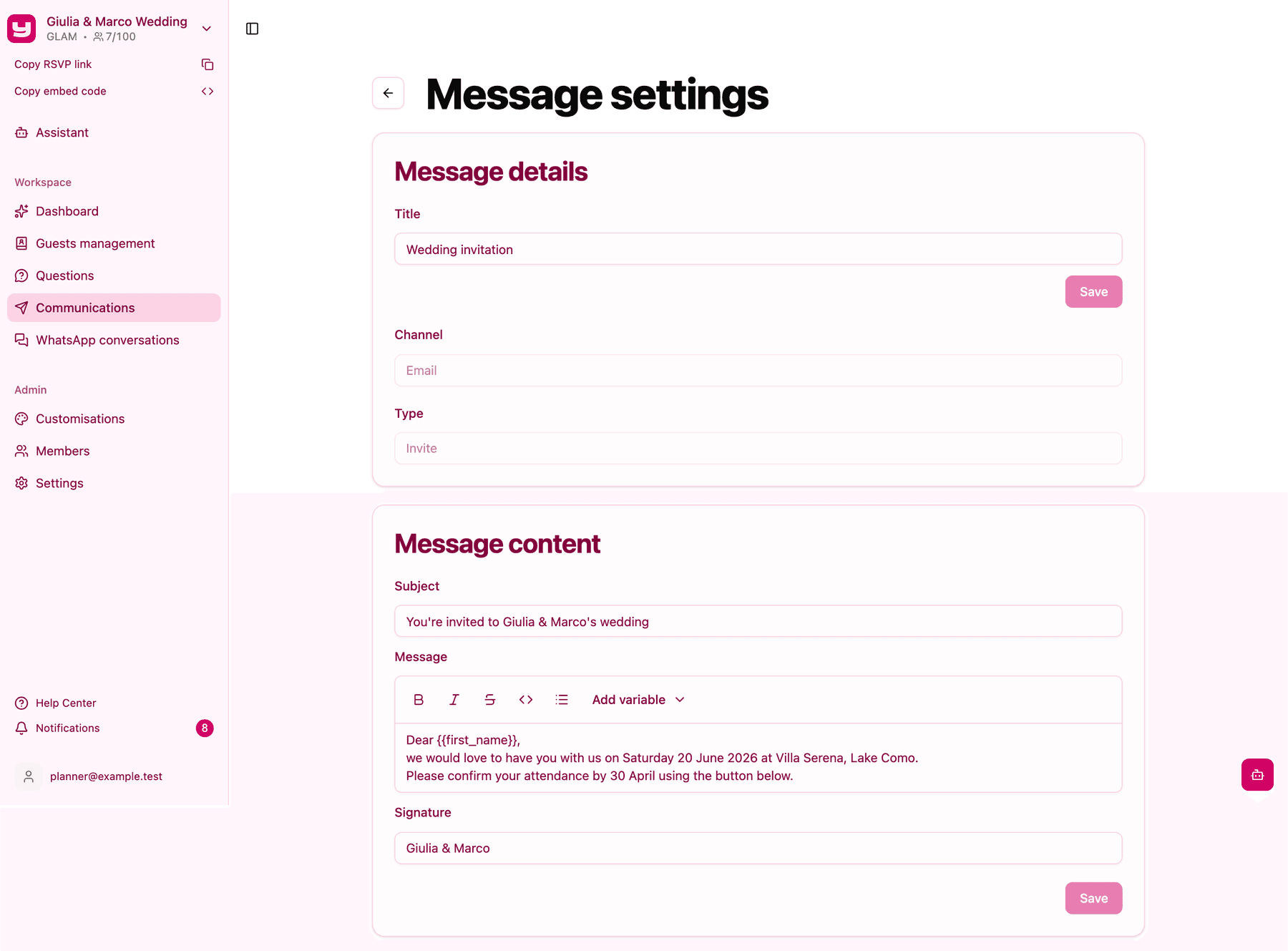
Click the gear icon on the communication page to open Message settings. You can change the title, subject, message and signature; channel and type can't be changed.
If your plan doesn't include email
On Exclusive, the Communications section simply isn't in the sidebar. To add email communications, contact Invytly support at support@invytly.com (or your Invytly contact person): the plan can't be changed from the app. See Upgrading your plan.