Couples, families and friends who travel together rarely want to fill in the RSVP one by one. In Invytly you can put them in a group (a household): any member who signs in to the RSVP page can then answer for everyone in it. You can also give a guest one or more plus-ones, so they can bring someone whose name you don't know yet.
Everything in this article on the dashboard side happens on Guest management, which only project Admins can see and use.
How households appear in your list
On Guest management, guests who belong to the same group are shown together in a single shaded card, one row per member, with a line at the bottom such as "3 guests in this group". Guests without a group each have their own white card.
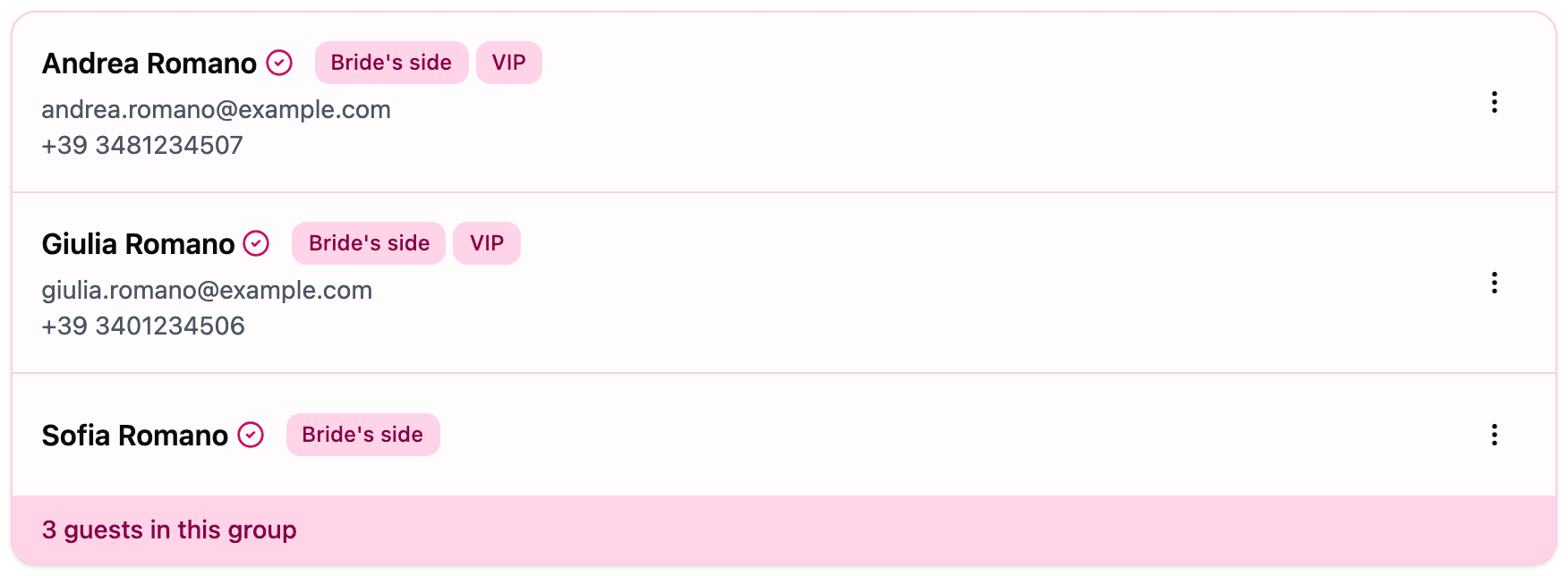
When you search the list, a household card stays whole: if one member matches, you'll see the whole family, which makes it easy to check who else is in the group.
Put guests in a group
-
On Guest management, find a guest who isn't in a group yet and open the menu (the three dots) at the end of their row.
-
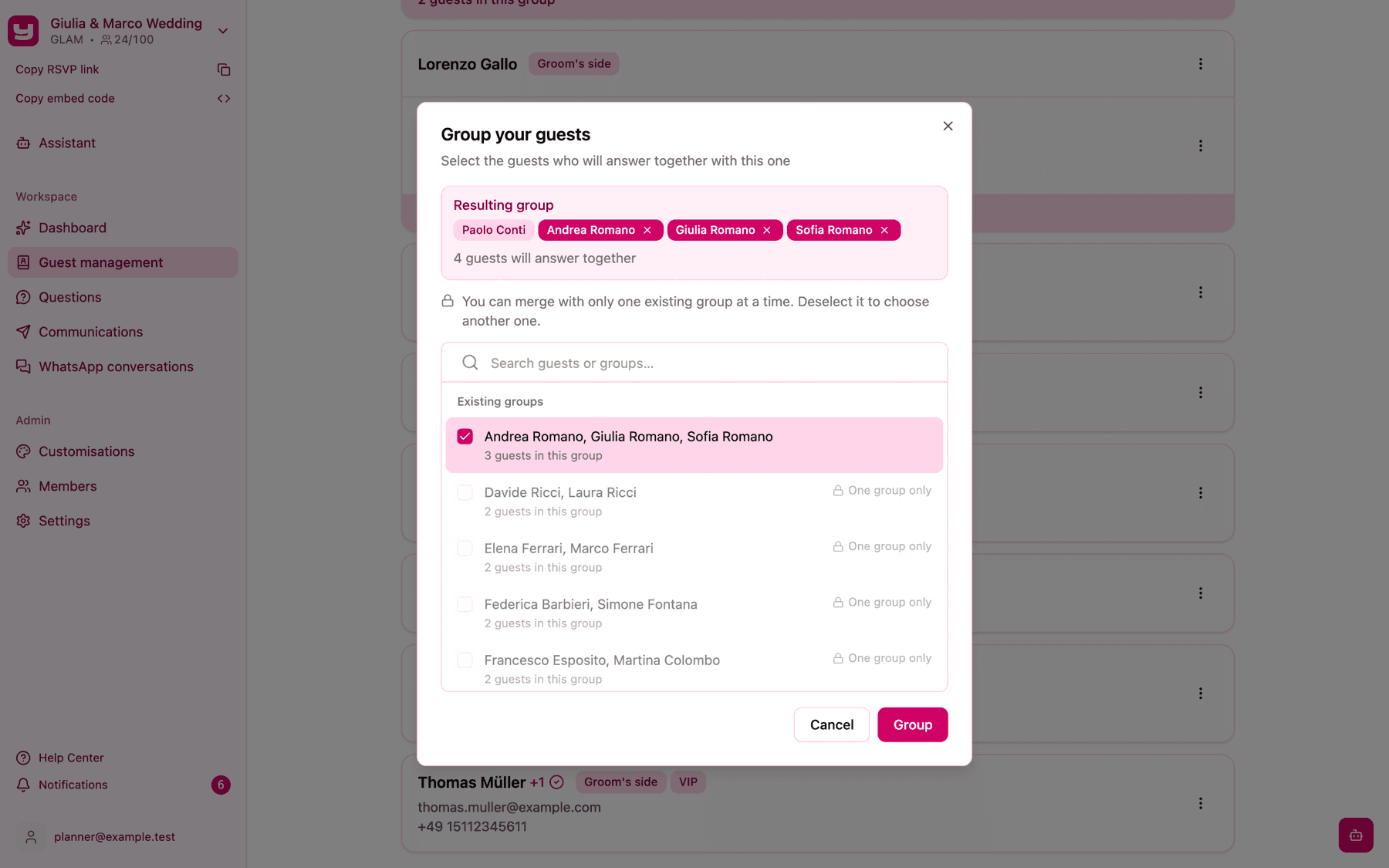
Choose Add to a group. The Group your guests dialog opens.
-
Pick who should answer together with this guest. Use the Search guests or groups… box to find people by name, email or WhatsApp number. The list has two parts:
- Existing groups: households you've already created. Tick one to add your guest to it.
- Guests without a group: tick as many as you like to form a new household with them.
-
Check the Resulting group box at the top: it lists everyone who will end up in the household and tells you how many guests will answer together. Click the small cross on a name to take it out again.
-
Click Group. A confirmation message tells you the guest was added to the group.
A few things to know about the picker:
- One group only. You can add a guest to just one existing group at a time. Once you tick a household, the other households show a lock icon and the label One group only, with a hint explaining that you need to deselect the first one to choose another. Invytly doesn't merge two existing households, because each one may already have RSVP answers attached to it.
- Add from the loose guest, not from the household. Add to a group only appears for guests who don't have a group. To add someone to an existing family, open the menu on the person you want to add and tick the family under Existing groups.
- Nobody to group with. If every other guest is already in the same household, or the project has only one guest, the dialog tells you there's nobody to group with. Add more guests first.
Remove a guest from a group
-
Open the menu on the guest's row and choose Remove from group.
-
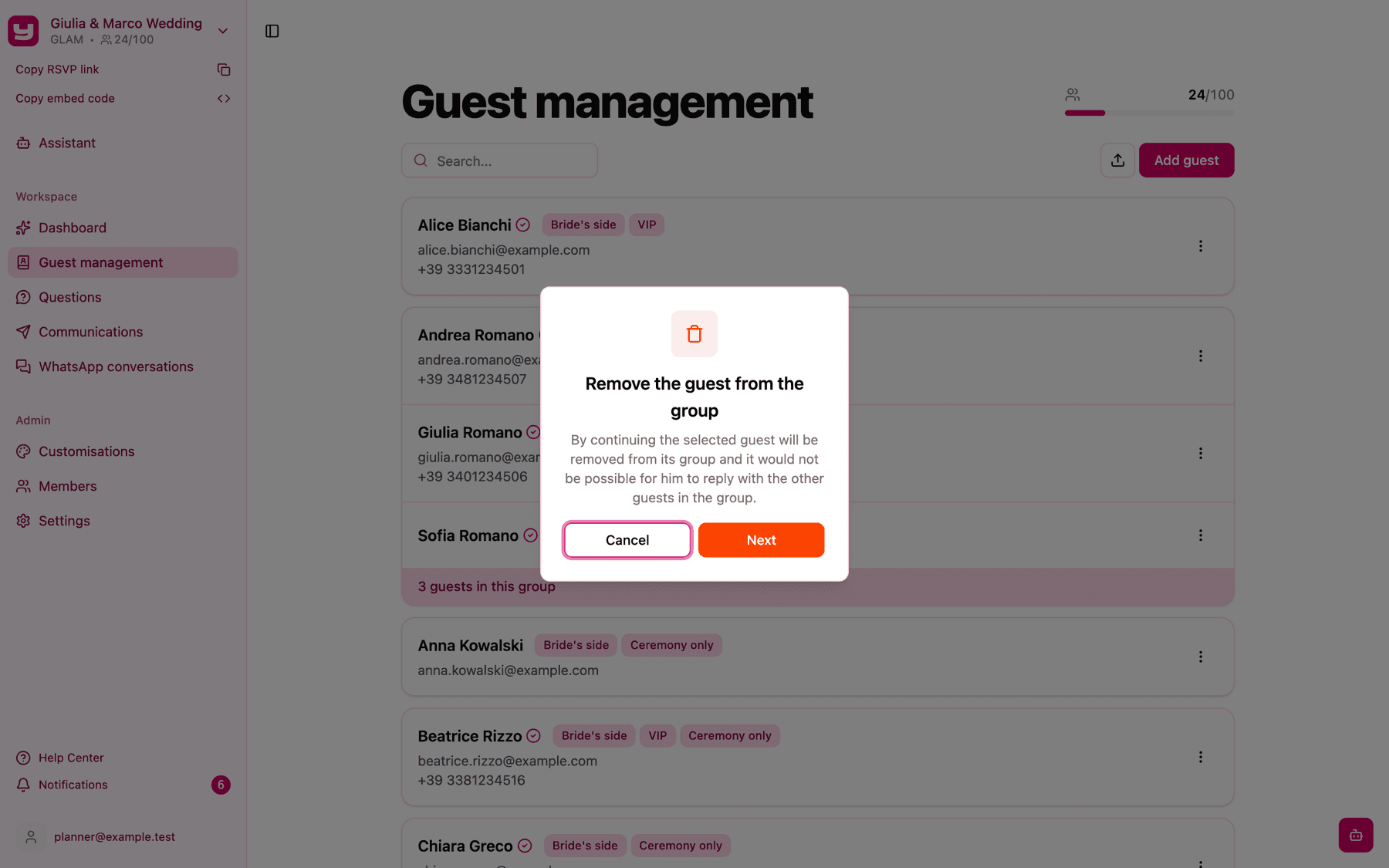
Invytly asks you to confirm with Remove the guest from the group: the guest will no longer be able to reply together with the others.
-
Click Next to confirm, or Cancel to keep things as they are.
Nothing else about the guest changes: their details, sections and any answers they've already given are kept. If only one person is left in the household after the removal, the group is dissolved and that person becomes a single guest again.
To move a guest from one household to another, remove them from their current group first, then use Add to a group to add them to the new one.
Create households from a CSV file
If your guest list is in a spreadsheet, you can build households during the import. Add a column (for example "Group" or "Family") and give every member of the same household the same value, such as "Rossi family". When you map the columns, assign that column to the Group field: all rows that share a value are imported into the same household. Rows with an empty cell are imported as single guests.
Use each value for one household only. Guests with the same value always end up together, even if they come from two different files.
The full import procedure is explained in Importing guests from a CSV file.
Plus-ones
A plus-one is a place you reserve for someone a guest will bring, when you don't know their name yet.
Give a guest plus-ones
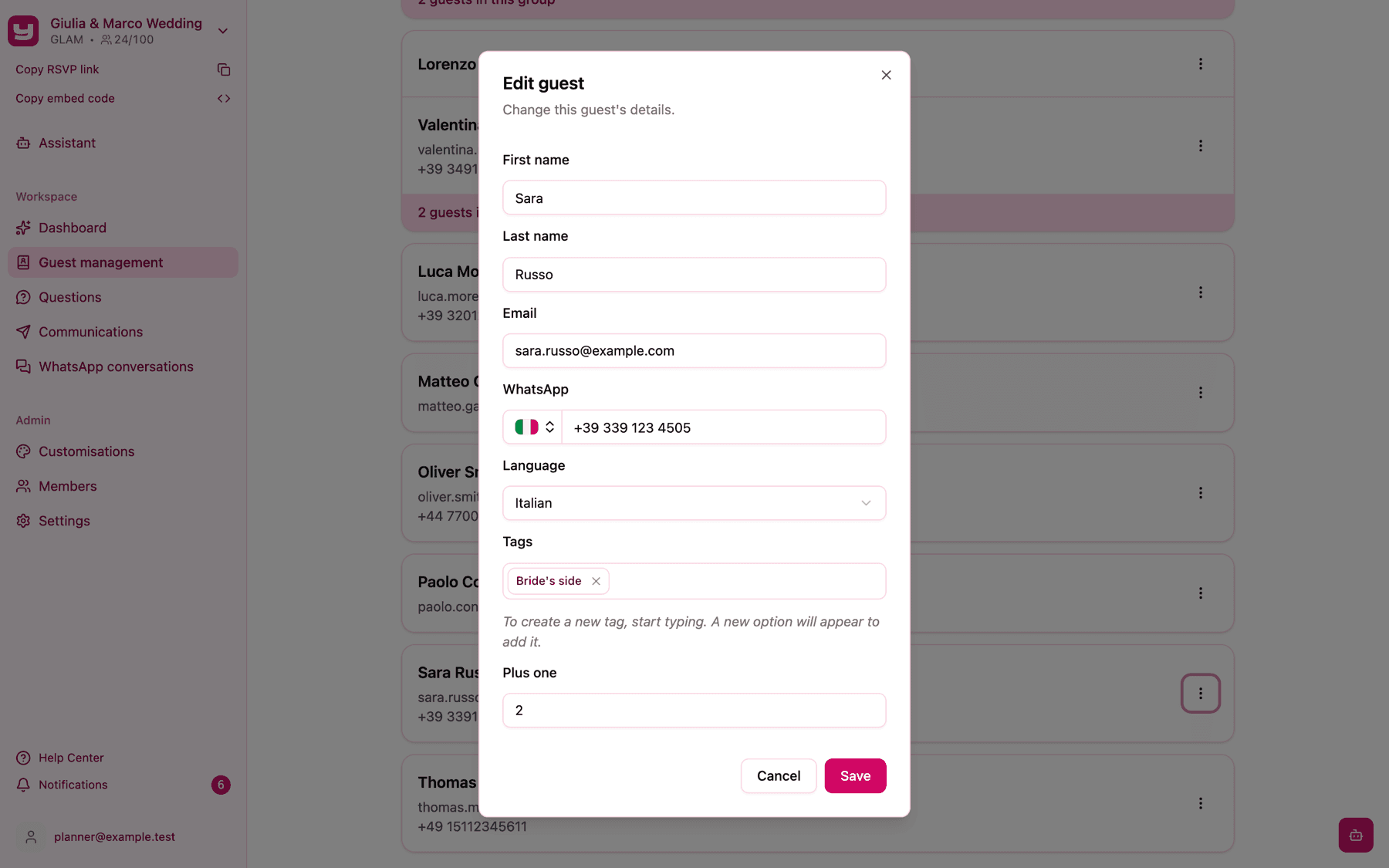
- One by one: open the menu on the guest's row, choose Edit, and enter a number in the Plus one field of the Edit guest dialog, then click Save. The Add guest form doesn't ask for plus-ones, so for a new guest, add them first and then edit them.
- From a CSV file: map a column to the Plus one field. Each cell must be a whole number of 0 or more (an empty cell counts as 0); anything else is flagged in the Review data step.
Guests with plus-ones available show a small +1 (or +2, +3...) next to their name on Guest management. The number is how many plus-ones they can still add: it goes down each time they use one.
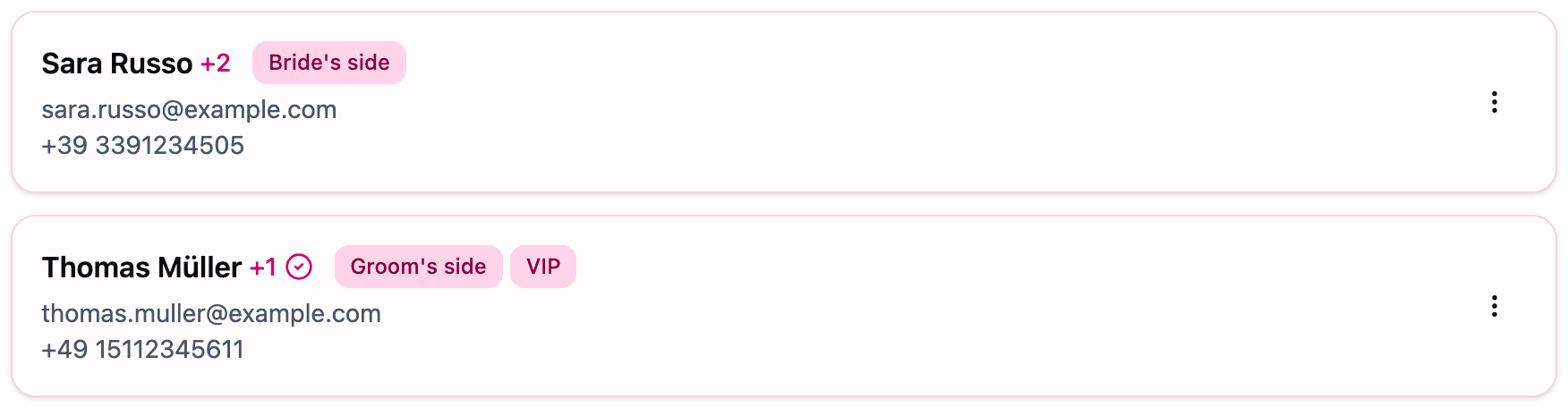
Plus-ones in a household are shared. If one member has +1 and another has +2, whoever signs in can add up to three people for the household.
What guests see on the RSVP page
When a guest signs in to the RSVP page with their first and last name, Invytly shows the Select guest screen with every member of their household. For each person there's an RSVP button, or Edit answers if that person has already replied, so one member can answer for the whole family. What each person is asked depends on the sections they're invited to (see Assigning guests to sections).
If the household still has plus-ones available, the list ends with + Add plus one. The guest types the plus-one's First name and Last name (both required) and clicks Save. The new person:
- becomes a new guest in your list, in the same household, so the guest can answer the RSVP for them straight away;
- is invited to the same sections as the household member whose plus-one was used;
- uses up one plus-one: the +N next to that member's name goes down by one, and + Add plus one disappears when the household has none left.
Guests can't remove a plus-one they've added. If a name is wrong or someone isn't coming after all, correct or delete the guest yourself on Guest management.
Plus-ones and your guest limit
A plus-one slot on its own doesn't use a place in your guest limit. The place is used when the guest actually adds someone, because at that moment a new guest joins your list. When the list is full, guests can no longer add plus-ones; they don't see an error, the plus-one simply isn't saved. See What to do when you need more guests.
Knowing when a plus-one is added
Every time a guest adds a plus-one, the project Admins receive a notification in Notifications (the bell icon), for example "Maria Rossi has added Luca Bianchi as plus one." Clicking it takes you to Guest management, where the new guest already appears in the household card.
Plus-ones in your exports
When you download your responses, the Excel workbook and the CSV file include an Unused +1 slots column with the plus-ones each guest hasn't used yet. The Guests by group sheet of the workbook lists guests household by household, with guests without a group at the end, which is handy for seating plans and headcounts.
Good to know
- Grouping doesn't change sections. Members of a household can be invited to different sections, for example parents to the whole day and children only to the reception. Each person sees only their own questions.
- Deleting a guest also removes them from their household; if only one member is left, the group is dissolved.
- Tip: before sending the invitations, scroll through Guest management and check that every household card contains the right people. It's much easier to fix a group before anyone has replied.