Most guest lists start life in a spreadsheet: the couple sends you an Excel file, you merge it with the families' lists, and you end up with a few hundred rows. Instead of typing every name again, you can import the whole file into Invytly in three short steps: upload the file, tell Invytly what each column contains, and check the data before it's saved.
Only project Admins can import guests: the Guest management page doesn't appear in the sidebar for the other roles.
Prepare your file
Invytly imports CSV files only (the file name must end in .csv). If your list is in Excel or Google Sheets, save it as CSV first: How to save a file as CSV walks you through it.
The first row of the file must contain the column names, and every following row is one guest. You can import these pieces of information:
| Column | What to put in it | Required |
|---|---|---|
| First name | The guest's first name. | Yes |
| Last name | The guest's last name. | No, but strongly recommended |
The mobile number with the international prefix, a space, then the number with no other spaces, for example +39 3331234567. | No | |
| A valid email address. | No | |
| Language | it, en or fr. If it's empty, the guest gets the project's language. | No |
| Group | A name shared by everyone in the same household, for example Rossi family. | No |
| Plus one | How many companions the guest can add themselves on the RSVP: empty or a whole number such as 0, 1 or 2. | No |
| Tags | One or more tags, separated by commas, for example Bride's side, Family. | No |
Here's an example of a well-formed file, shown as a table:
| First name | Last name | Language | Group | Plus one | Tags | ||
|---|---|---|---|---|---|---|---|
| Giulia | Rossi | +39 3331234567 | giulia.rossi@example.com | it | Rossi family | 0 | Bride's side, Family |
| Marco | Rossi | +39 3339876543 | it | Rossi family | 0 | Bride's side, Family | |
| Sophie | Martin | +33 612345678 | sophie.martin@example.com | fr | 1 | Friends | |
| James | Carter | james.carter@example.com | en | 0 | Colleagues, Ceremony only |
Your column names don't have to be exactly these: in the Map fields step you tell Invytly which field each column matches. Names like the ones in the example, though, are recognised automatically.
A few practical notes:
- Always fill in the last name. On the RSVP page guests sign in by typing their first and last name, and Invytly looks for them in your list. A guest saved without a last name won't be able to sign in until you add it.
- Your file can have other columns too, such as table numbers or notes. You'll simply leave them out during the import.
- Invytly doesn't check your file against the guests already in the project. If you import the same file twice, or import someone you already added by hand, you'll end up with duplicates.
Start the import
Open Guest management from the sidebar. If your list is still empty, click Import CSV list in the middle of the page. If you already have guests, click the upload icon next to Add guest (hover over it and you'll see Import guests).
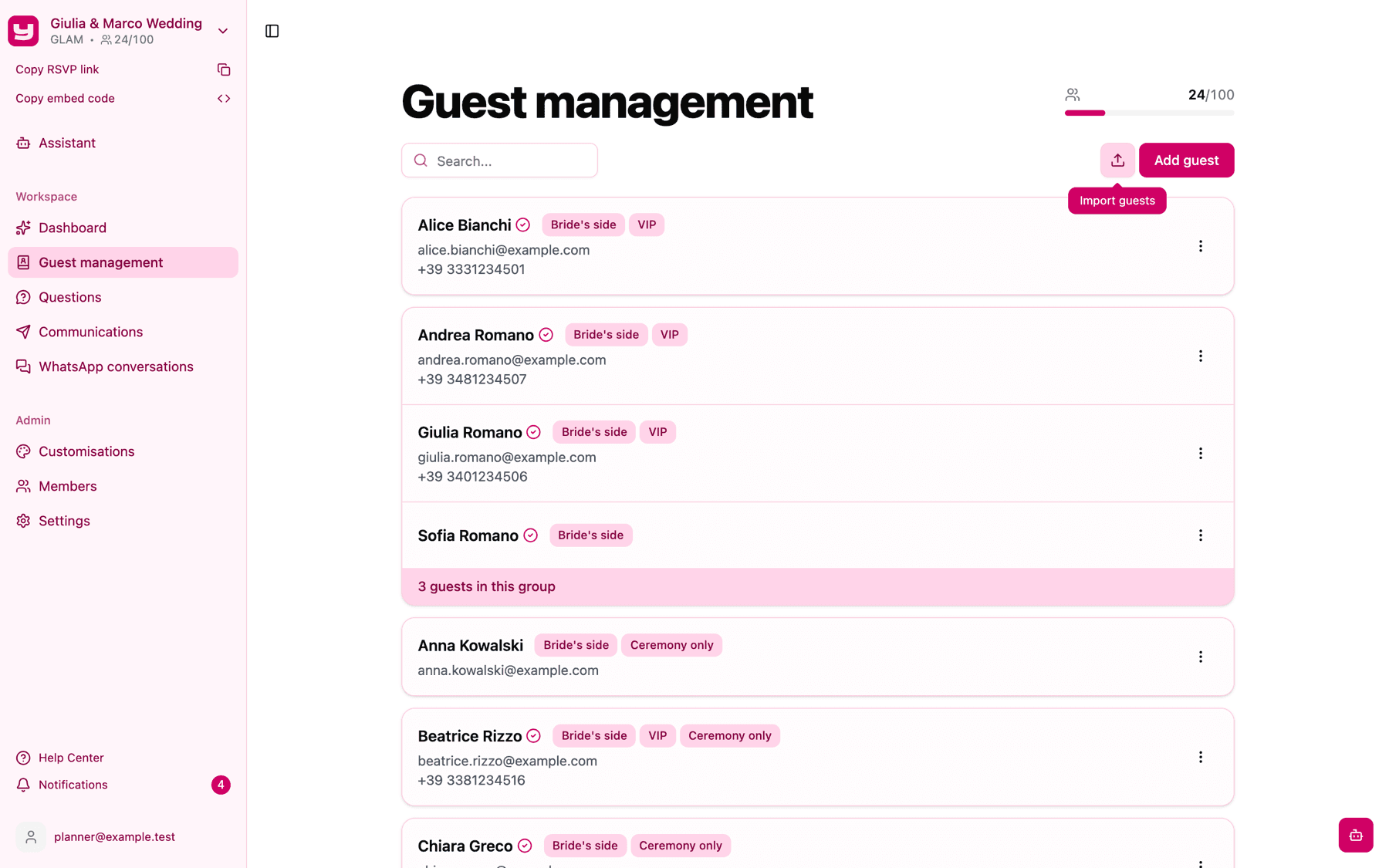
The Import guests window opens, with the three steps shown at the top: Upload file, Map fields and Review data.
Step 1: Upload file
Drag your CSV file onto the upload area, or click it and choose the file from your computer. Only .csv files can be selected. Then click Next.
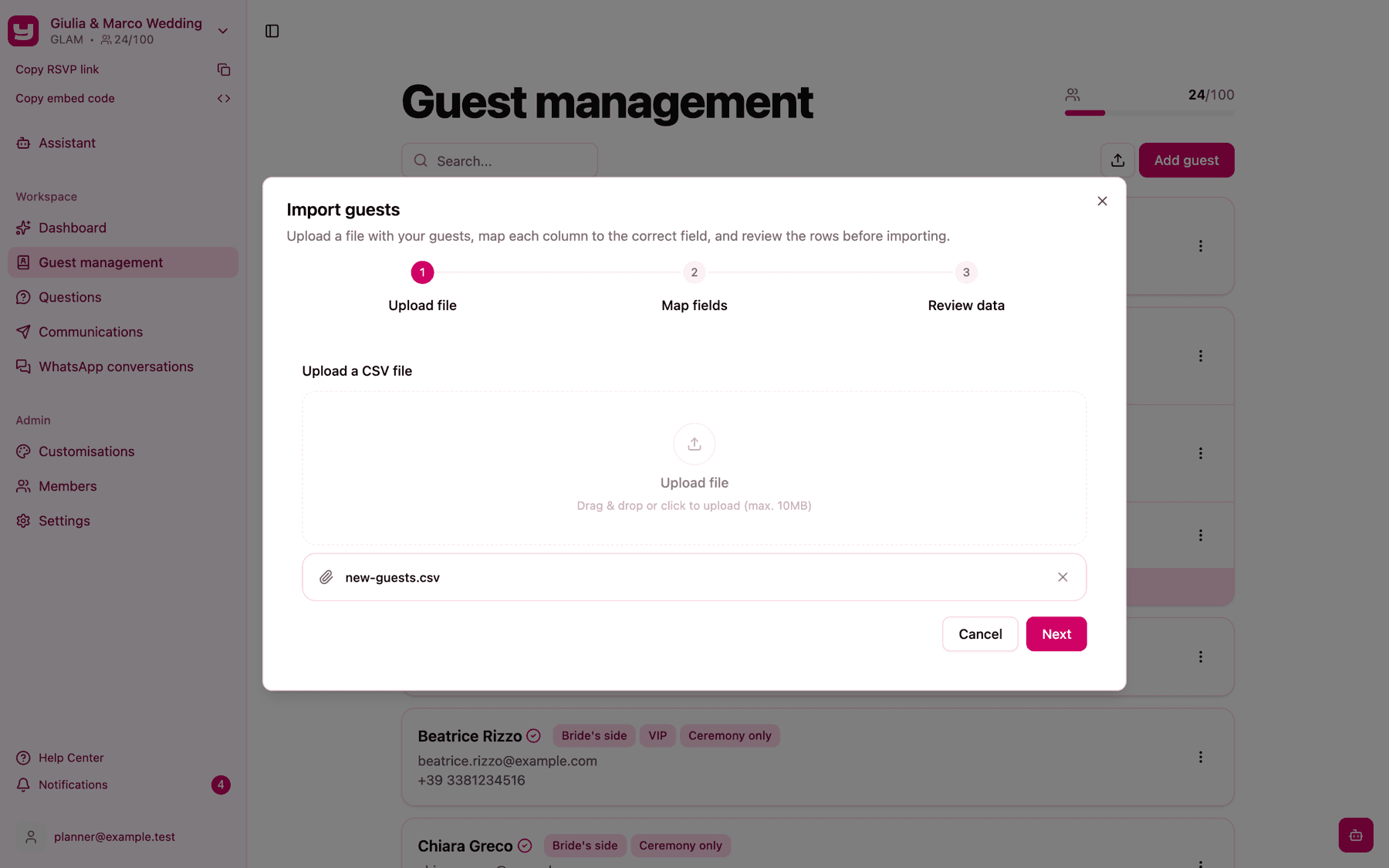
Invytly reads the file and moves you to the next step. It works with files separated by commas or by semicolons (the two formats Excel produces depending on your computer's settings), so you don't need to change anything. If the file is empty, or contains only the column names, Invytly tells you it doesn't contain any guest rows.
Step 2: Map fields
This step, Map your CSV columns, is where you tell Invytly what each column of your file contains. At the top, Invytly tells you how many columns and rows it found in your file: it's a good moment to check the number of rows matches your list.
The page shows two lists side by side:
- Columns in your file: every column name from the first row of your file, with a Sample value taken from the first row that isn't empty, so you can recognise the content at a glance.
- Properties in Invytly: for each column, a menu where you pick the matching Invytly field: First name, Last name, WhatsApp, Email, Language, Group, Plus one or Tags.
Invytly pre-fills the matches for you when your column names are ones it recognises, such as "First name", "Last name", "Email", "WhatsApp", "Phone", "Language", "Group", "Plus one" or "Tags" (it also recognises Italian names such as "Nome" and "Cognome"). Check each row anyway, and adjust anything that's wrong.
Columns you don't want to import stay on Unmapped and are simply ignored.
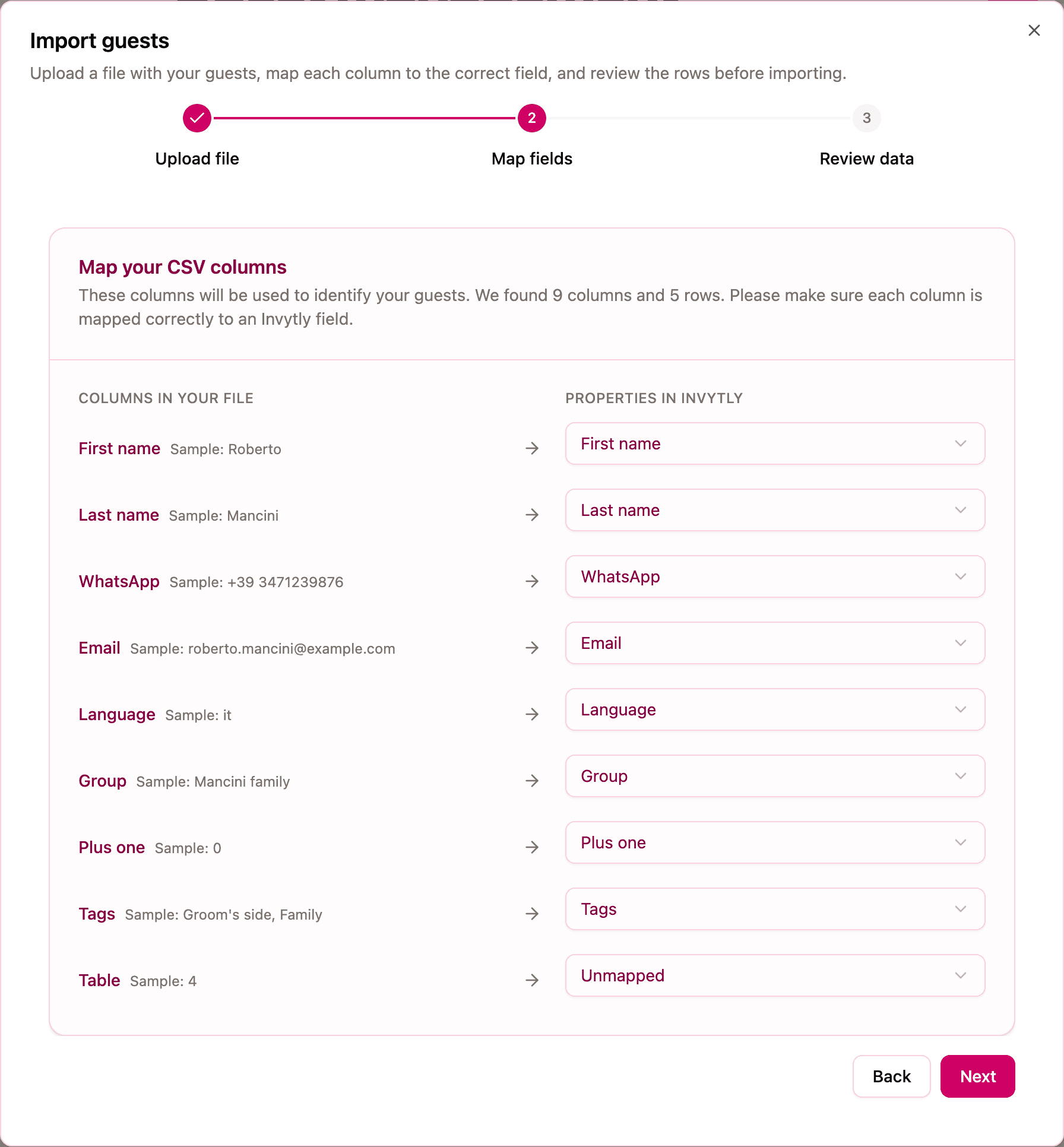
Each Invytly field can be matched to one column only. If you pick the same field for two columns, both menus turn red with a message saying the field is assigned to more than one column, and Next stays disabled until you fix it. This often happens with lists that have two phone columns: pick the one with the WhatsApp number and leave the other on Unmapped.
When everything is matched, click Next.
Step 3: Review data
Review your data shows your guests as an editable table, with one column for each field you mapped. Before anything is saved, Invytly checks every row:
- First name must not be empty.
- Email, when present, must be a valid email address.
- Language, when present, must be
it,enorfr(capital letters are fine). - WhatsApp, when present, must be written as the international prefix, one space and the number, for example
+39 3331234567. A number without the prefix, or with extra spaces inside it such as+39 333 1234567, is flagged. - Plus one, when present, must be a whole number of 0 or more. Values like "yes", "1.5" or "two" are flagged with "Plus one must be a whole number of 0 or more". An empty cell counts as 0.
If some rows have a problem, a red Fix the issues box tells you how many rows still need to be updated, and those rows are moved to the top of the table so you don't have to hunt for them. The cell with the problem is outlined in red, with the reason written underneath.
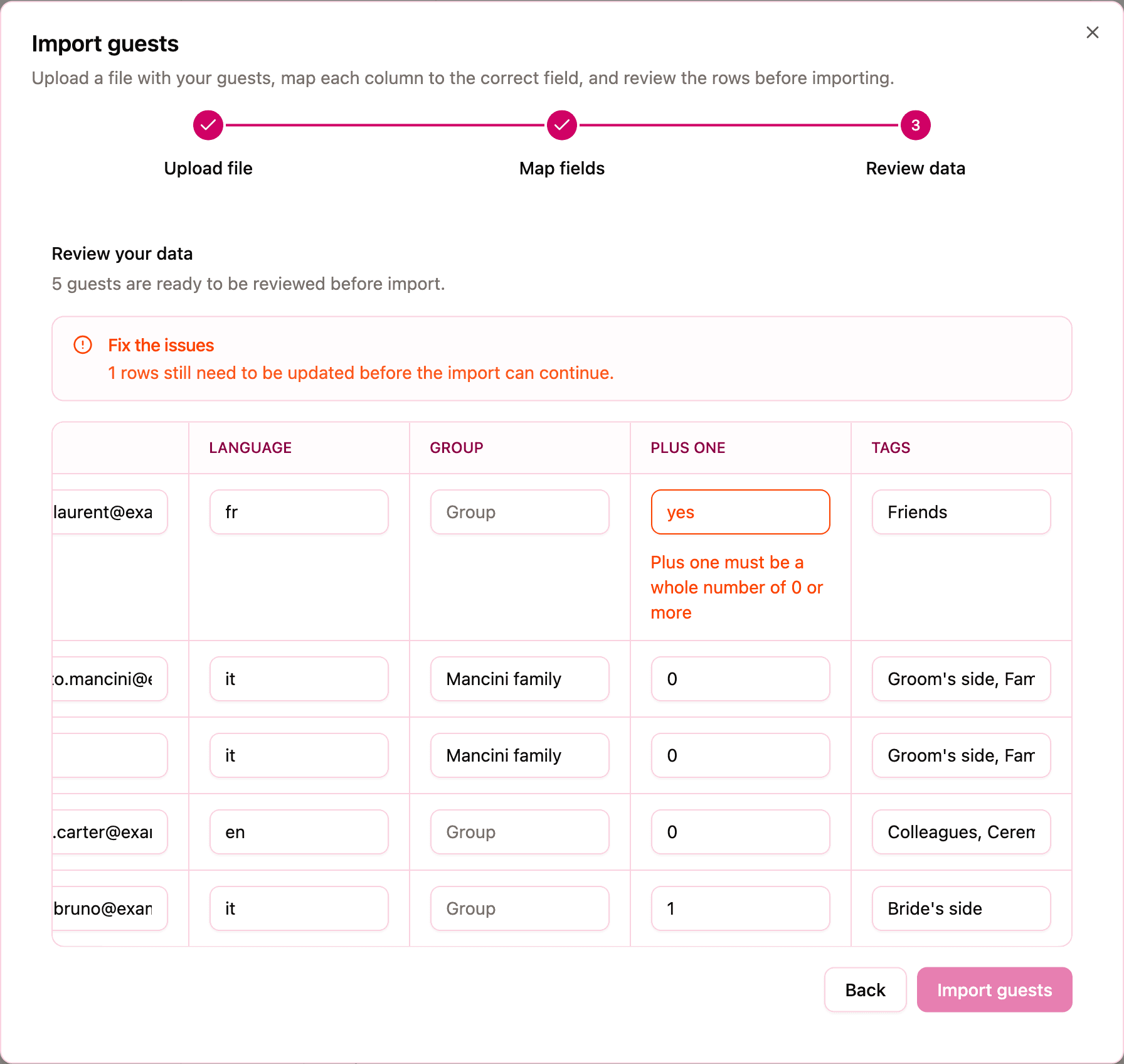
You can fix the problems right here: click the cell, type the correct value, and the check runs again as you type. You don't need to go back to your spreadsheet. When every row is valid, the box turns green and says Ready to import.
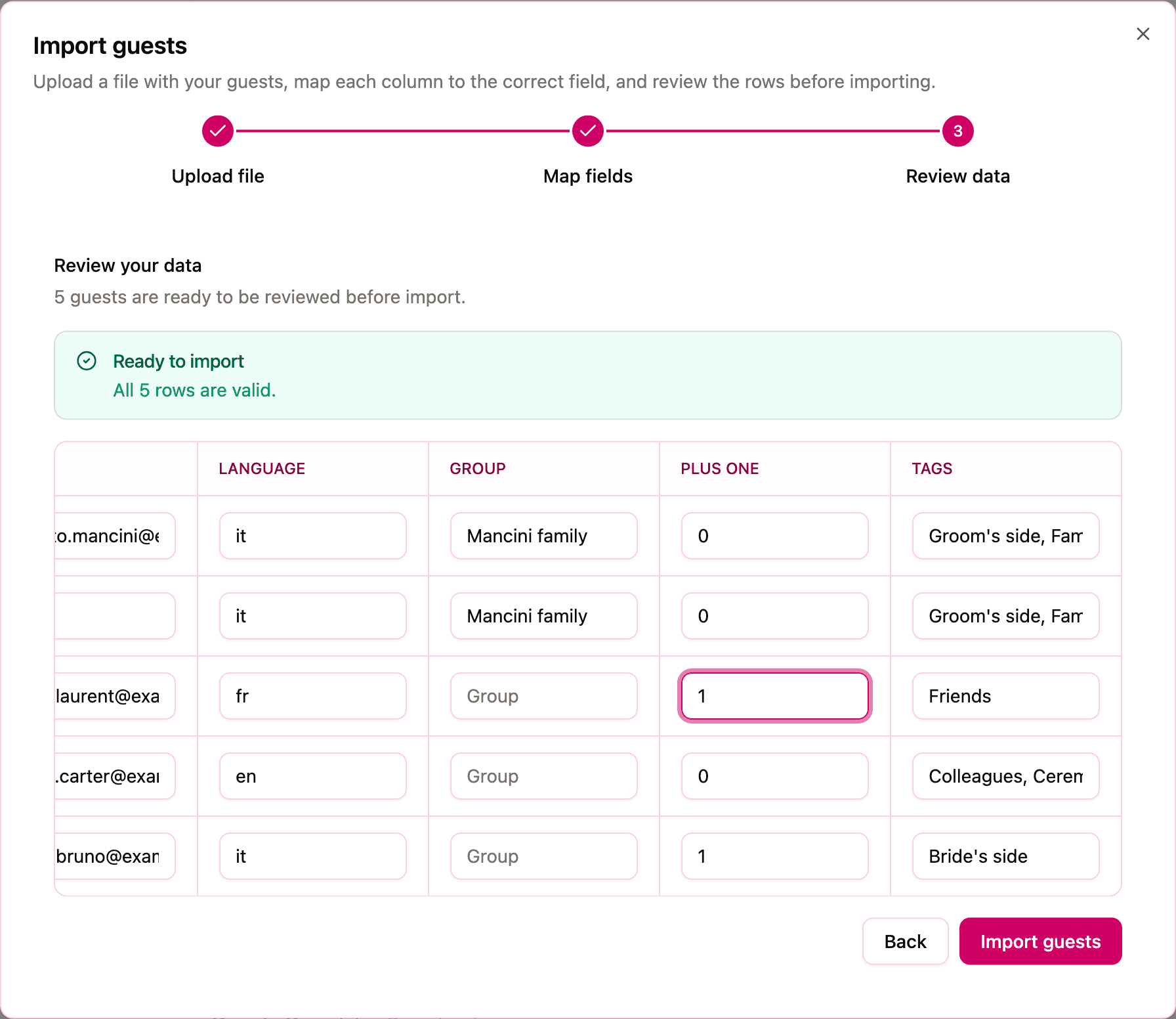
Click Import guests to finish. The button stays disabled while any row still has a problem. When the import is done, you'll see the message "Guests have been added successfully" and your guests appear in the list.
Tip: the corrections you make in this step only apply to this import, not to your original file. Also, if you go Back to Map fields and click Next again, the table is rebuilt from the file and your corrections are lost, so finish the mapping before you start fixing cells.
Keep the window open while the import runs: it can't be closed until it's finished. If something goes wrong along the way, you'll see "Unable to import guests." and Invytly removes the guests it had already created from that file, so you can simply try again without ending up with half a list.
How the Group column creates households
When several rows have exactly the same value in the column mapped to Group, Invytly puts those guests in the same household. In the guest list they appear together in one card, with a note such as "2 guests in this group" at the bottom, and on the RSVP page any member of the household can answer for everyone in it.
To make this work reliably:
- write the group name exactly the same way on every row of the household: "Rossi family" and "rossi family" are two different groups;
- use a name that only that household has: if there are two Rossi families on the list, call them something like "Rossi family Milan" and "Rossi family Rome";
- leave the cell empty for guests who come on their own.
Households, plus-ones and how to change a group after the import are covered in Households and plus-ones.
When the import is blocked by the guest limit
Every project has a guest limit. In the Review data step, Invytly compares the number of rows in your file with the places you have left. If the file contains more guests than that, a red Guest limit reached box tells you how many guests are in the file and how many you can still import, and Import guests is disabled.
The import is all or nothing: Invytly never imports only the first part of a file. You can either split the file and import as many rows as you have places for, or ask for a higher limit and import the whole file afterwards. Both options are explained in What to do when you need more guests.
After the import
- Assign the guests to your RSVP sections. Imported guests aren't added to any section automatically, and a guest only sees the sections they're assigned to. See Assigning guests to sections.
- Check the list. Scroll through Guest management or use the search box to spot-check a few names. You can correct any guest afterwards, as explained in Adding and editing guests.
- Tags from the file are ready to use. New tags are added to your project and can be used straight away to filter the report or pick recipients. See Using tags to organise your guests.