A guest list is never just a list of names. Some guests are on the bride's side, some are colleagues, some only come to the ceremony, and the caterer needs to know who sits at the VIP table. Tags are short labels you attach to guests so you can find those groups again whenever you need them: to look at their answers, to send them a message, or to add them to the right part of the RSVP.
A guest can have as many tags as you like, and tags are shared across the whole project: once you've created "VIP", it's available for every guest.
Add tags to a guest
You add tags in the Tags field of the Add a guest and Edit guest windows (see Adding and editing guests).
-
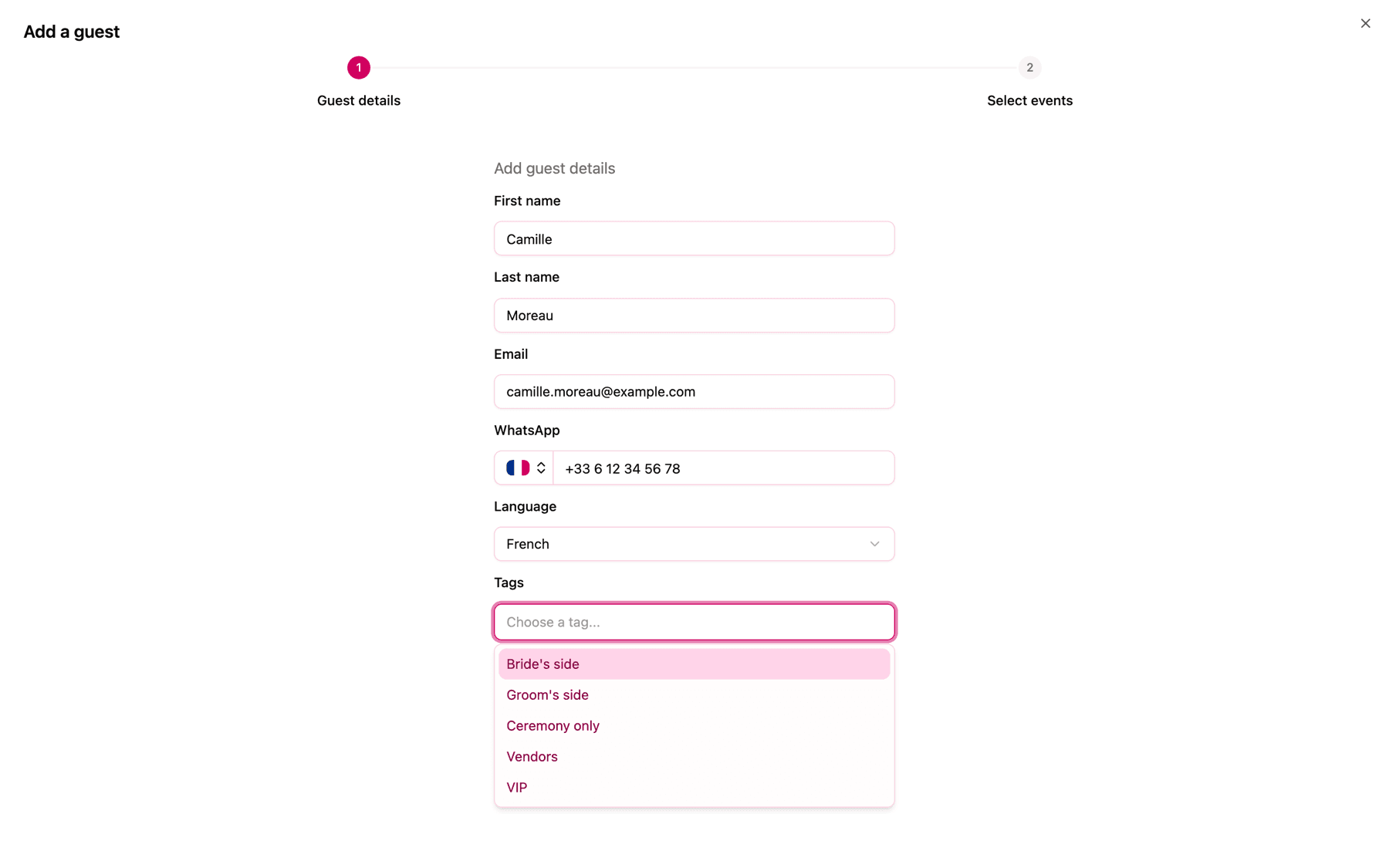
Click the Tags field (it says Choose a tag...). The list shows every tag already used in the project.
-
Click a tag to add it, or start typing to narrow the list down.
-
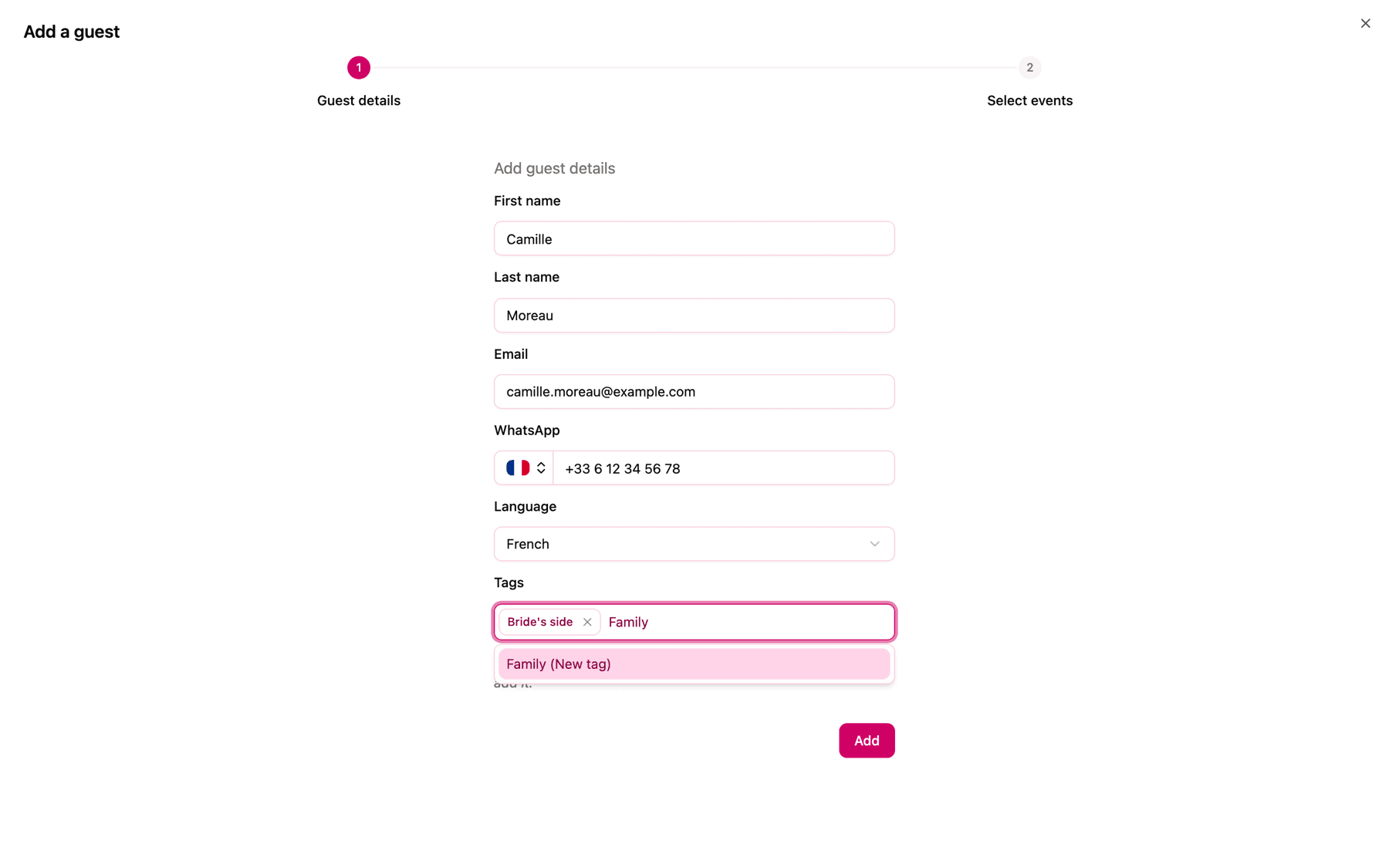
To create a new tag, type its name: an option such as VIP (New tag) appears. Click it and the tag is added to the guest.
-
Save the guest as usual with Add or Save.
Each tag you've added appears as a badge in the field. To take a tag off a guest, open Edit guest, click the small × on the badge and click Save.
A new tag joins the project's list of tags as soon as you create it in the field, so it's offered for every other guest from then on.
Add tags when importing
If you're importing your list from a CSV file, add a column for tags and match it to Tags in the Map fields step. To give a guest several tags, write them in the same cell separated by commas, for example Bride's side, Family, Table 4. Any tag that doesn't exist yet is created for you. The full import is explained in Importing guests from a CSV file.
Where you see tags
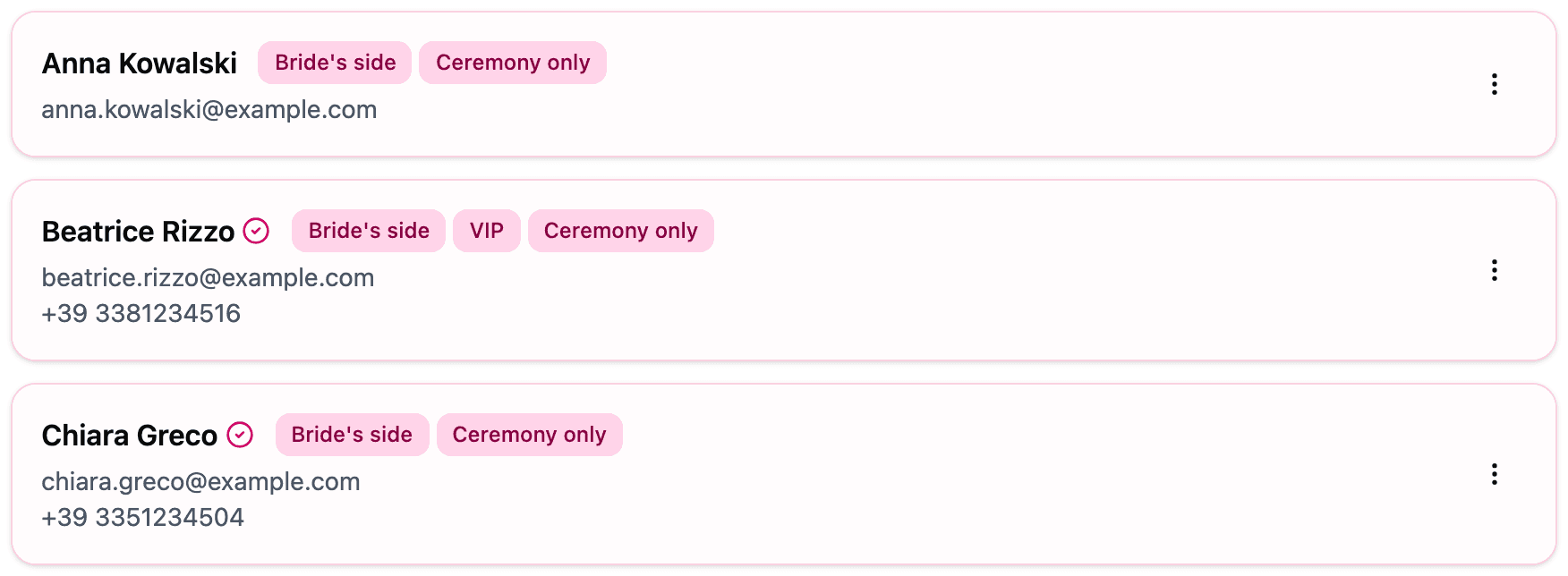
- In Guest management, as badges next to each guest's name.
- In the Guests table of the dashboard, as badges under each guest's name. See Reading and filtering the guest report table.
- In the files you get with Download answers, in a Tags column. See Downloading your guests' responses.
Filter by tag
Tags really pay off when you use them as filters. The same filter appears in two places:
-
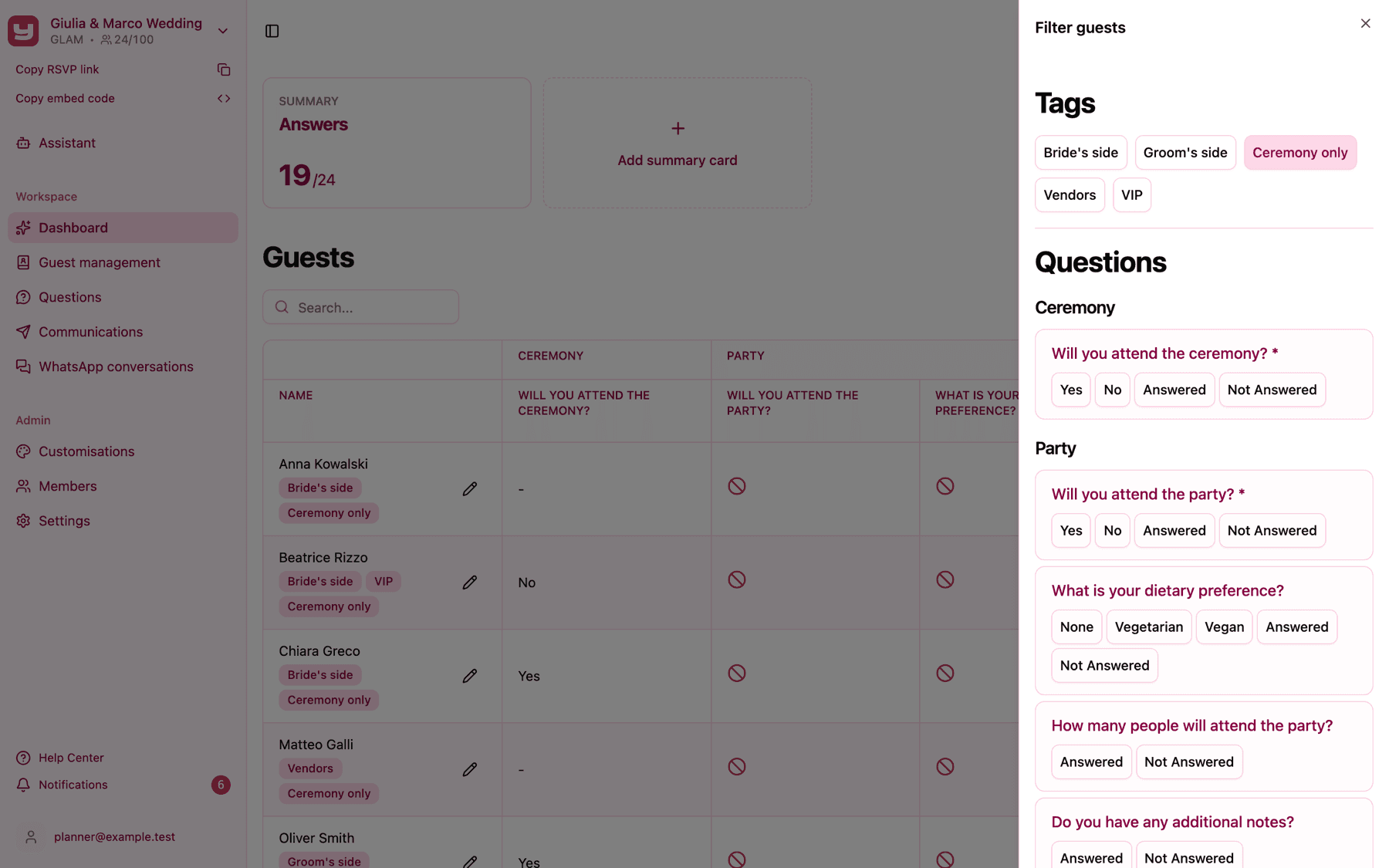
In the report table. Click Filter by above the Guests table: the Filter guests panel opens, with all your tags under Tags. Click one or more tags to show only those guests, and click a tag again to remove it from the filter. More in Reading and filtering the guest report table.
-
When choosing who receives a communication. The guest picker has the same Filter by button, so you can send a message to "Colleagues" only, or to everyone tagged "Ceremony only". See Choosing who receives a communication.
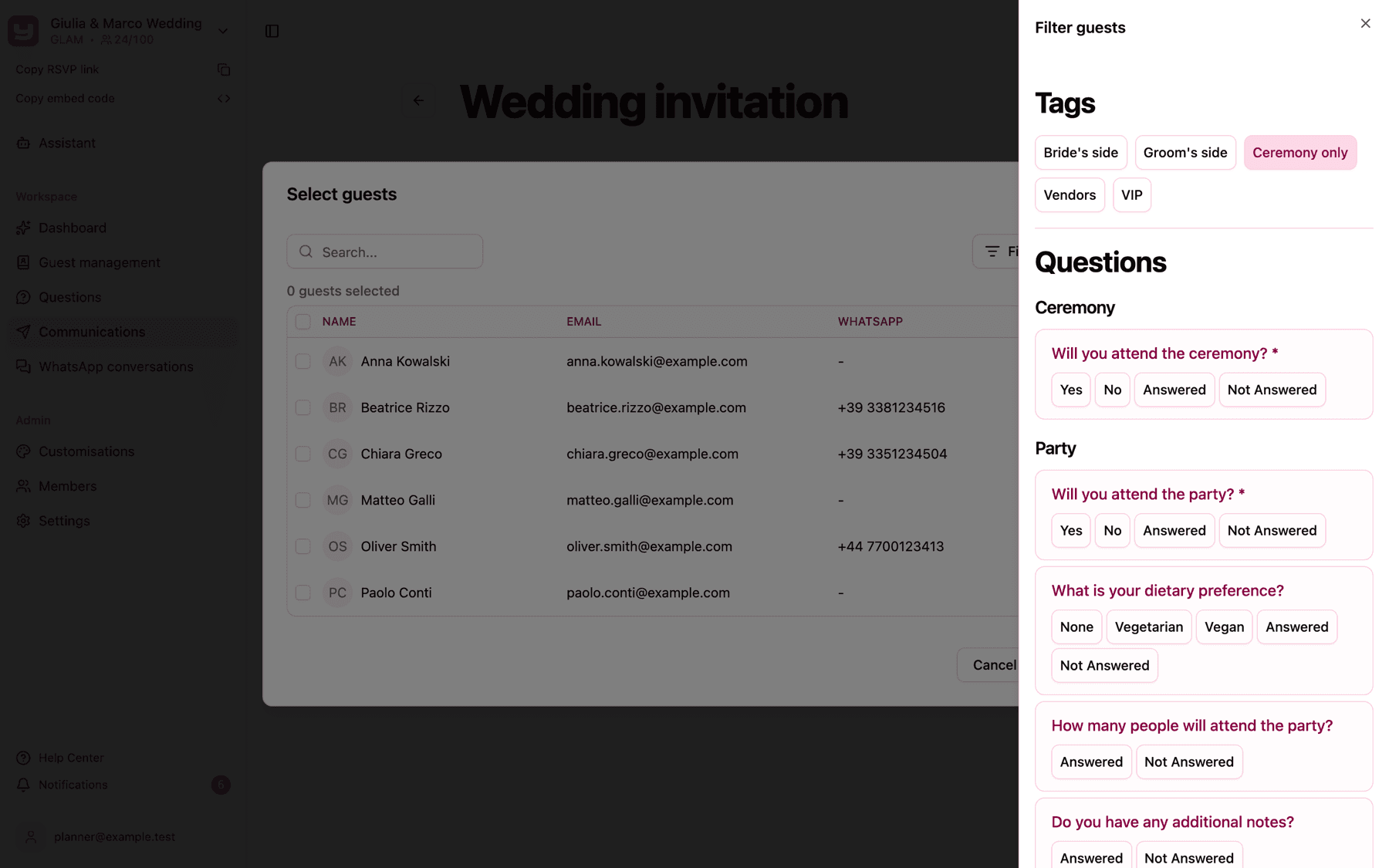
You'll also find it when picking the guests for an RSVP section, which is handy for tags such as "Ceremony only" (see Assigning guests to sections).
When you select several tags, you see the guests who have at least one of them. For example, selecting "Bride's side" and "Groom's side" shows both families together, not only the guests who have both tags.
Ideas for tagging your guests
There's no right way to tag, but a few schemes work well for most events:
- Side of the family: "Bride's side", "Groom's side", "Mutual friends". Useful for seating plans and for counting answers per family.
- Relationship: "Family", "Friends", "Colleagues", so you can write to each group in the right tone.
- Table: "Table 1", "Table 2"... once the seating plan is ready, so you can check the menu choices table by table.
- Vendors and staff: "Photographer", "Band", "Wedding planner team", for the people you need to count but who aren't really guests.
- VIP: guests who need special attention, such as a welcome gift or a reserved seat.
- Ceremony only or Party only: guests who are invited to only part of the event. The tag makes it easy to pick them when assigning sections and to send them the right information.
- Travel and logistics: "Coming from abroad", "Needs shuttle", "Hotel block".
Good to know
- Tags can't be renamed or deleted. Once a tag has been created, it stays in the project's list, even if no guest uses it any more. If you mistype a tag, remove it from the guests who have it and add the correct one; the old tag will still appear in the list and in the filters, simply with no guests.
- Tags are matched exactly. "VIP" and "vip" are two different tags, so pick one spelling and stick to it, especially in CSV files.
- The search box in Guest management doesn't search tags. It looks at names, email addresses and WhatsApp numbers only. To see guests by tag, use the filter in the report table.
- Guests never see their tags. Tags are for you and your team only; they don't appear on the RSVP page.