Not every guest is invited to everything. Some come only to the ceremony, others to the whole day; on a three-day wedding, the welcome dinner may be just for close family. In Invytly you handle this with sections: every section of your RSVP form has its own list of invited guests, and each guest sees only the sections they're invited to.
If you haven't created your sections yet, start with Organizing questions into sections.
How it works
- Each section has its own guest list. It's the Guestlist field of the section, and it works the same way for event sections (the ceremony, the reception) and general sections (dietary needs, transport).
- Guests only see their sections. A guest who isn't in a section's list never sees it on the RSVP page, nor its questions.
- A section needs at least one guest. If you try to save a section with nobody selected, Invytly stops you with "You must add at least one guest to create an event".
- New guests aren't added to sections automatically. When you add a guest by hand, the Add guest dialog asks you right away; guests imported from a CSV file aren't assigned to any section, so you'll need to add them afterwards. The only exception is plus-ones added by your guests: they're invited to the same sections as the household member who brought them (see Households and plus-ones).
Assigning guests to sections, like everything else on Guest management and Questions, is for project Admins only.
Assign a guest when you add them
When you add a guest with Add guest on Guest management, the dialog has two steps:
- Guest details: fill in the guest's name and contacts and click Add. At this point the guest is already saved in your list.
- Select events: you see every section of your RSVP form, with its date for event sections. Click Add next to each section this guest is invited to. The button changes to Added and a message confirms that the guest has been assigned to the RSVP section. When you're done, click End.
If your project has no sections yet, the second step just tells you to create an RSVP section first. You can close the dialog and assign the guest later, once your sections exist. The same applies if you close the dialog before assigning anything: the guest is saved, just not invited to any section yet.
Change a guest's sections from the guest list
To adjust the sections of a single guest:
-
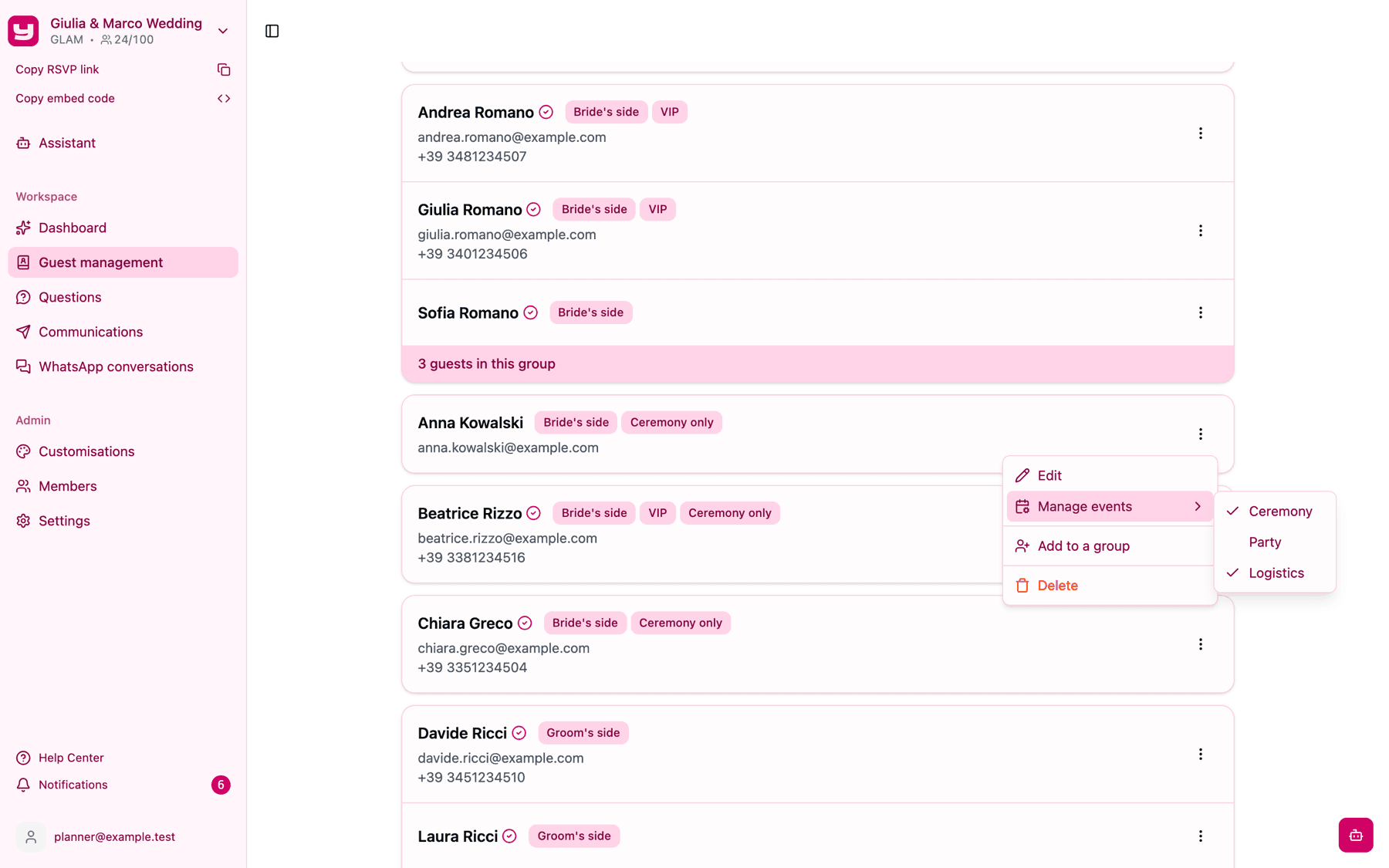
On Guest management, open the menu (the three dots) on the guest's row.
-
Open Manage events. A list of all your sections appears, with a tick next to the ones the guest is invited to.
-
Click a section to tick it (the guest is added) or untick it (the guest is removed).
Each click takes effect immediately, without a confirmation step. Read the next part of this article before unticking a section for a guest who has already replied.
Change a section's guest list from the Questions page
When you need to add or remove many guests at once, for example right after a CSV import, it's quicker to work from the section:
-
Open the Questions page and find the section's card.
-
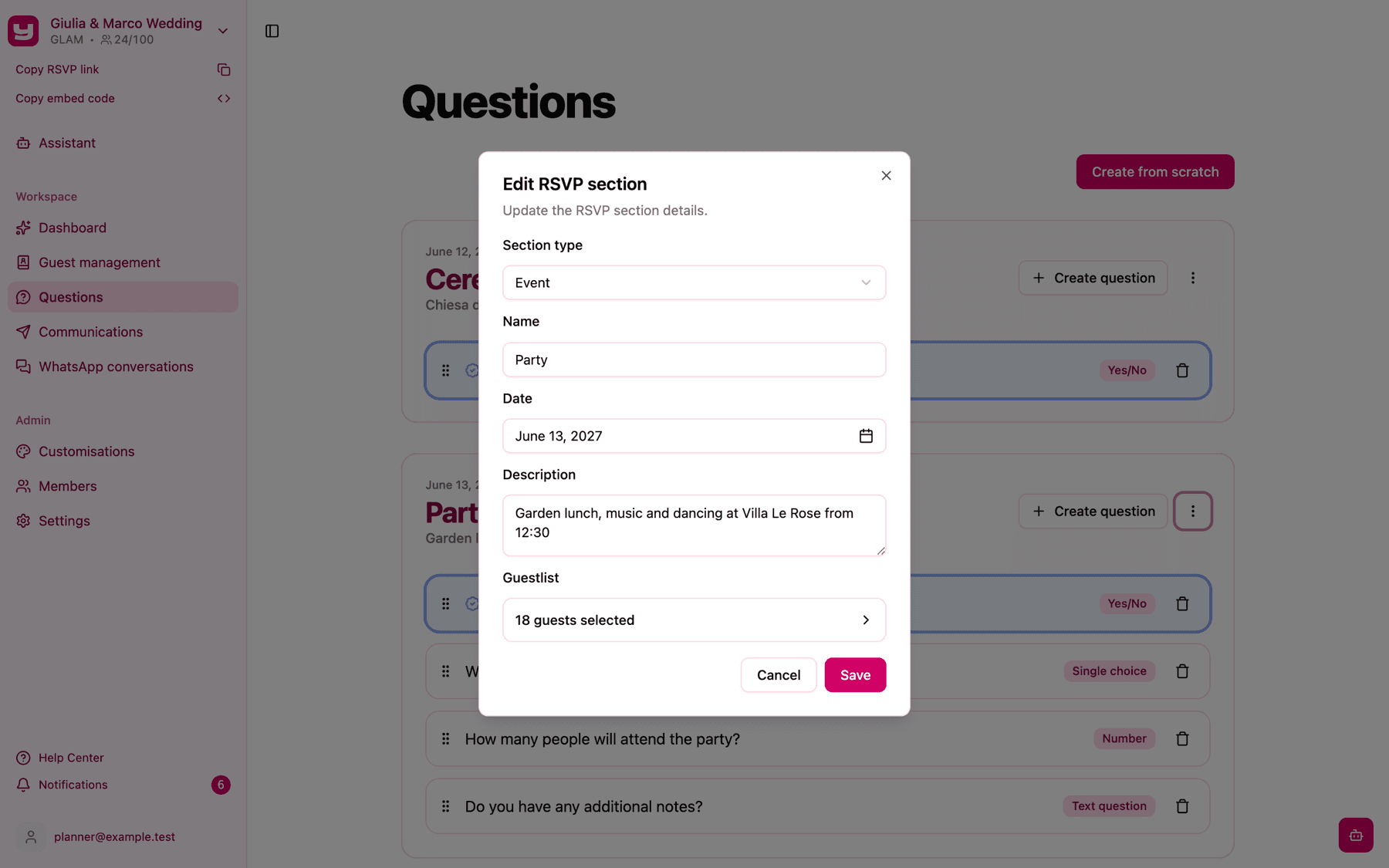
Open the menu on the card and choose Edit. The Edit RSVP section dialog opens.
-
Click the Guestlist field, which shows how many guests are selected, for example "48 guests selected".
-
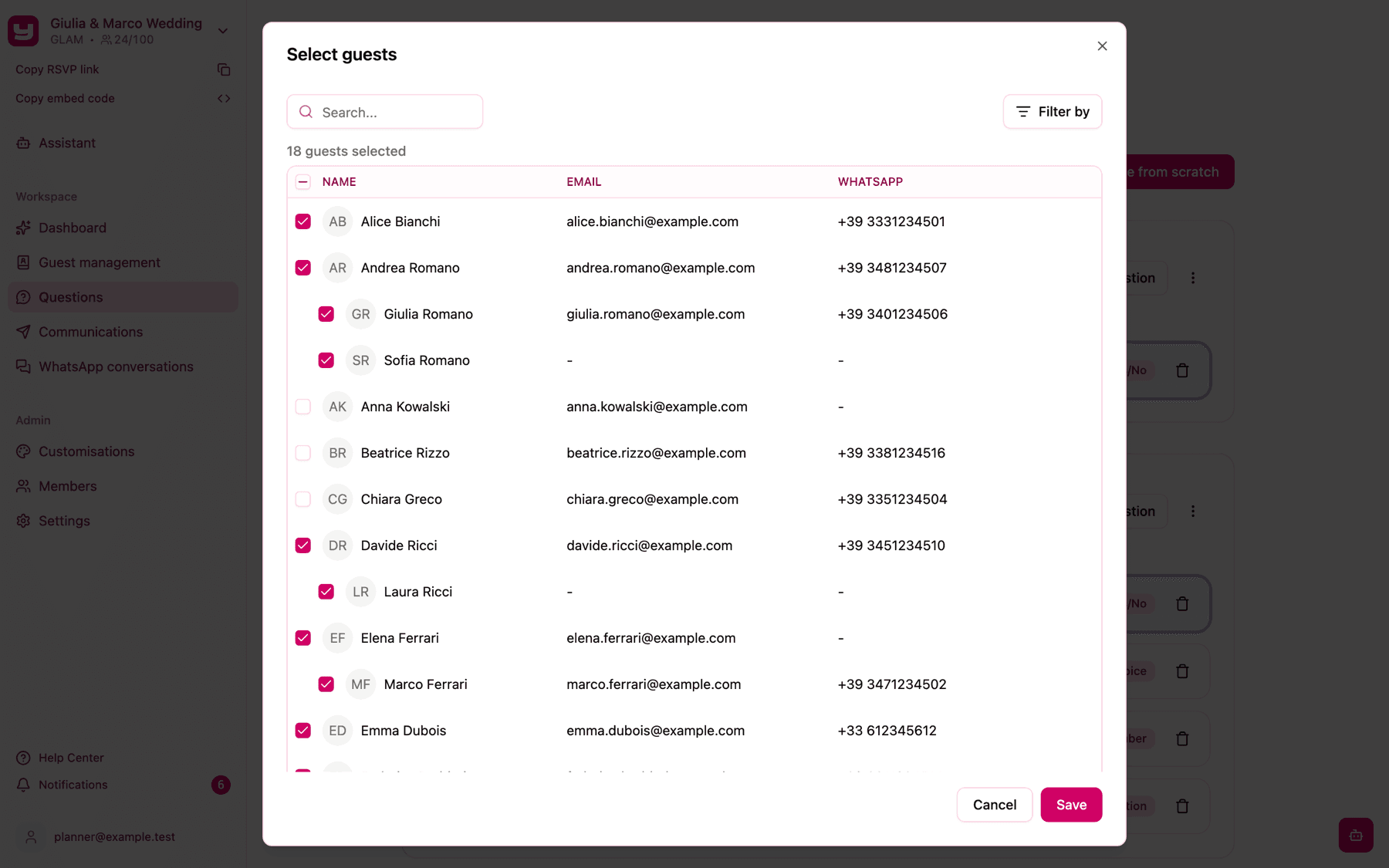
In the Select guests window, tick or untick guests. Members of the same household are listed together, so it's easy to keep families consistent. You can also:
- search by name, email or WhatsApp number with the Search... box;
- narrow the list by tags with Filter by, handy if you've tagged guests such as "Ceremony only" or "Family";
- use the checkbox in the header to select or deselect all the guests currently shown.
-
Click Save to close the window, then Save again in the Edit RSVP section dialog.
What happens when you remove a guest from a section
Removing a guest from a section, from either the guest menu or the section's Guestlist, deletes the answers that guest has already given. And it's not only the answers to that section: Invytly clears the guest's whole RSVP. If they're still invited to other sections, they'll have to answer those again.
So before removing a guest who has already replied:
- Make sure it's really needed. If the guest simply isn't coming to that part of the event, their "No" to the attendance question already says so, and you don't need to touch the list.
- Download your responses first if you want to keep a copy of what they answered (see Downloading your guests' responses).
- Let the guest know that they'll need to fill in the RSVP again for the sections they're still invited to.
Adding a guest to a section doesn't touch the answers they've already given. If the guest has already replied, let them know that there are new questions waiting for them on the RSVP page.
Sections, the attendance question and what guests see
On the RSVP page, each guest goes through their own sections only: event sections first, sorted by date, then general sections. The guest list of each section and the attendance question work together:
- The guest list decides who is asked. A ceremony-only guest who isn't in the reception section is never asked about the reception at all.
- The attendance question decides who continues. When the first question of an event section is a mandatory Yes/No, like "Will you participate?", a guest who answers "No" skips the rest of that section. A guest who declines every event they're invited to also skips the general sections.
In practice, invite each guest only to the moments they're really invited to, and let the attendance question handle those who can't make it. For the full mechanics, see Organizing questions into sections. To see the form through your guests' eyes, read What your guests see on the RSVP page.
Households follow the same rule. Members of a group can be invited to different sections: when one person answers for the whole family, each member's form shows only that member's sections.
Two common setups
Ceremony-only and full-day guests. Create a "Ceremony" section and a "Reception" section. Put everyone in "Ceremony", and only the full-day guests in "Reception". If you tag your guests while importing them (for example "Full day"), use Filter by in the Select guests window to select them in a few clicks.
Multi-day events. Create one event section per day (the Multi-day event template does this for you) and a general section for the shared questions. Then use each day's Guestlist to invite, for example, only close family to the Friday dinner and everyone to Saturday's wedding. Each guest will see only their days, in date order.
Good to know
- Check after every import. Guests imported from a CSV file aren't in any section until you add them, so open each section and update its Guestlist after importing.
- Deleting a section removes it for everyone, together with its questions and answers. If you only want to change who's invited, edit the section's Guestlist instead.
- Tip: set up the sections' guest lists before you send the invitations. It saves you from removing guests who have already replied, and from asking them to answer again.