Some events need more than a yes or a no. A venue with a security list, a hotel that checks guests in ahead of time, a private island with access control: all of them may ask for each guest's identity document. The Document upload question lets guests send it directly from the RSVP page, so you don't have to chase scans by email or WhatsApp.
Because these are sensitive files, Invytly handles them differently from every other answer. This article covers how to add the question, what guests see, how the files are protected and how you get them back.
When to use it
Use a Document upload question only when a file is genuinely required, for example:
- an ID document for a security list or access control at the venue;
- an ID for check-in at a hotel or other accommodation connected to the event.
If all you need is a piece of information (a date of birth, a document number, a licence plate), a Text question or Number question is simpler for guests and for you. See Creating questions and question types.
Add the question
-
Open the Questions page and, in the section where the document is needed, click Create question.
-
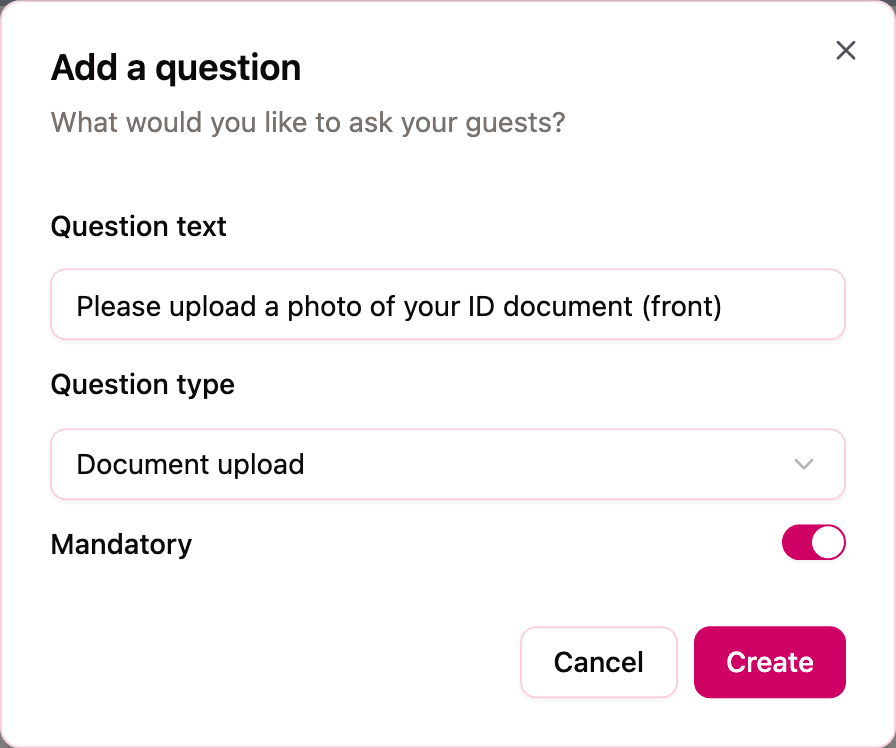
Write the Question text, for example "Please upload a photo of your ID document (front)".
-
In Question type, choose Document upload.
-
Decide whether it's Mandatory. If the venue won't let anyone in without it, keep it on.
-
Click Create.
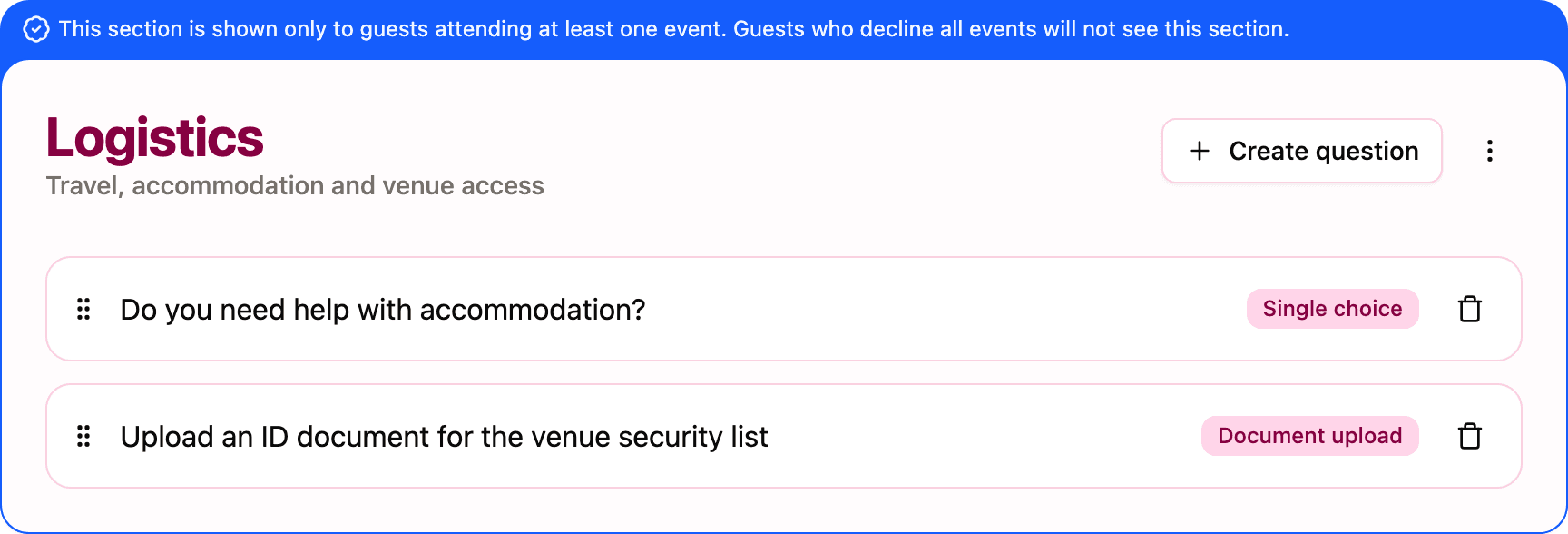
Put the question in the event section that actually requires it, after the attendance question. That way guests who answer "No" to that event are never asked for their document. For more on sections, see Organizing questions into sections.
One file per question. Each Document upload question accepts a single file. If you need both sides of an ID card, either ask guests for a PDF with both sides, or create two questions ("front" and "back").
What your guests see
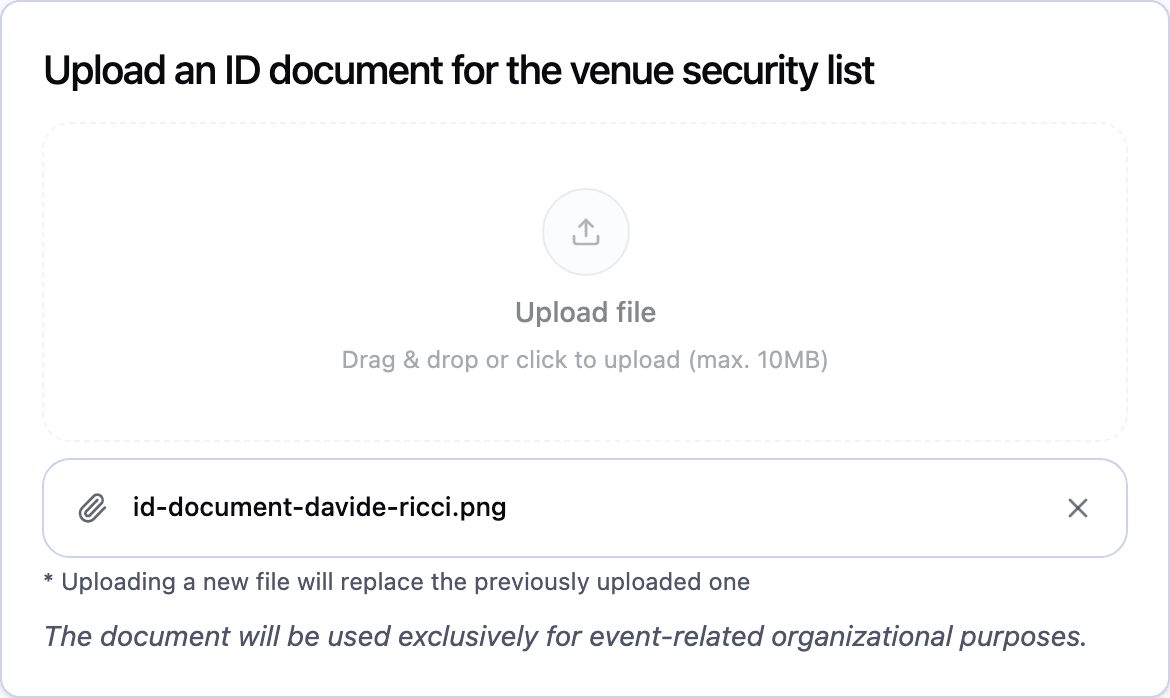
In the survey, the question shows an upload area with Upload file and "Drag & drop or click to upload (max. 10 MB)". Guests click it to choose a file; on a phone they can usually take a photo of the document or pick one from their gallery. Once a file is chosen, its name appears below the area, with an X to remove it and pick a different one.
Under the upload area guests also read two short notes:
- "Uploading a new file will replace the previously uploaded one";
- "The document will be used exclusively for event‑related organizational purposes."
The rules for the file are:
| Requirement | Details |
|---|---|
| Accepted formats | JPG, PNG and PDF |
| Maximum size | 10 MB |
| Files per question | One |
If the file is larger than 10 MB or in another format (a Word document, for example), the page shows an error under the upload area and the file isn't accepted: the guest needs to choose another one.
The file is sent when the guest clicks Next at the end of the section, together with the other answers. If a guest edits their answers later, the upload area is empty again, but the document they sent before is kept unless they upload a new one.
For the whole guest journey, see What your guests see on the RSVP page.
How the files are protected
Identity documents are the most sensitive data you'll collect, so they get extra protection:
- Encrypted before they leave the guest's device. The guest's browser encrypts the file before uploading it. What Invytly stores is a scrambled copy that nobody can read just by opening the storage where it's kept, Invytly staff included.
- Each file has its own key, and the keys are in turn locked by a separate, dedicated security service. A copy of the stored file on its own is useless.
- Stored apart from everything else, in a private storage area used only for guest documents.
- Decrypted only on download, when an authorised member of your project asks for it.
- Every access is recorded. Each upload, download and deletion is written to a separate log that can't be rewritten.
Download a document
Uploaded documents are on your Dashboard, in the guest report table. A cell with a document shows a green file icon.
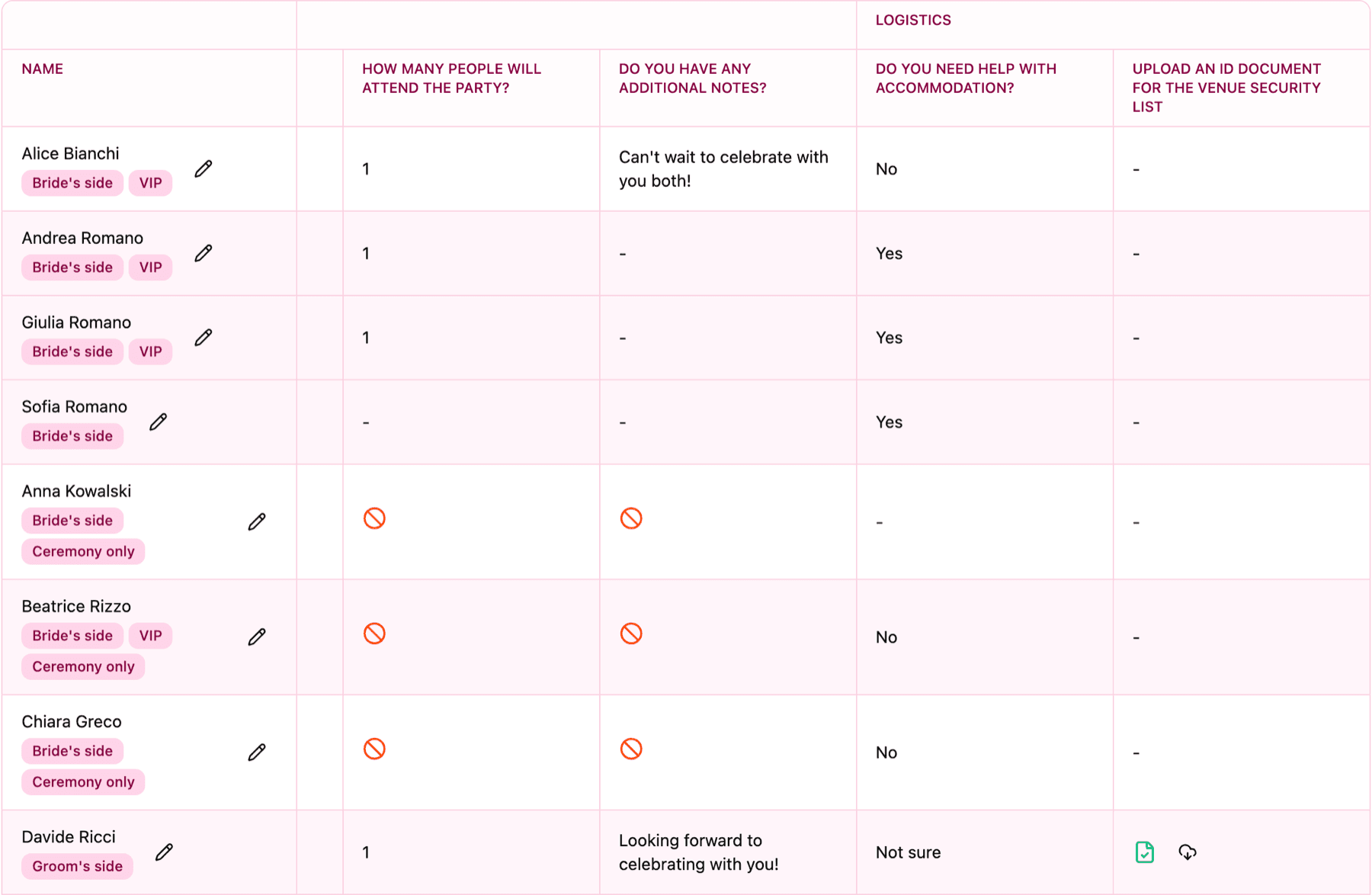
- Admins and Vendors also see a download button next to the icon. Click it and the document is decrypted and saved to your computer. The file is named with a code rather than the guest's name, so rename it as soon as you save it.
- Viewers only see the icon: they know the document is there, but they can't open it.
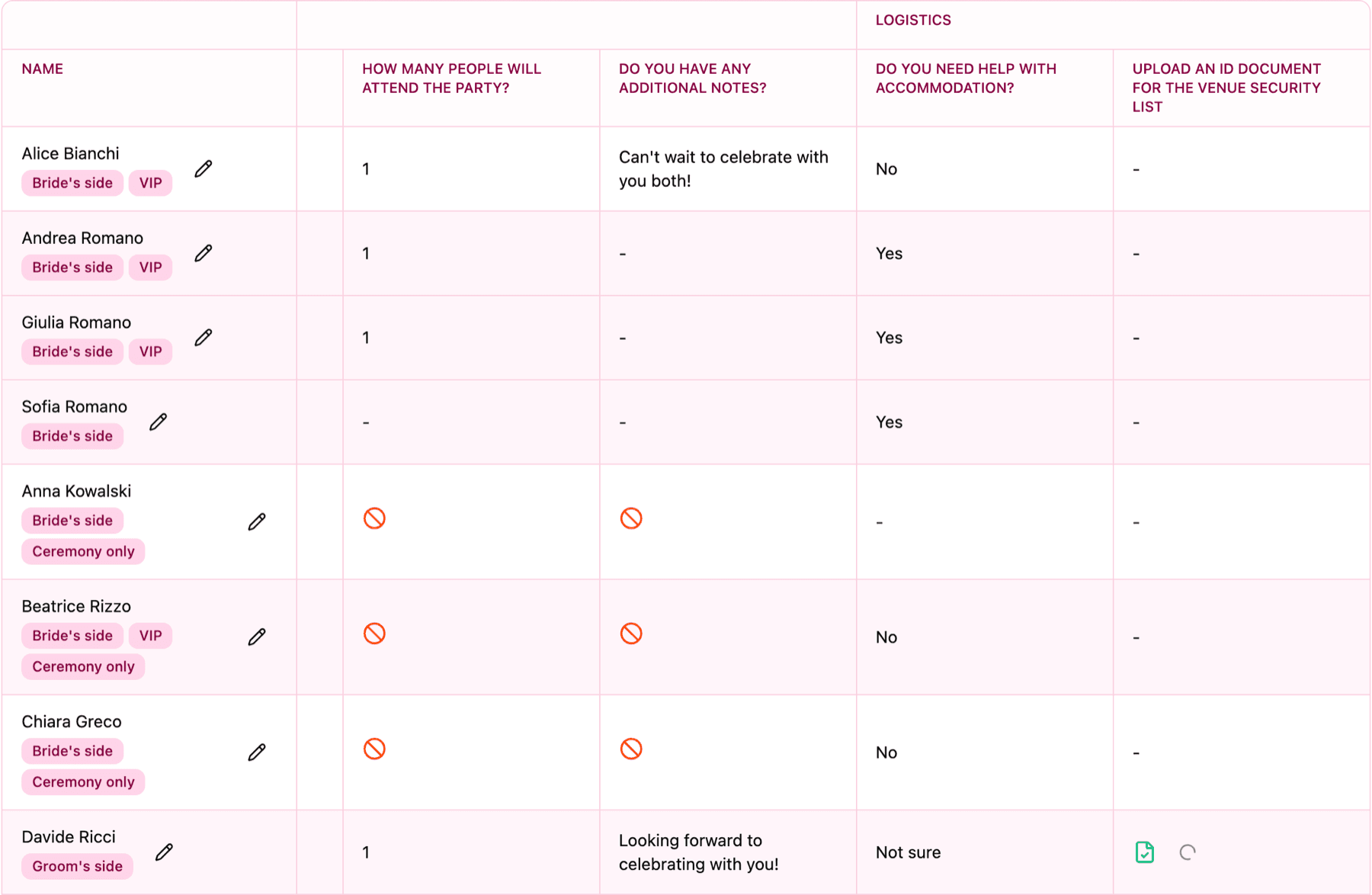
If the download fails, you'll see "There was a problem downloading the document. Please try again later." For everything else the table can do, see Reading and filtering the guest report table. For roles, see Adding collaborators and sharing the project with the couple.
If a guest sends you their document another way, an Admin can upload it on their behalf from the same table, with the pencil next to the guest's name (Edit answers).
Documents are not included in exports
The Excel and CSV downloads never contain the documents themselves. The Excel file only shows whether a document was uploaded, and the CSV shows a reference code in its place. To hand documents to a security company or a hotel, download them one by one from the table, or give them the Vendor role so they can download what they need themselves. See Downloading your guests' responses.
When documents are deleted
There's no button to delete a single document. Uploaded files are permanently deleted:
- when you delete the guest who uploaded them;
- when you delete the project, together with all its guests and data (see The Settings page explained).
Deleting the question removes it from the survey, but doesn't delete the files already uploaded: they're removed with the guest or the project.
What the privacy notice tells guests
The Privacy Policy linked at the bottom of the RSVP page tells guests that identity documents are uploaded only for identification, check-in at accommodation connected to the event and access control, that they're stored in encrypted form, and that they're kept only for the time needed to manage check-in and access, then deleted or made permanently inaccessible.
As the event organiser you're the one who decides when that time is over. Once check-in and access control are done and you no longer need the documents, download the answers you want to keep and delete the project, so the documents go with it.
Asking only for what you need
A few habits keep your guests comfortable and their data safe:
- Ask only when someone requires it. If the venue doesn't check IDs, don't collect them "just in case".
- Ask only the guests who need it. Put the question in the section of the event that requires it, and assign that section only to the guests concerned.
- Explain why in the question. "The castle's security team needs a copy of your ID to add you to the guest list" gets far more uploads than "Upload your ID".
- Give documents only to who needs them. Share files with vendors through the Vendor role rather than forwarding them by email, and don't give the Vendor role to anyone who doesn't need the documents.
- Don't keep them longer than necessary. Plan when you'll delete the project once the event is over.